


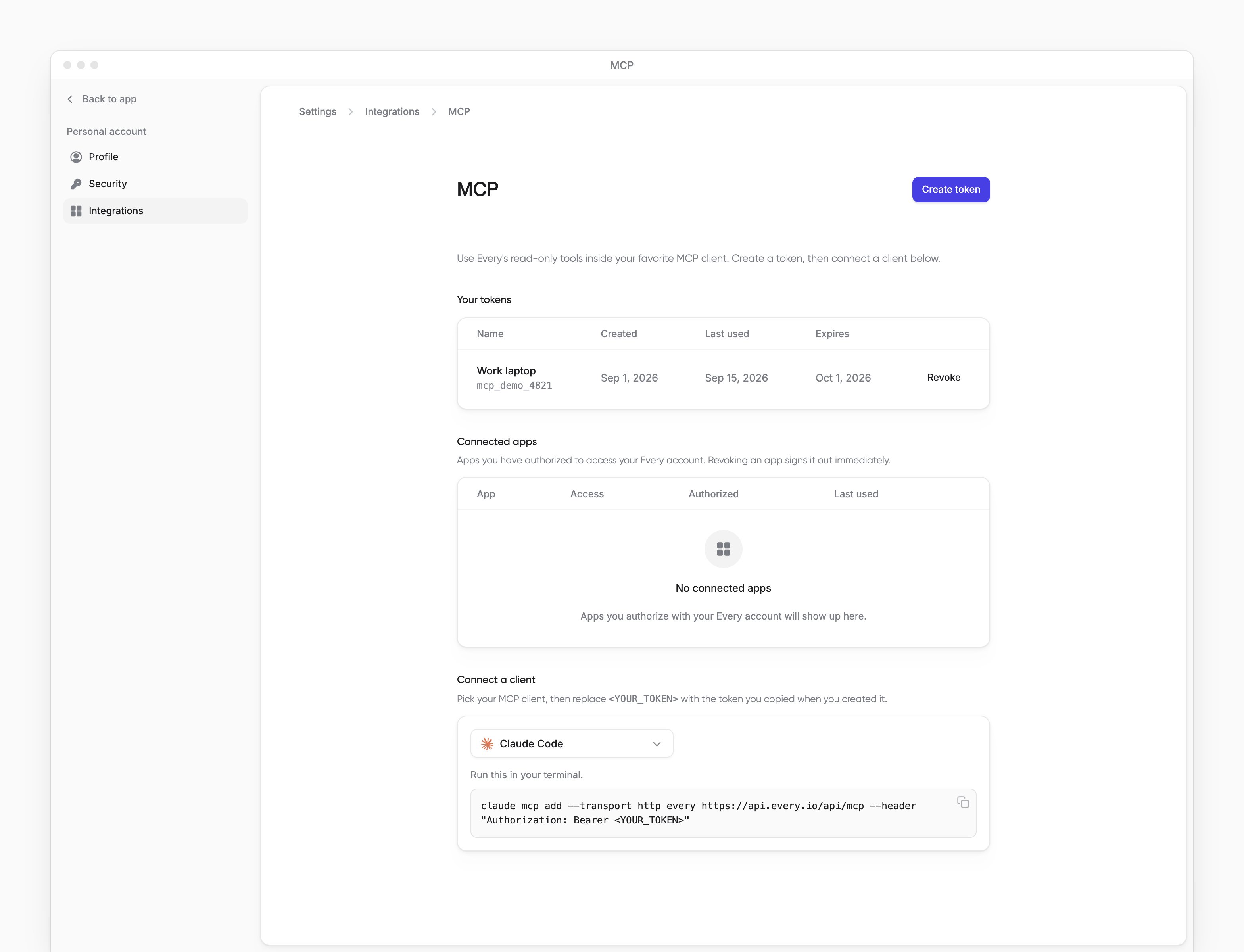
 My account → Integrations → MCP connects AI clients to your data in Every with a .
Company Admins, HR Admins and Bookkeepers with AI chat access can connect a client and use the tools their roles allow. Employees with AI chat access can connect their own client (see MCP for employees).
MCP is read only. A connected client can use the tools your roles allow to read data, but cannot change records or send money.
My account → Integrations → MCP connects AI clients to your data in Every with a .
Company Admins, HR Admins and Bookkeepers with AI chat access can connect a client and use the tools their roles allow. Employees with AI chat access can connect their own client (see MCP for employees).
MCP is read only. A connected client can use the tools your roles allow to read data, but cannot change records or send money.
Create a token
1
Open MCP settings
Go to My account → Integrations → MCP.
2
Start a new token
Select Create token.
3
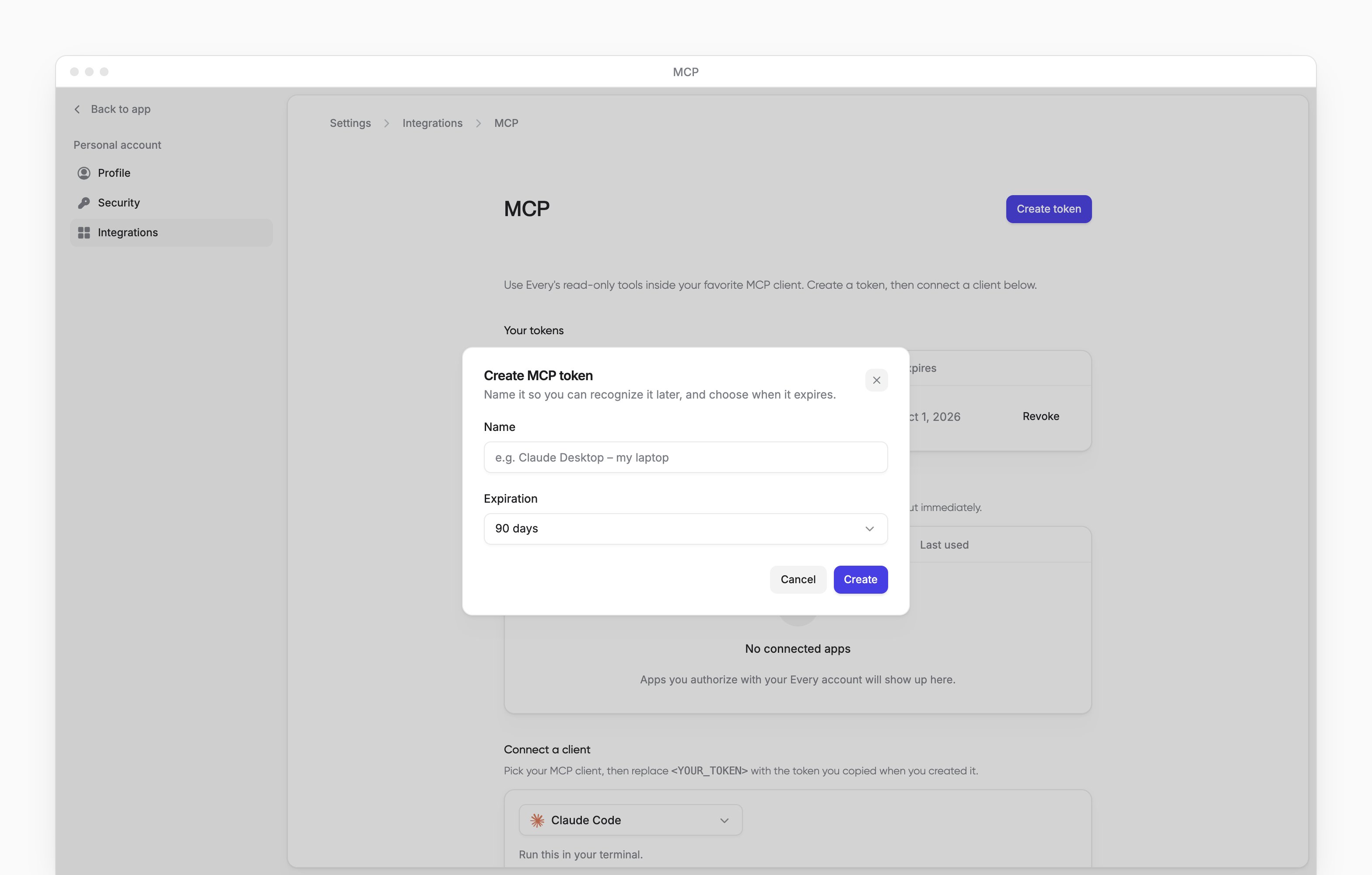
Name the token
Optional: In Name, enter a name that identifies the client, such as Claude Desktop on your laptop.
4
Choose an expiration
In Expiration, choose 90 days, 180 days or 1 year.
5
Create the token
Select Create.
6
Copy the token
Copy the token now. Every shows it once.
Connect a client
Use the token with one of these clients. Connect a client in Every also shows the configuration for each one.Connect Claude Code
Add Every with a terminal command
Connect Claude Desktop
Add Every to your desktop configuration
Connect Cursor, Windsurf or Codex
Add Every to your client’s MCP configuration
Try a question
Company Admins and Bookkeepers can ask about company banking data when the banking tools are turned on for your company.Review company cash
Revoke a token
On My account → Integrations → MCP, find the token under Your tokens:- In the token’s row, select Revoke.
- To confirm, select Revoke again.
Coming soon
Account sign-in
Coming soon
Preview account sign-in for MCP and find available personal-token setup guides
ChatGPT
Coming soon
Connect another AI client to Every with a personal token while ChatGPT is coming soon