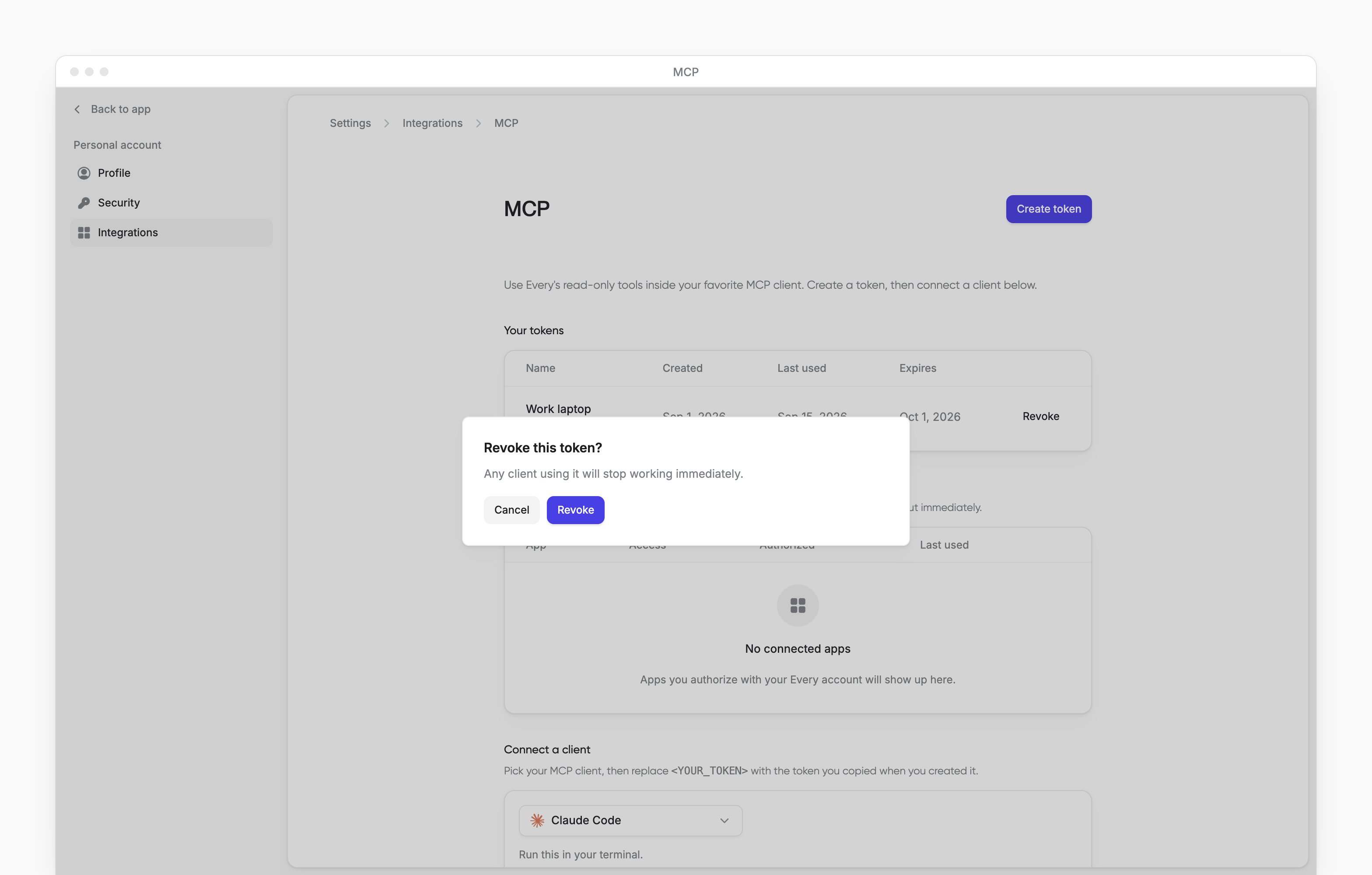
In My account → Integrations → MCP, connect your own MCP client to read your Every data. You need AI chat access.
Create a token
1
Open MCP
From your profile menu, go to My account → Integrations → MCP.
2
Open the token dialog
Select Create token.
3
Name the token
Optional: In Name, enter a name you will recognize, such as your client and device.
4
Choose when it expires
In Expiration, choose 90 days, 180 days or 1 year. The default is 90 days.
5
Create the token
Select Create.
6
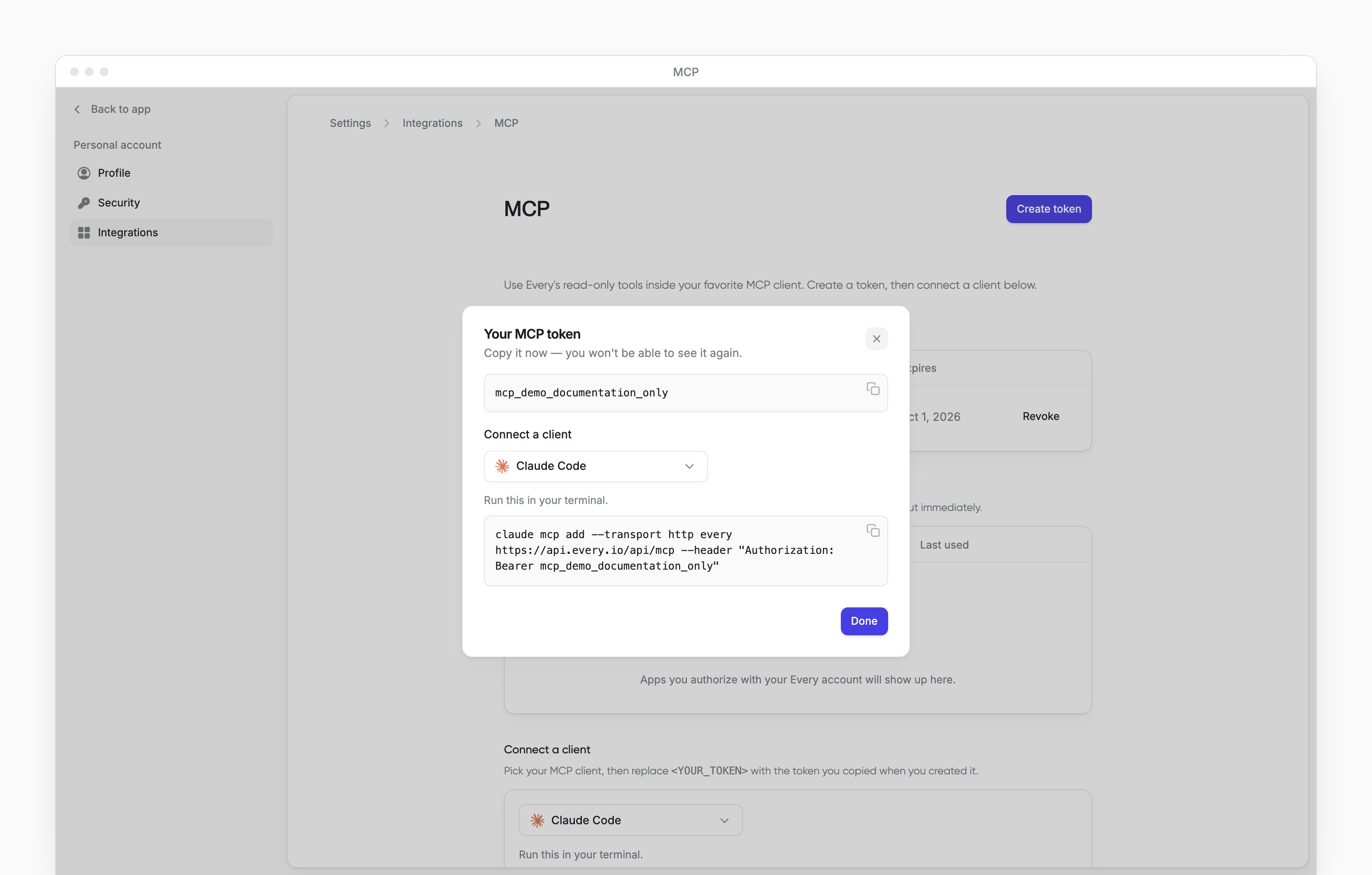
Copy the token
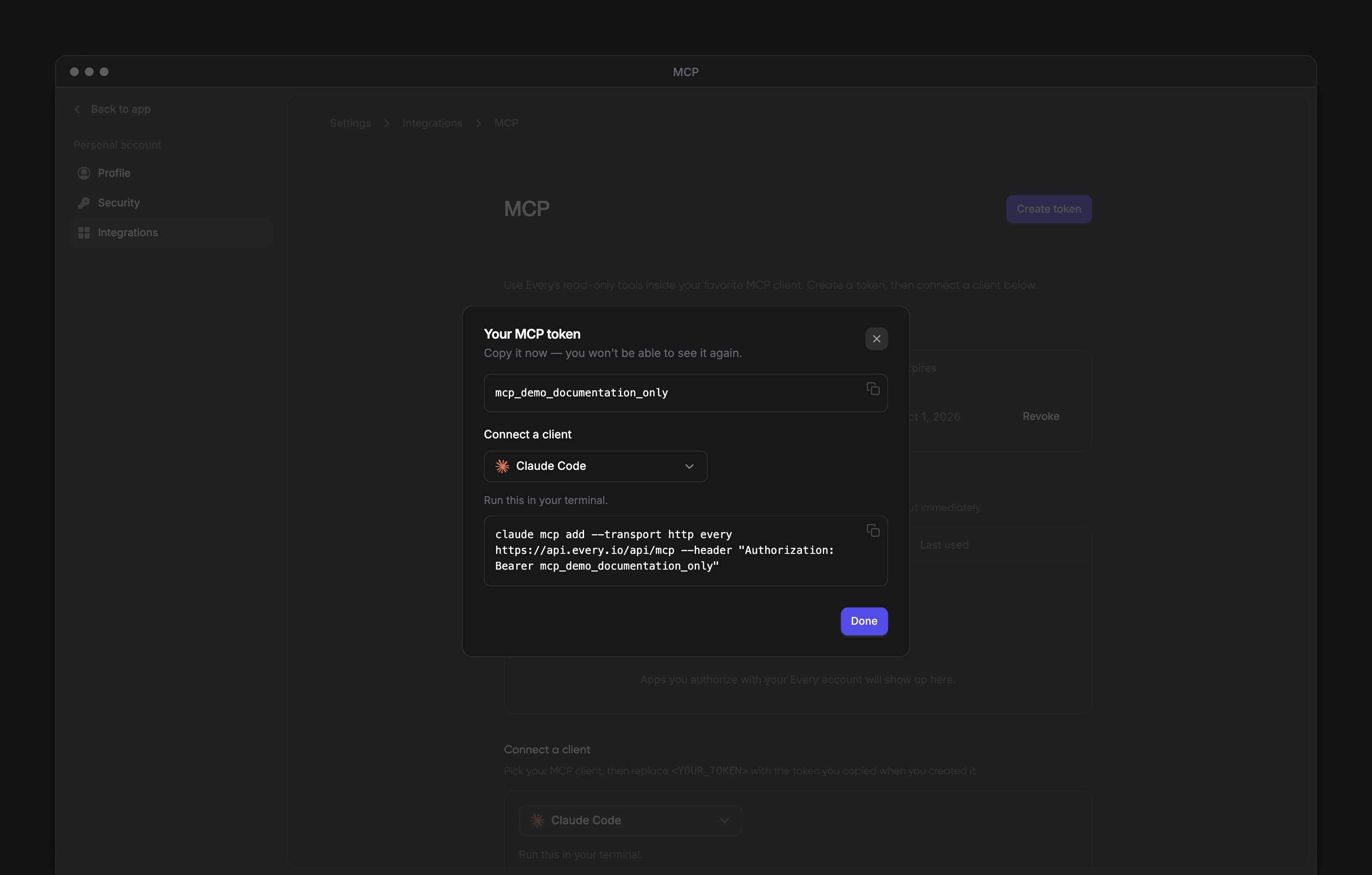
In Your MCP token, copy the token. Every does not show it again after you close the dialog.
Connect your client
- Under Connect a client, open the menu that shows Claude Code and select Claude Code, Claude Desktop, Cursor, Windsurf or Codex.
-
Follow the instructions shown for your client. In Your MCP token, the configuration includes your new token. On the MCP page, replace this placeholder with the token you copied:
Ask about your records
Your roles and the tools Every has turned on determine which questions your MCP client can answer. MCP reads data; it cannot change your records or submit time off requests.Your pay rate
Your last paystub
Your benefits
Your time off balance
Plan time off
Your request status
Revoke a token
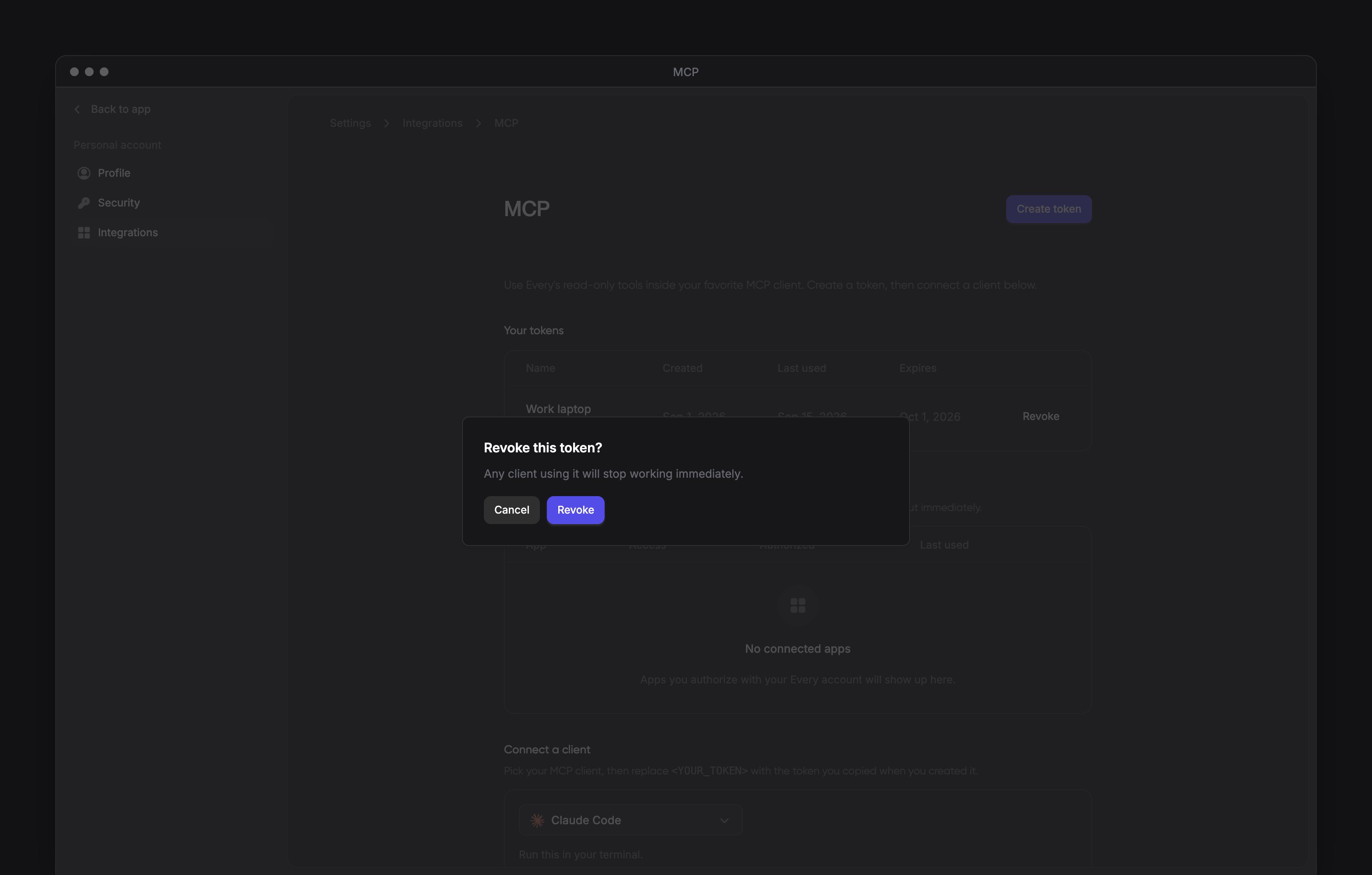
- In My account → Integrations → MCP, under Your tokens, select Revoke beside the token.
- In Revoke this token?, select Revoke. MCP clients using that token can no longer connect.