


 Company Admins and HR Admins use People → Add people → Bulk import employees to add several U.S. employees or contractors from a CSV. You choose when to release their onboarding invitations.
Every turns on bulk import company by company. If you don’t see it, email support@every.io to ask about it.
Before you begin
- You’re a Company Admin or HR Admin, payroll is set up and your company has finished onboarding.
- Create the pay schedules you’ll use before importing. Employees paid by the hour need a schedule set up for hourly pay.
- Keep each file at 10 MB or less and at most 10,000 data rows.
Prepare and upload the CSV
1
Choose who to import
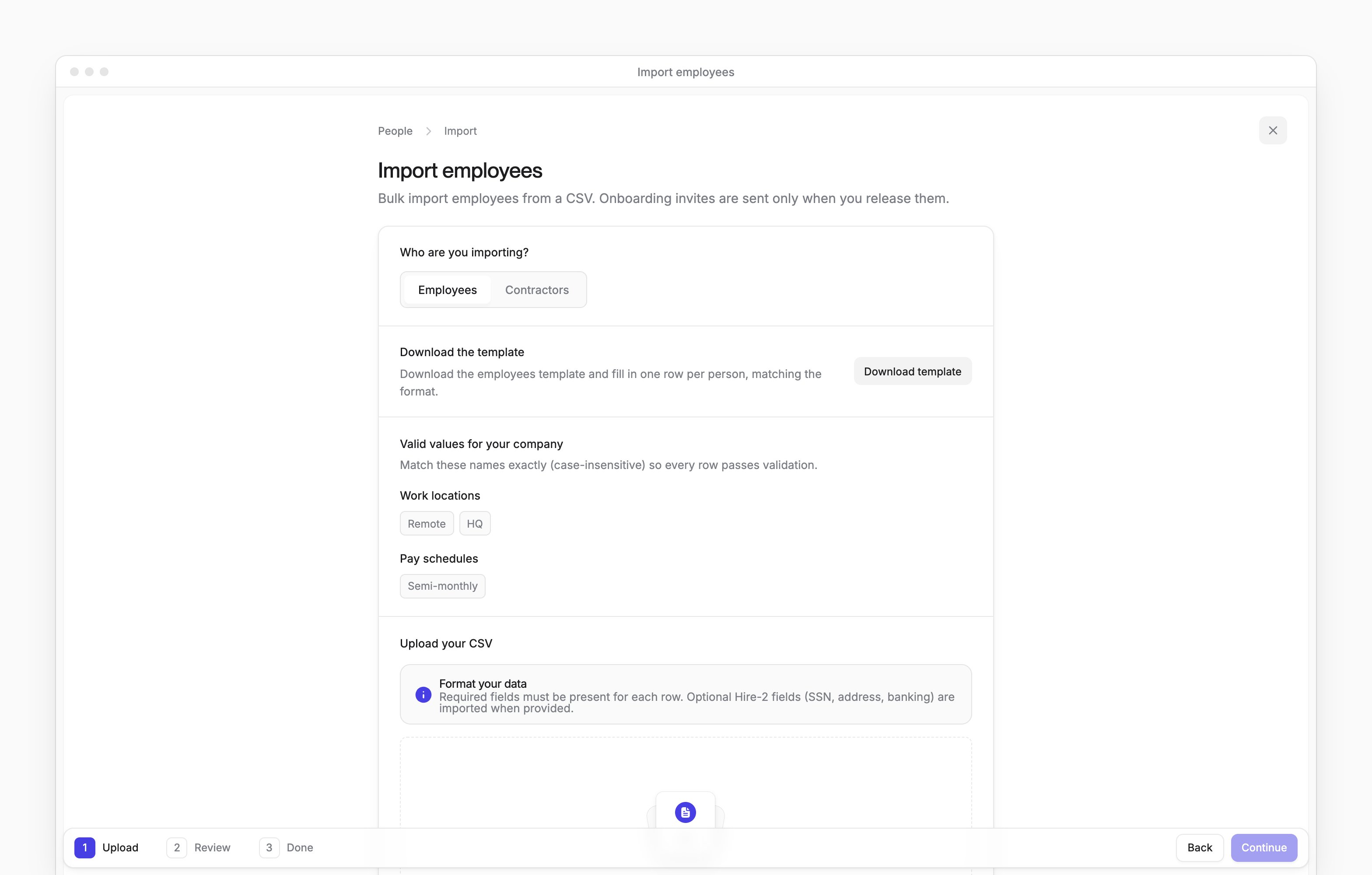
Under Who are you importing?, choose Employees or Contractors. Each kind has its own template.
2
Download the template
Select Download template.
3
Fill in one row per person
Keep the template’s required columns and fill in each person’s name, email, department, job, start date, compensation and pay schedule.Employee rows also need their type (
Full Time or Part Time), work location and overtime eligibility. A Part Time row needs Hour as its compensation frequency.Use dates in YYYY-MM-DD format. Optional columns take personal, tax and bank details.4
Match your company values
Use the names under Valid values for your company for pay schedules and employee work locations. Matching ignores case. For a remote employee, use
Remote.A manager’s email must match an employee or contractor already in People. You can leave it blank.5
Upload the file
In Upload your CSV, add your CSV.
6
Check the file
Select Continue to check each row.
Review the rows
Review separates Needs attention from Ready to import. Only rows under Ready to import are imported. To import the valid rows now, select the import button showing their number and kind. The button is unavailable when no rows are valid or the import is still working. To fix rows first:1
Download the errors
Select Download errors to get a CSV of each row’s errors.
2
Fix the rows
Correct those rows in your CSV.
3
Return to upload
Select Upload a revised file to return to Upload.
4
Upload the corrected file
In Upload your CSV, add the corrected CSV.
5
Check the corrected file
Select Continue to check the corrected CSV.
What happens next
On Done, Successful imports and Not imported count the rows. Imported people appear in People. Check the personal and bank details on each imported person’s profile. A person can be imported even when those optional details from the CSV weren’t saved. To retry rows counted under Not imported:1
Download the errors
Select Download errors.
2
Fix the rows
Correct those rows in your CSV.
3
Return to upload
Select Import another file to return to Upload for the corrected CSV.