Payments → All payments lists reimbursements next to bills. A reimbursement waits for its approvers, who approve it from a to-do on Home or from All payments. You can also submit one for an employee yourself.
Company Admins and Bookkeepers see reimbursements on All payments after your company finishes onboarding. So do Accounts Payable users, once Every has turned that role on for your company. Each employee asks to be reimbursed from My transactions (see My transactions).
Payments → All payments lists reimbursements next to bills. A reimbursement waits for its approvers, who approve it from a to-do on Home or from All payments. You can also submit one for an employee yourself.
Company Admins and Bookkeepers see reimbursements on All payments after your company finishes onboarding. So do Accounts Payable users, once Every has turned that role on for your company. Each employee asks to be reimbursed from My transactions (see My transactions).
Every turns on All payments and the Reimbursement approvals setting company by company. If you don’t see them, email support@every.io to ask about them.
Find a reimbursement
On All payments, a reimbursement’s Type is Reimbursement and its Recipient is the employee. Search by the employee’s name to find one, and select a row to open its items and receipt. All payments covers the tabs and columns. A reimbursement waiting for approval shows Needs approval in Stage. One an approver declined shows Declined. On a person’s page in People, the Expenses tab lists their reimbursements under Reimbursements, each with its status.Choose who approves
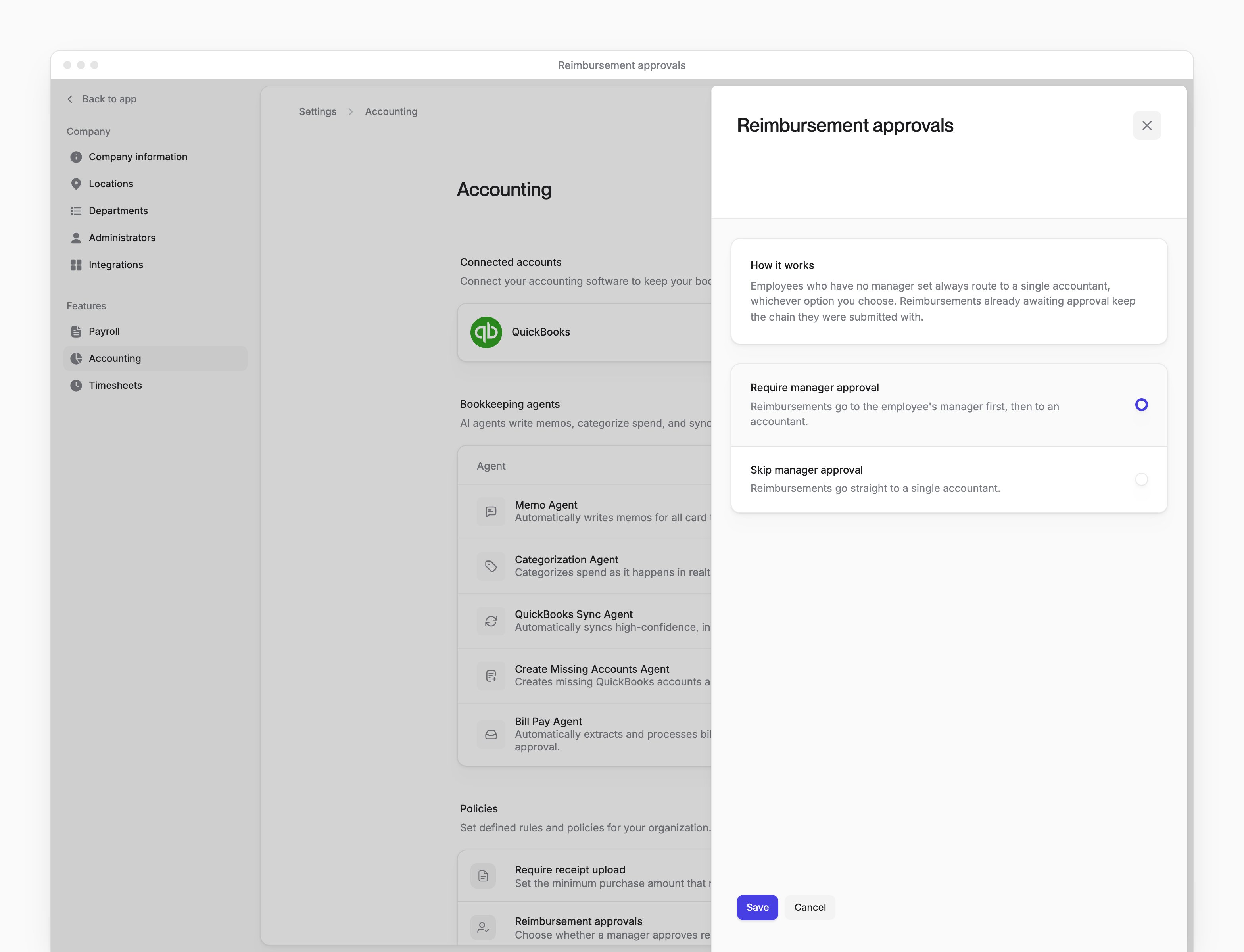
A reimbursement a Company Admin submits needs no approval and is sent for payment right away. One paid from an employee’s benefit budget needs no approval either. When anyone else submits any other reimbursement, they choose the approvers: the employee’s manager, a Company Admin or both. Company Admins and Bookkeepers can open Settings → Accounting after your company finishes onboarding.-
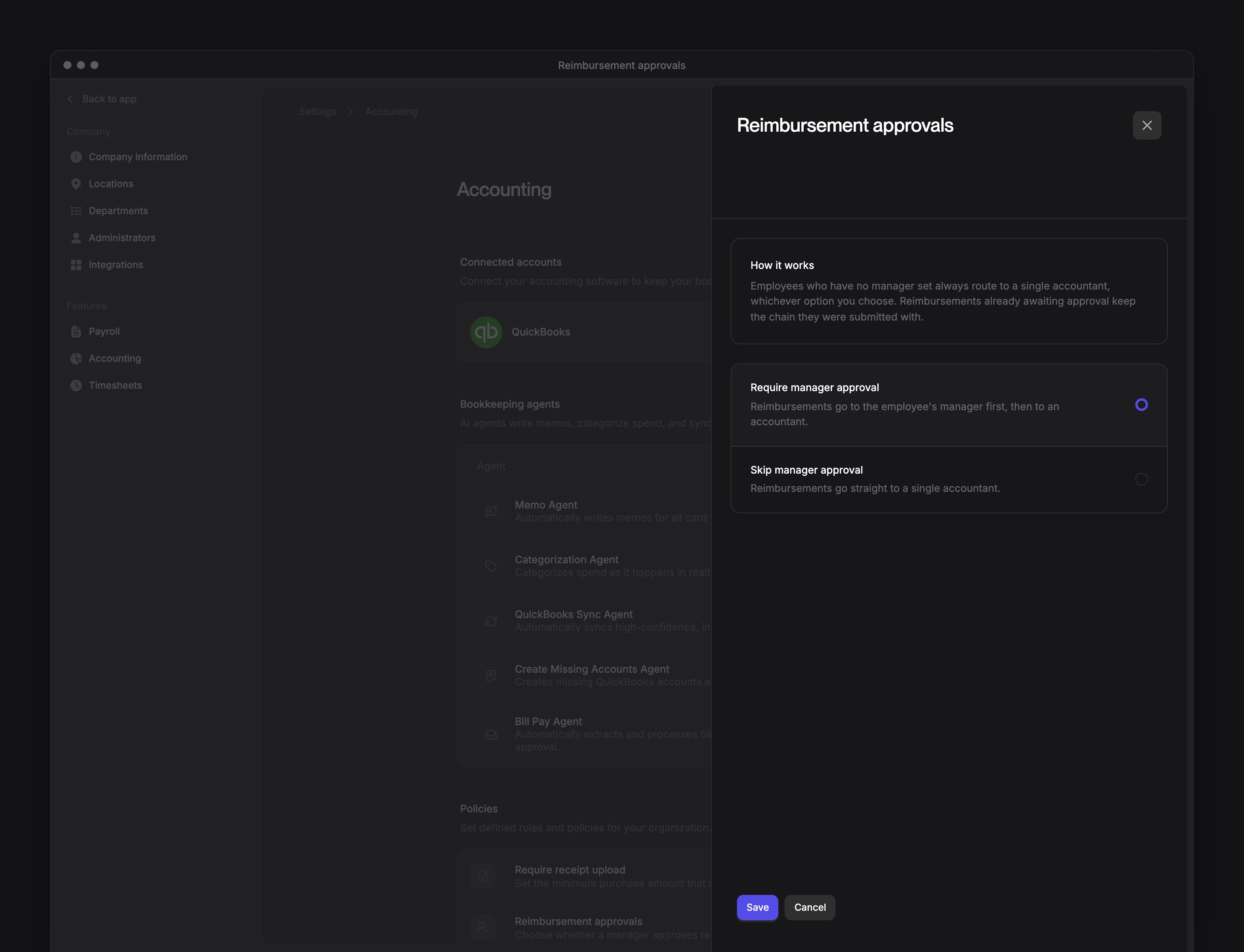
In Settings → Accounting → Policies → Reimbursement approvals, choose how approvers are used:
- Select Save.
Approve or decline a reimbursement
A reimbursement waiting on you is a to-do on Home. When a reimbursement has two approvers, the second one gets the to-do after the first approves.1
Open the to-do
On Home, select the to-do for the reimbursement, such as “Approve $86.42 reimbursement for Jordan Lee”. When several are waiting, they’re grouped under one to-do, such as “Approve 3 reimbursements”.
2
Review the reimbursement
Reimbursement details shows the employee, each item and a preview of its receipt.
3
Approve it
Select Approve, then confirm. When more reimbursements are waiting, the button reads Approve & next.
Submit a reimbursement for an employee
Company Admins, Bookkeepers and HR Admins can submit a reimbursement for other employees. An Employee who manages people can submit one for the people who report to them. Accounts Payable users can submit only their own. The form works once your company has connected its accounting software. It also needs your reimbursement and bank account defaults set (see Accounting settings). Until then, the form isn’t available. Open the form from any of these:- On Home, under Quick access, select Reimbursement. The form opens with you chosen as the employee.
- On a person’s page in People, select Actions → Create reimbursement, or select Create new under Reimbursements on the Expenses tab.
- In the command palette, which Cmd+K or Ctrl+K opens, select Create reimbursement. Company Admins and Bookkeepers see it.
1
Choose the employee
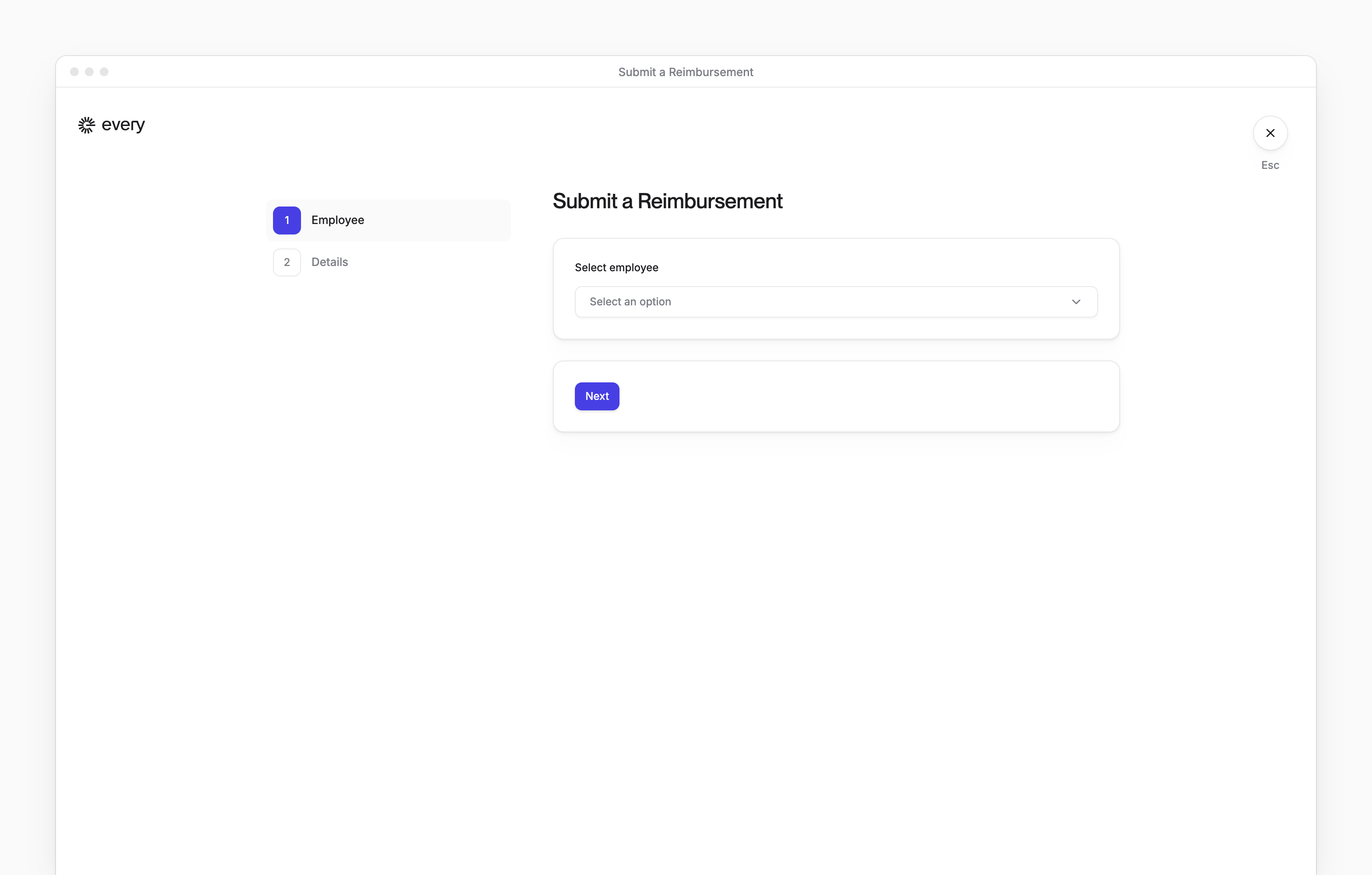
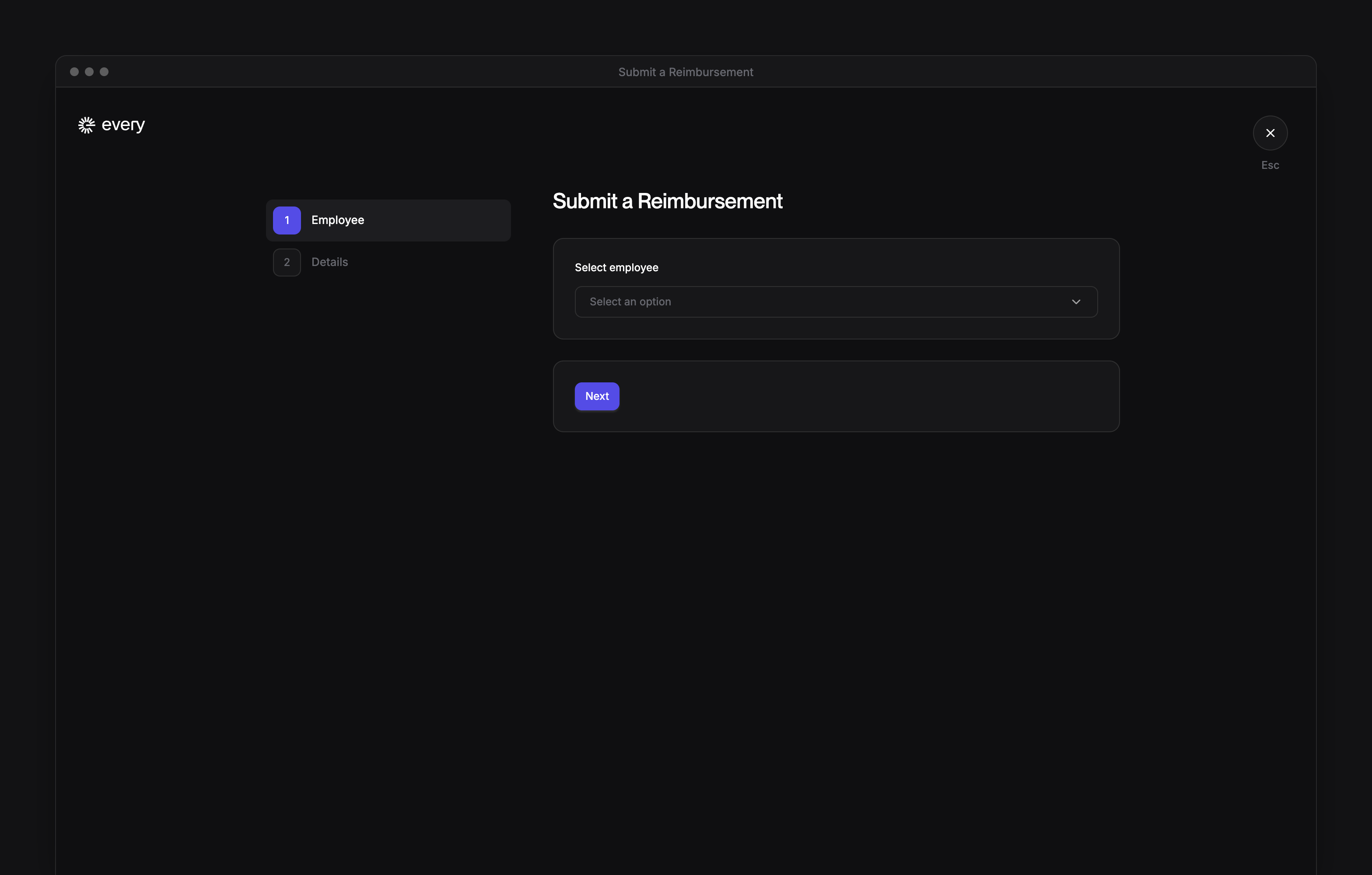
On Submit a Reimbursement, choose the person in Select employee. If the step asks “What type of reimbursement would you like to submit?”, keep Corporate. If it shows Select bank account, choose the account to pay into. Select Next.
2
Enter the items
On Reimbursement Details, choose how many items to reimburse in Number of items, from 1 to 5. For each item, enter the Vendor and Amount, say what it was for in I paid for and choose the purchase’s category and department. Add a receipt under Upload receipt if you have one: Every fills Vendor and Amount from it when they’re empty.
3
Choose the approvers
Unless you’re a Company Admin, choose the approvers on Reimbursement Details as well (see Choose who approves). Select Next.
4
Review and submit
Review Reimbursements shows the total and each item. Select Submit. Every confirms with “Reimbursement has been submitted!”