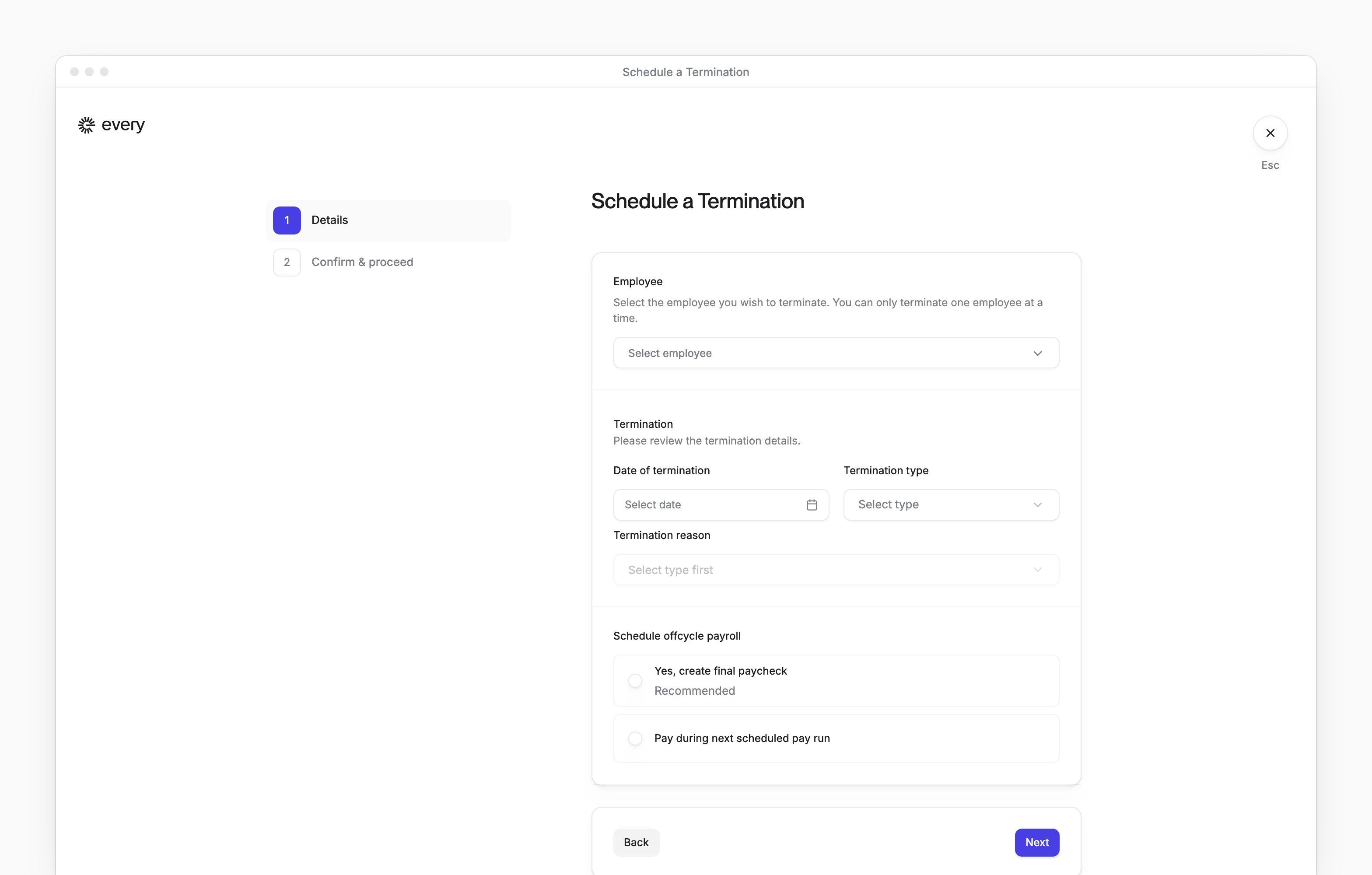
On People, open the person’s profile and select Actions → Terminate employee. Company Admins and HR Admins set the person’s last day, choose final pay and cards and reassign direct reports.
Every turns on the Reassign direct reports step and personal email fields company by company. If you don’t see them, email support@every.io to ask about them.
Before you begin
- You need the Company Admin or HR Admin role. People appears once payroll is set up and your company has finished onboarding.
- Choose a person whose onboarding is complete. Selecting someone still onboarding opens their hire flow instead of their profile.
- Have the termination date, type and reason ready.
- If the person manages others or signs for the company, decide who takes over those responsibilities.
Set the termination
1
Check the personal email
When Personal email or Personal email (optional) appears, confirm the address or enter one. You can leave Personal email (optional) blank.
2
Set the last day
In Date of termination, choose the person’s last day.
3
Give the reason
Choose a Termination type and a Termination reason. If the reason is Other, describe it in Notes.
4
Choose the final-pay option
Under Schedule offcycle payroll, choose how the person gets their last paycheck. Yes, create final paycheck creates a separate pay run. Pay during current pay run and Pay during next scheduled pay run use a regular run.The choices depend on the current regular pay run and termination date. When a current regular pay run exists and the last day falls before its pay period, Pay during previous pay run appears. To check whether the person was overpaid, email support@every.io.
5
Choose what happens to cards
When Card disposition appears, choose Yes, close the cards (recommended) or No, keep the cards active.
6
Reassign their reports
When Reassign direct reports appears, choose each report’s replacement under New primary manager. When New secondary manager appears, choose a replacement there too.For a future termination, reports move on the person’s last day. For today or an earlier date, reports move when you confirm.
7
Replace the company signatory
When Choose a new signatory appears, choose the replacement in New signatory.
8
Review and confirm
In Confirm & proceed, check the details. If the review shows sign-in instructions for the person, note them. Then select Confirm & terminate, or Make changes to go back.