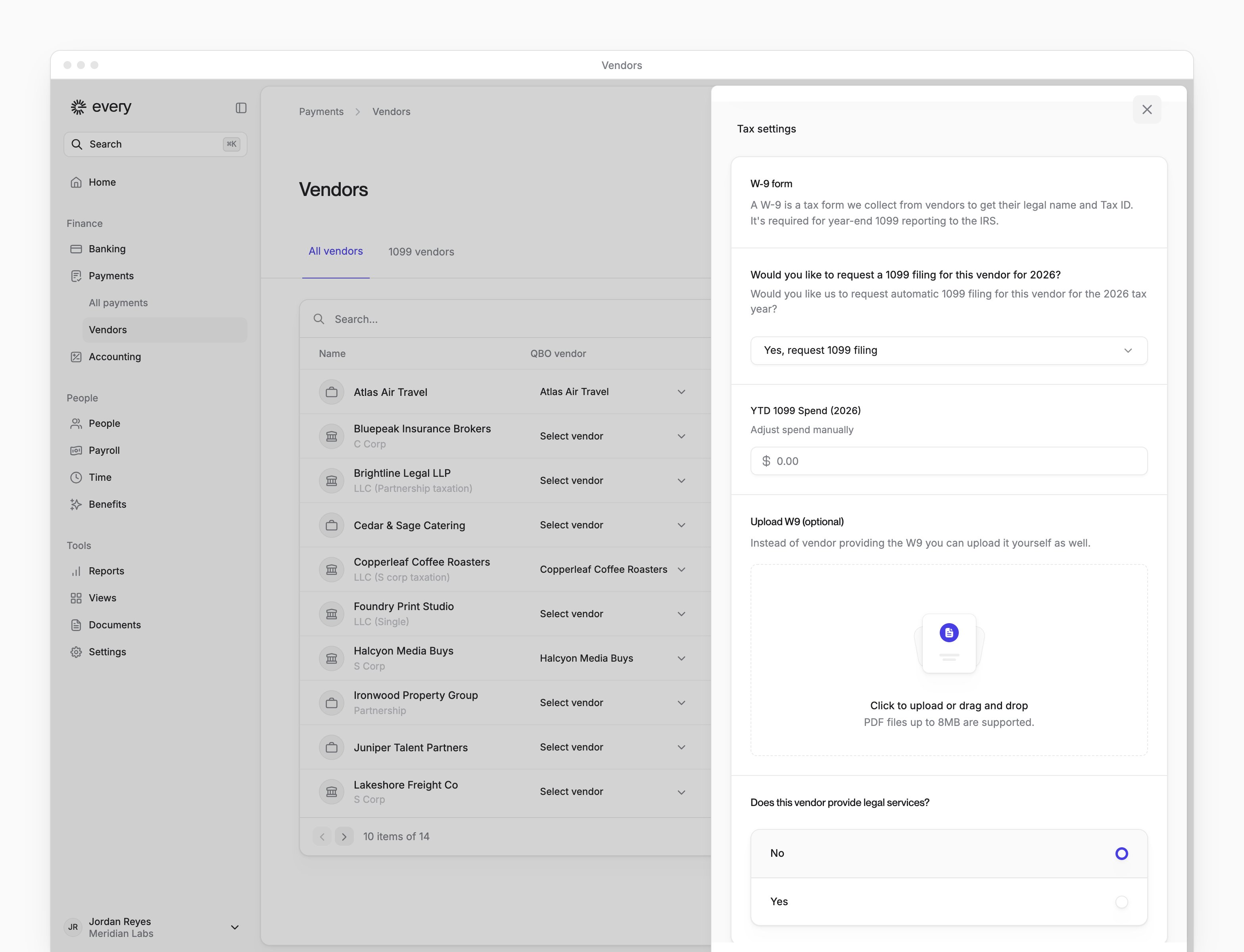
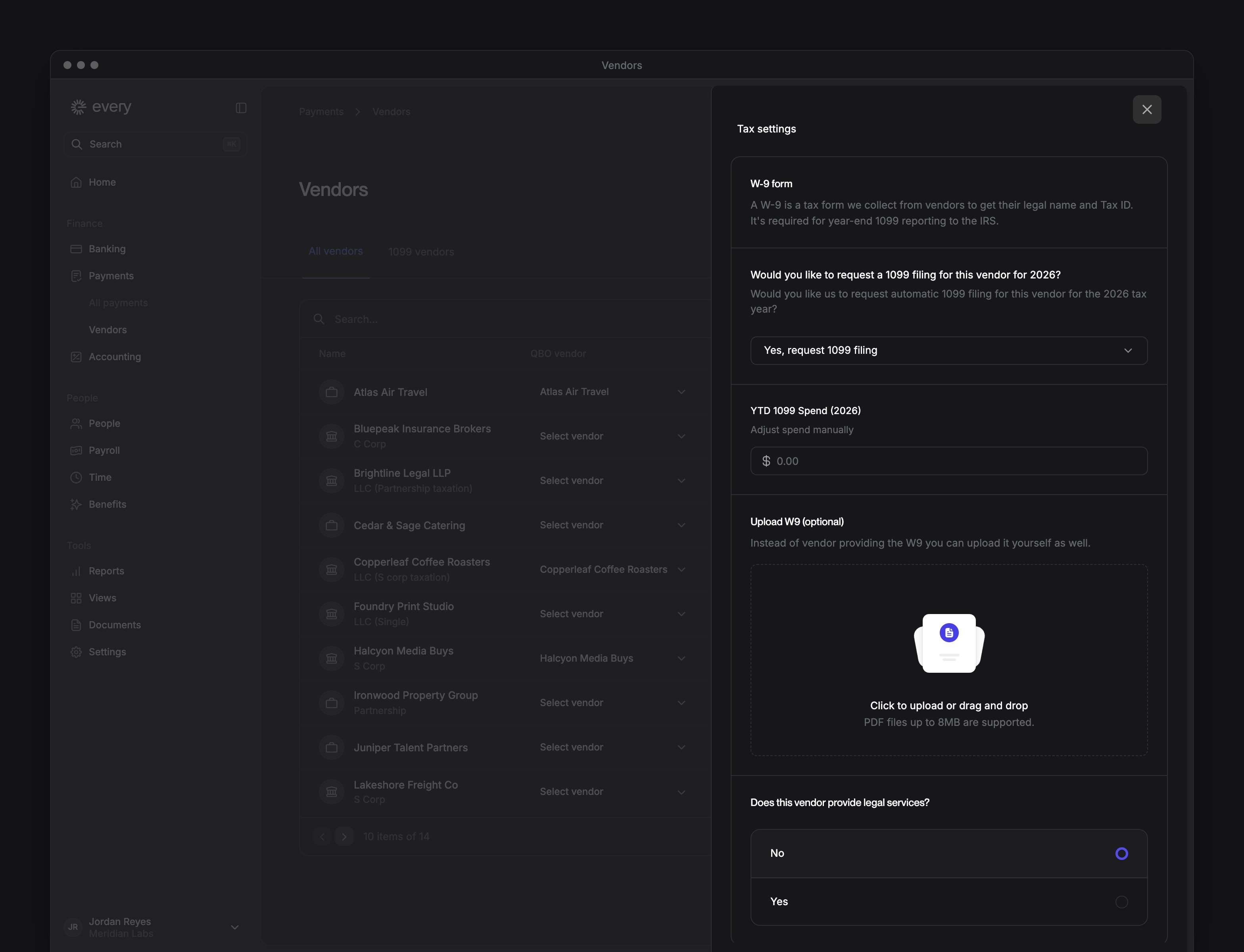
Ask Every to file a 1099 for a vendor on Payments → Vendors, and download it from the same page once it’s ready. Company Admins, Bookkeepers and Accounts Payable users can request 1099s after your company finishes onboarding. Company Admins and Bookkeepers can also download them. The Accounts Payable role alone doesn’t allow downloads.
Every turns on the Accounts Payable role company by company. If you don’t see it, email support@every.io to ask about it.
Before you begin
When you answer Yes while adding a vendor, Every doesn’t save the vendor until it has:- The vendor’s Entity Type, name and Type of TIN (SSN or EIN)
- A 9-digit
- The vendor’s street, city, state and zip code
- A QBO Vendor, if your accounting software is connected
Request a 1099
The tax year is the current year from February to December, and the previous year in January. It shows in the question you answer.
Tax settings is in the vendor’s details: in the menu at the end of the vendor’s row, select Edit vendor. The menu button shows when you point at the row.
Follow a request
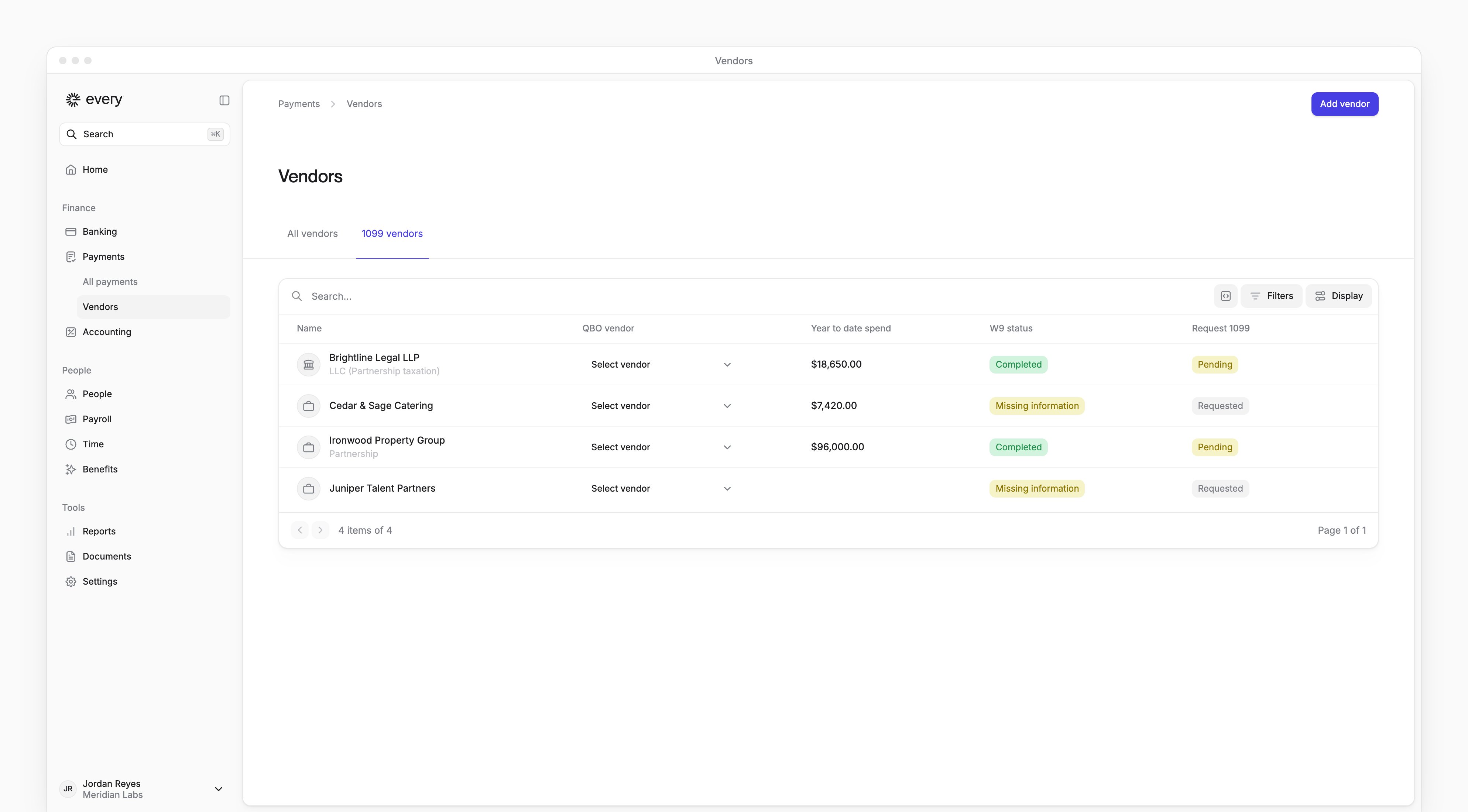
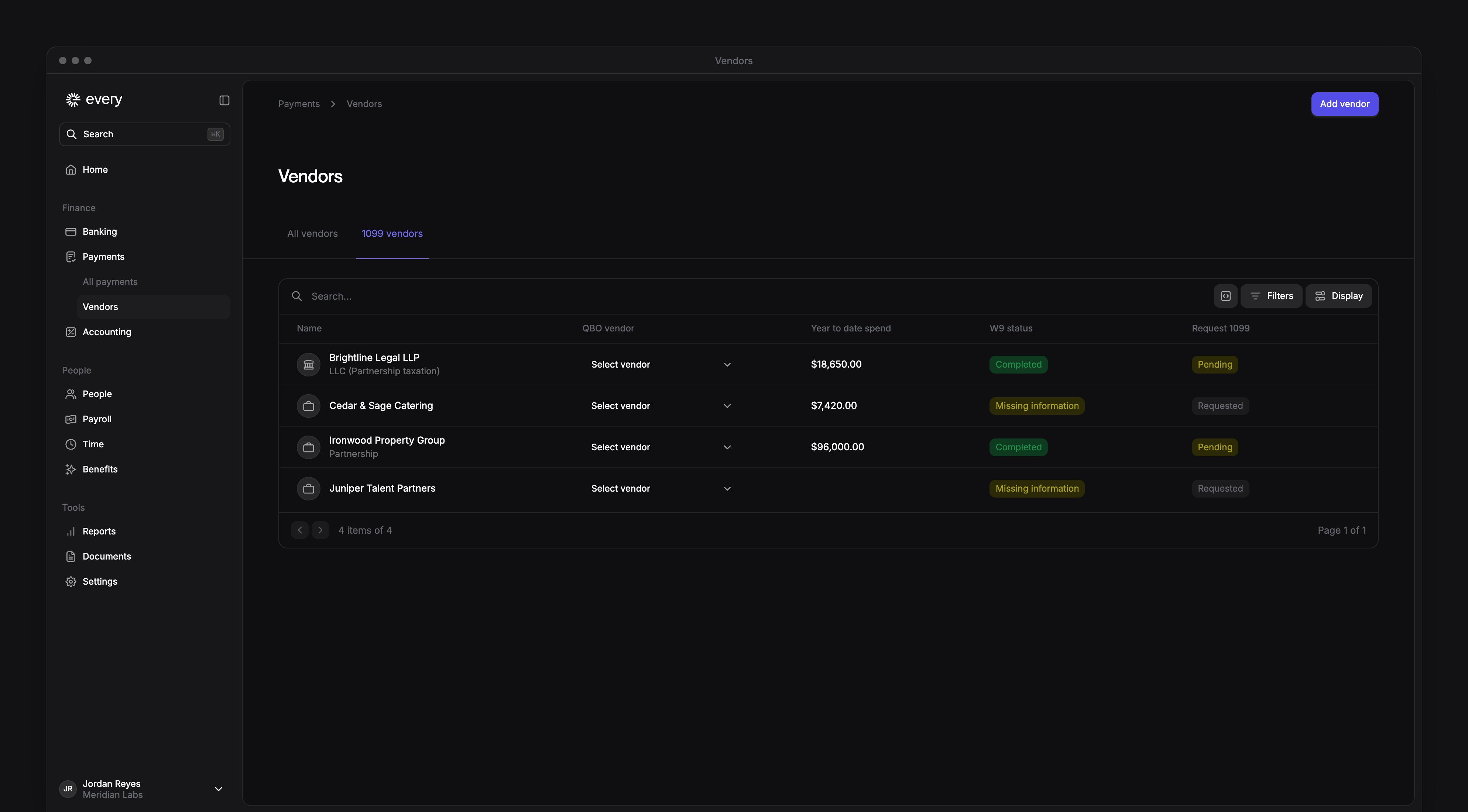
All vendors shows all your vendors, and 1099 vendors only those with a request on. The Request 1099 column shows where each 1099 stands:
A request made in Tax settings shows Pending right away. A request made with the switch shows Requested.
Every files the 1099 for you. When it’s ready, select Download 1099 in the column. Every opens the 1099 as a PDF in a new tab.
Turn off a request
Once a request is on, the column shows its status instead of the switch, so you turn the request off in Tax settings.- In the menu at the end of the vendor’s row, select Edit vendor.
- In Tax settings, choose No, do not request 1099 filing.
Check the W-9
W9 status reads Completed when Every has the vendor’s entity type, TIN and address, and Missing information when it doesn’t. It doesn’t read an uploaded file. To get what’s missing from the vendor, see Collect vendor details. You can also upload the vendor’s W-9 as a PDF under Upload W9 (optional) in Tax settings.Adjust the spend on a 1099
Once a vendor’s request shows Pending or Download 1099, Tax settings shows YTD 1099 Spend ({year}), the amount Every files on the vendor’s 1099. Enter the amount you want, and Every saves it when you leave the field. The Year to date spend column then shows your amount. When the field says the amount was already filed on the 1099 form, you can’t change it. It unlocks for the next 1099 filing.