


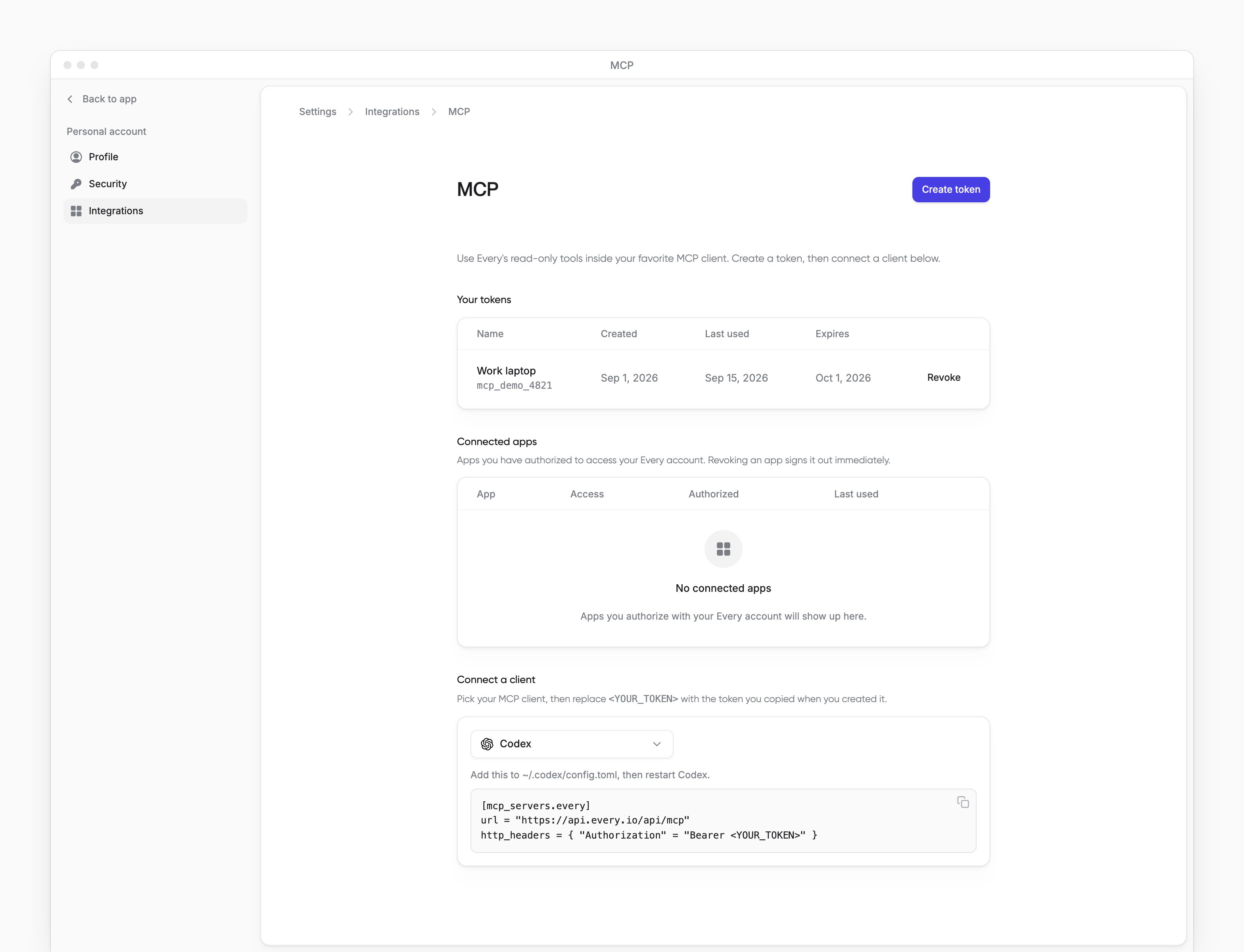
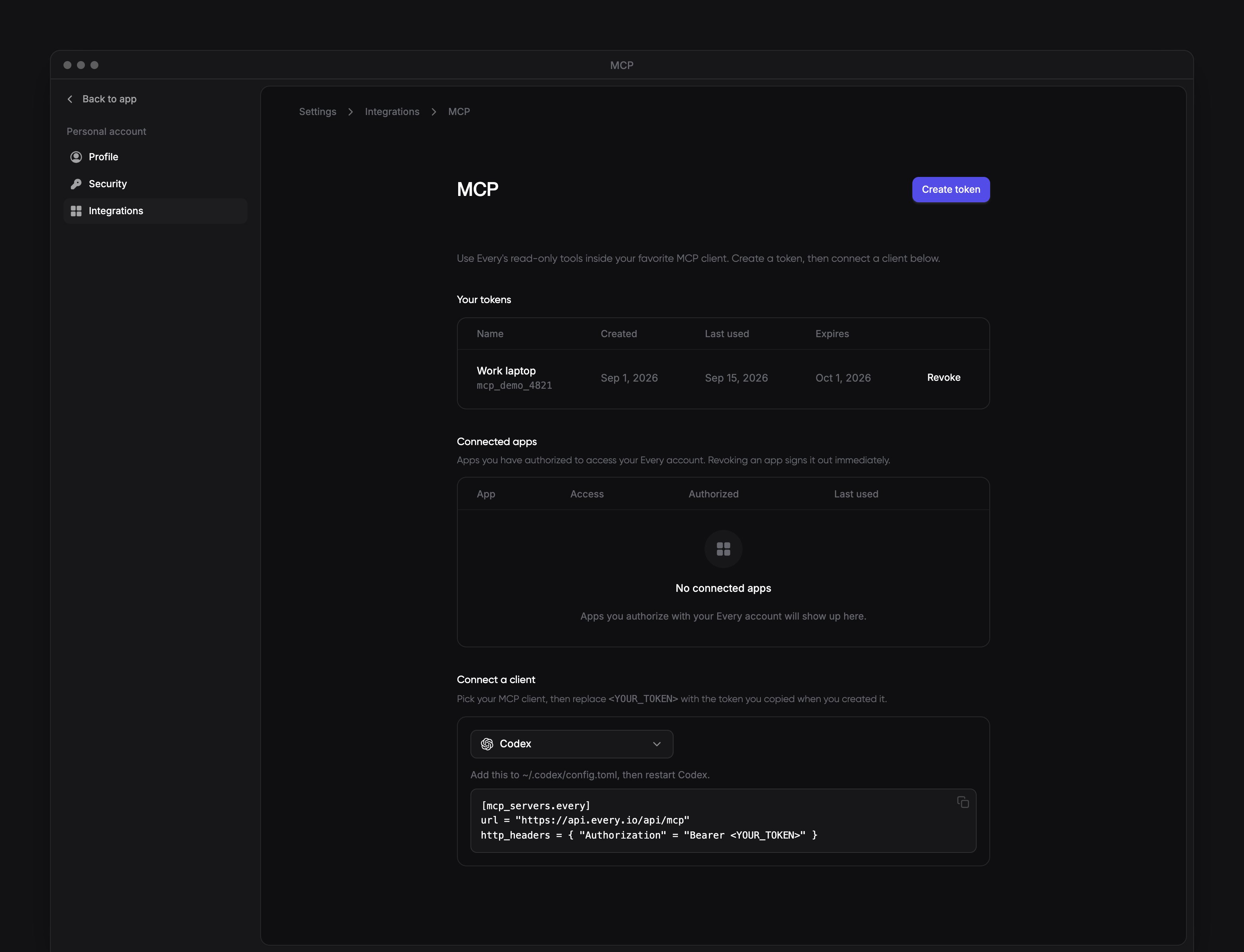
 Use a from My account → Integrations → MCP to connect Cursor, Windsurf or Codex to Every.
Company Admins, HR Admins and Bookkeepers with AI chat access can connect Cursor, Windsurf or Codex with the tools their roles allow. Employees with AI chat access can connect their own client (see MCP for employees).
Use a from My account → Integrations → MCP to connect Cursor, Windsurf or Codex to Every.
Company Admins, HR Admins and Bookkeepers with AI chat access can connect Cursor, Windsurf or Codex with the tools their roles allow. Employees with AI chat access can connect their own client (see MCP for employees).
Before you begin
Use a Company Admin, HR Admin or Bookkeeper account with AI chat access. Create a token in Every and copy it. For Cursor or Windsurf, install Node.js to runmcp-remote, the bridge to Every. Codex connects directly.
Add the server
Choose your client.- Cursor
- Windsurf
- Codex
1
Add Every
In
~/.cursor/mcp.json, add the every entry inside mcpServers, keeping any servers already there. Replace the token placeholder with the token you copied in Every:2
Save the configuration
Save
~/.cursor/mcp.json.3
Reload Cursor
Reload Cursor.
What happens next
After the reload or restart, your client can use Every’s tools. To check the connection, ask a question your roles allow. Company Admins and Bookkeepers can ask about company banking data when the banking tools are turned on for your company.Review company cash
Disconnect
1
Remove Every
Remove the
every entry from your client’s MCP configuration.2
Reload the client
Reload Cursor or Windsurf, or restart Codex.
3
Revoke the token
Revoke the token in Every.