


 Banking > Credit card is where you apply for the Every credit card and manage it once you’re approved. Company Admins and Bookkeepers can use it from the sidebar after your company finishes onboarding.
Every turns on the credit card company by company. If you don’t see it, select Support
in the sidebar to ask about it.
Apply for the credit card
The application has two screens, Connect accounts and Review & submit.1
Start the application
Select Apply now.
2
Optional: add a bank account
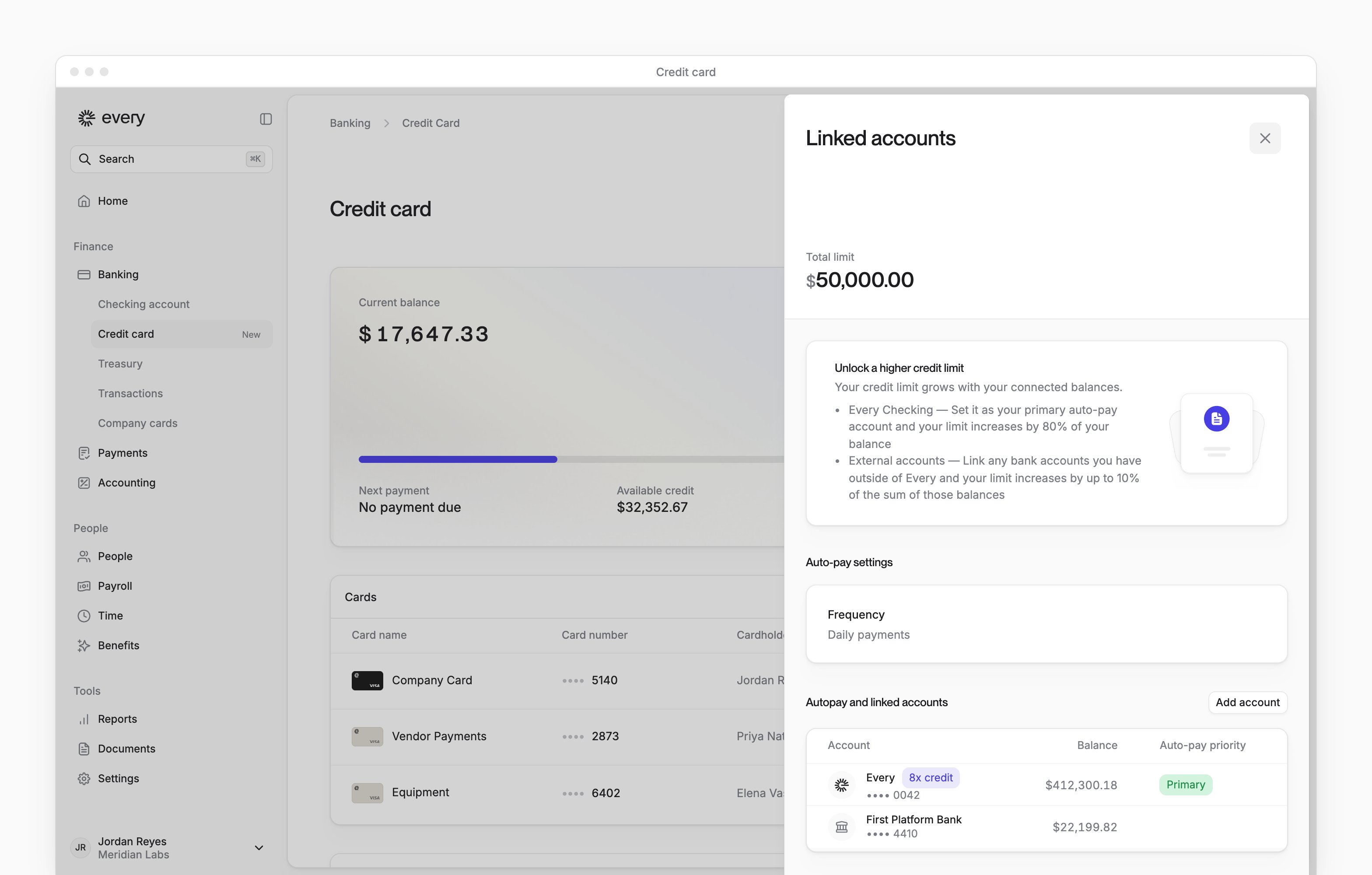
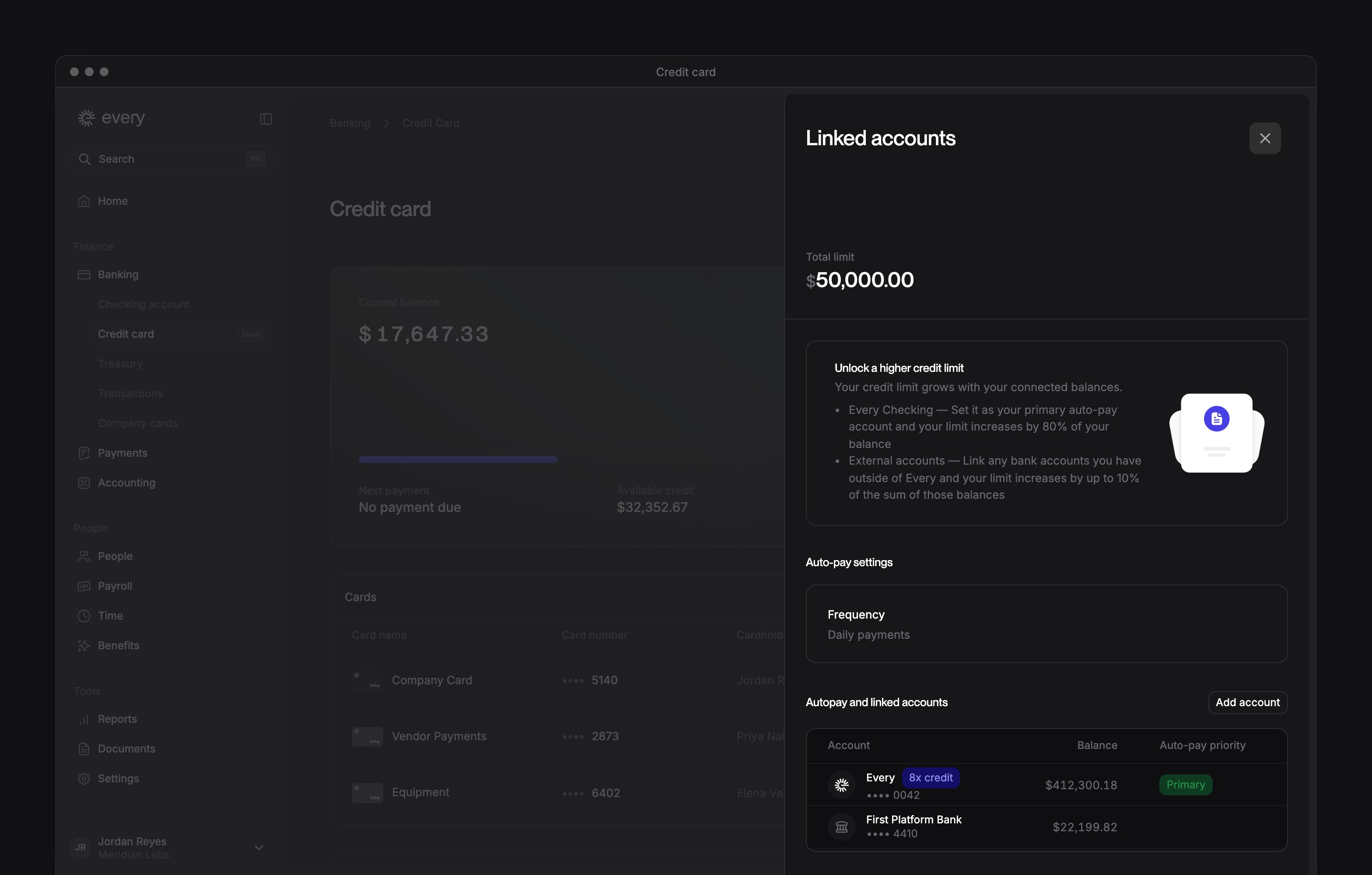
Under Connected accounts, you see your Every accounts and the bank accounts you’ve connected. To connect another bank through Plaid, select Add new account. Only the accounts you set as primary or backup count toward your credit limit.
3
Connect your accounting software
Select Connect bookkeeping software, then choose your provider, such as QuickBooks Online or Xero. If you can’t find your software in the list, select Upload financials and upload your statements for manual review instead.Some companies see Connect QuickBooks here instead, and connecting it is optional.
4
Choose who repays your balance
Under Set primary account, choose the Primary account that pays your balance. Optional: choose a Backup account for when the primary doesn’t have enough.
5
Add your details
Under Additional information, enter your Estimated monthly card spend and choose your Number of employees. Under Card shipping address, enter where to send your physical card.
6
Continue
Select Next.
7
Accept the terms
On Review & submit, under Terms & conditions, select each checkbox. They include authorizing Every to access your business bank account information and perform a soft credit inquiry, and to debit your account to repay your balance.
8
Submit
Select Confirm & submit. The page then shows Application in review.
- You haven’t chosen a primary account.
- Your company sees Connect bookkeeping software and you haven’t connected your software or uploaded financials. The page says “Connect your accounting software to continue.”
- Your connected accounts are below the minimum balance. The page says “You don’t qualify for credit yet.”
After you apply
Your credit card
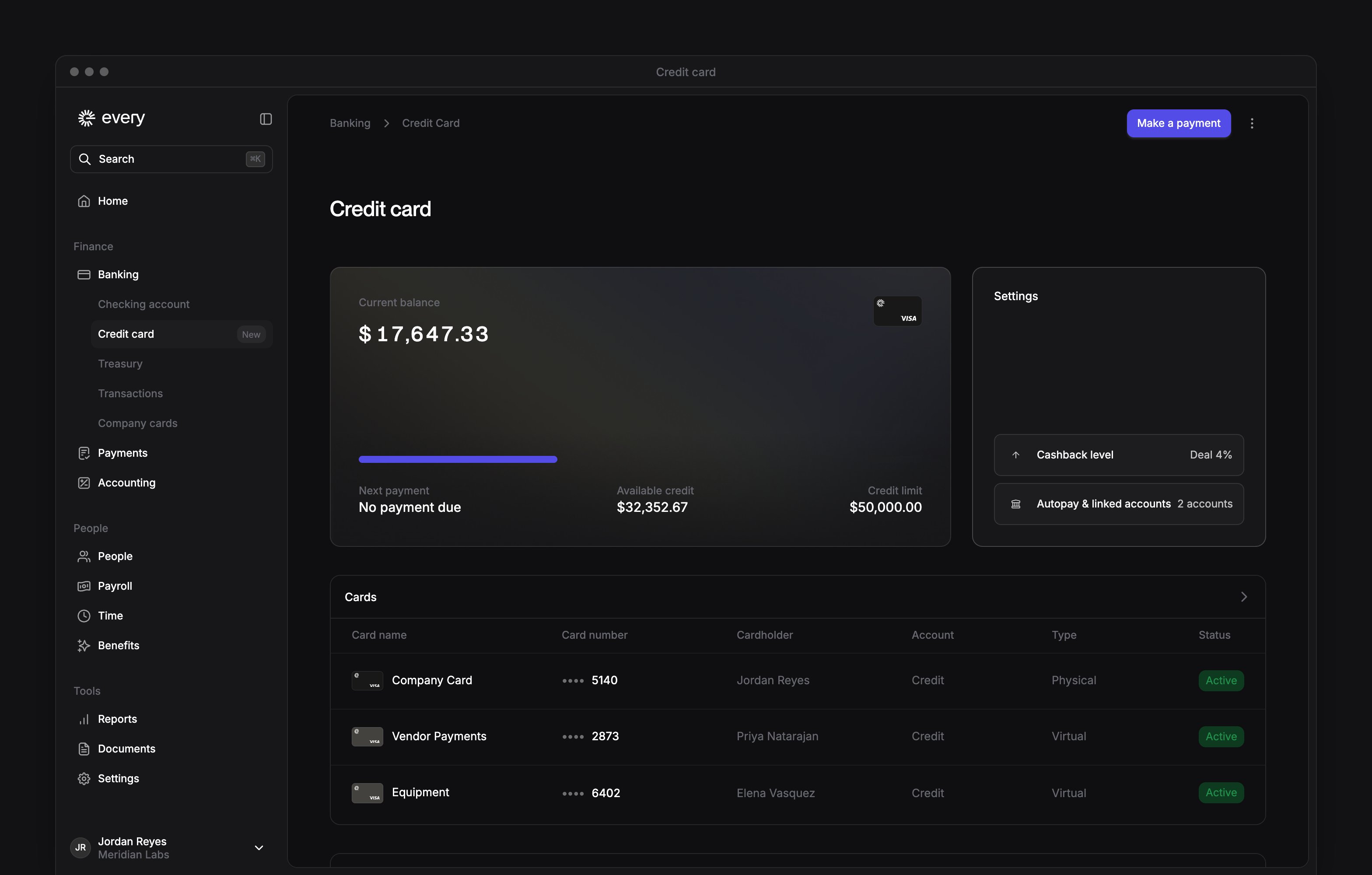
Once you’re approved, the page shows your balance, next payment, available credit and credit limit. It lists the account’s credit cards while the account is open, and up to 10 recent transactions. The arrow beside each list opens Company cards or Transactions.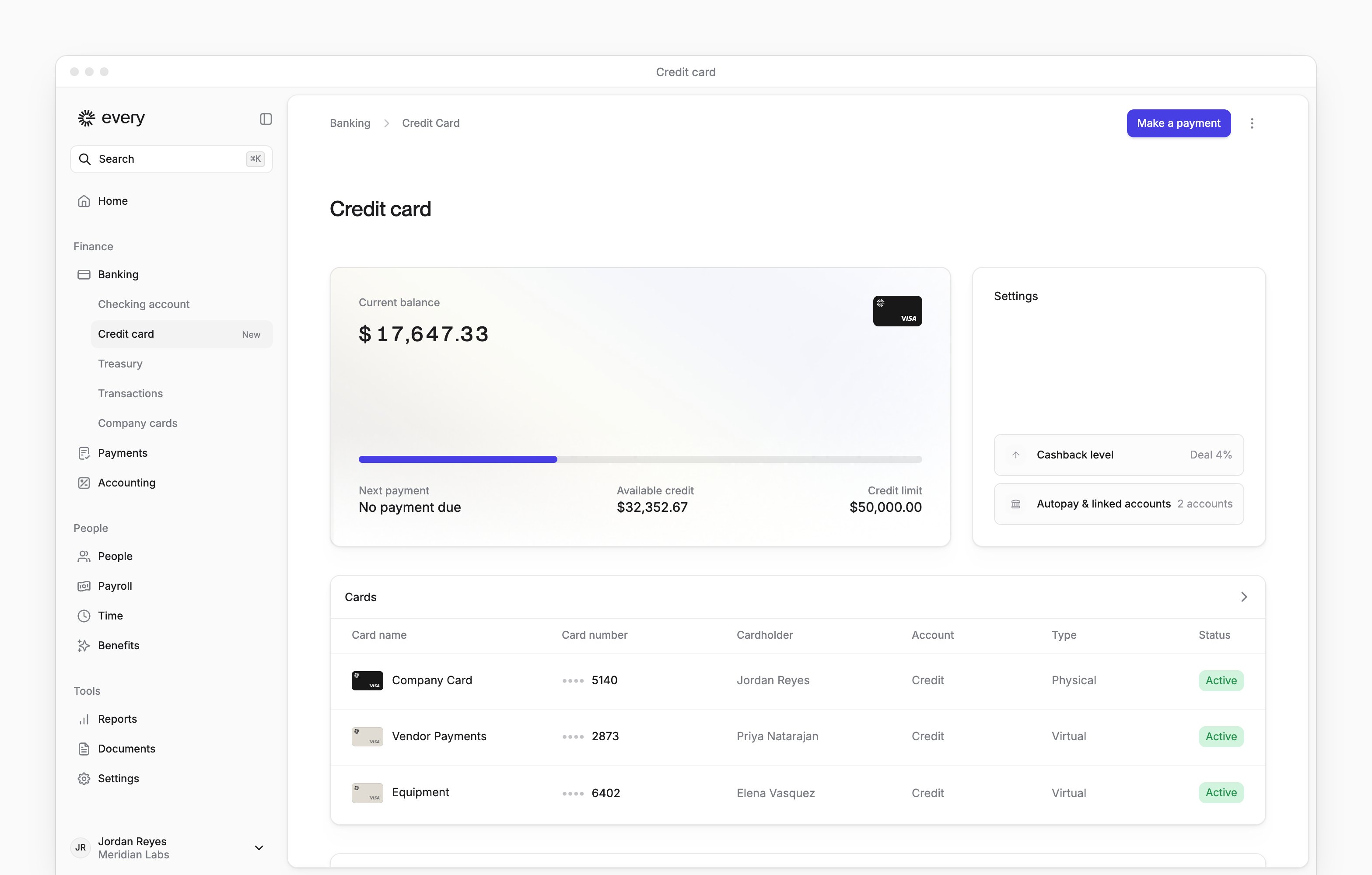
Make a payment
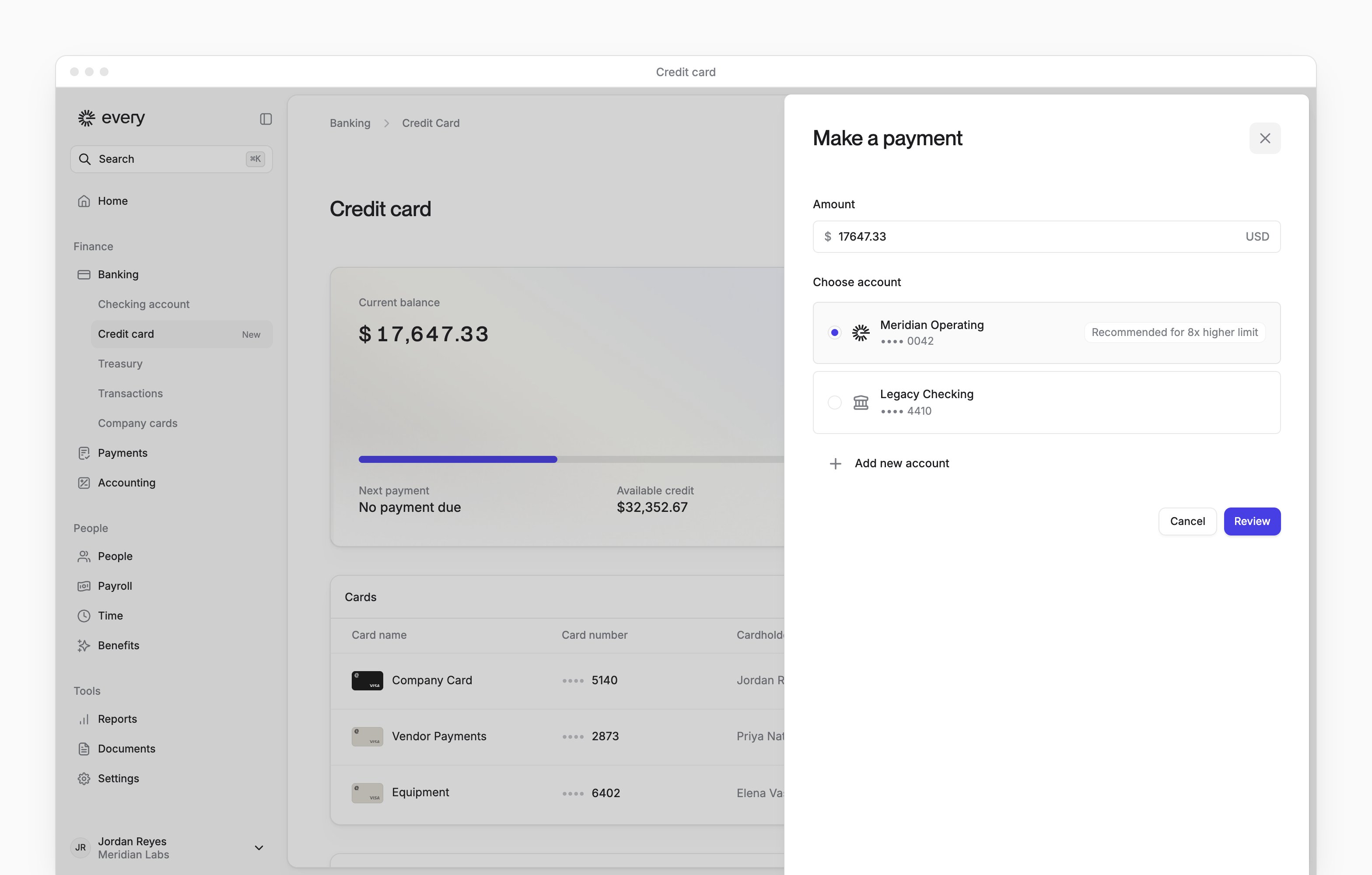
Make a payment appears when you have a balance and your account isn’t frozen.1
Start the payment
Select Make a payment.
2
Enter the amount
In Amount, enter how much to pay, up to your balance.
3
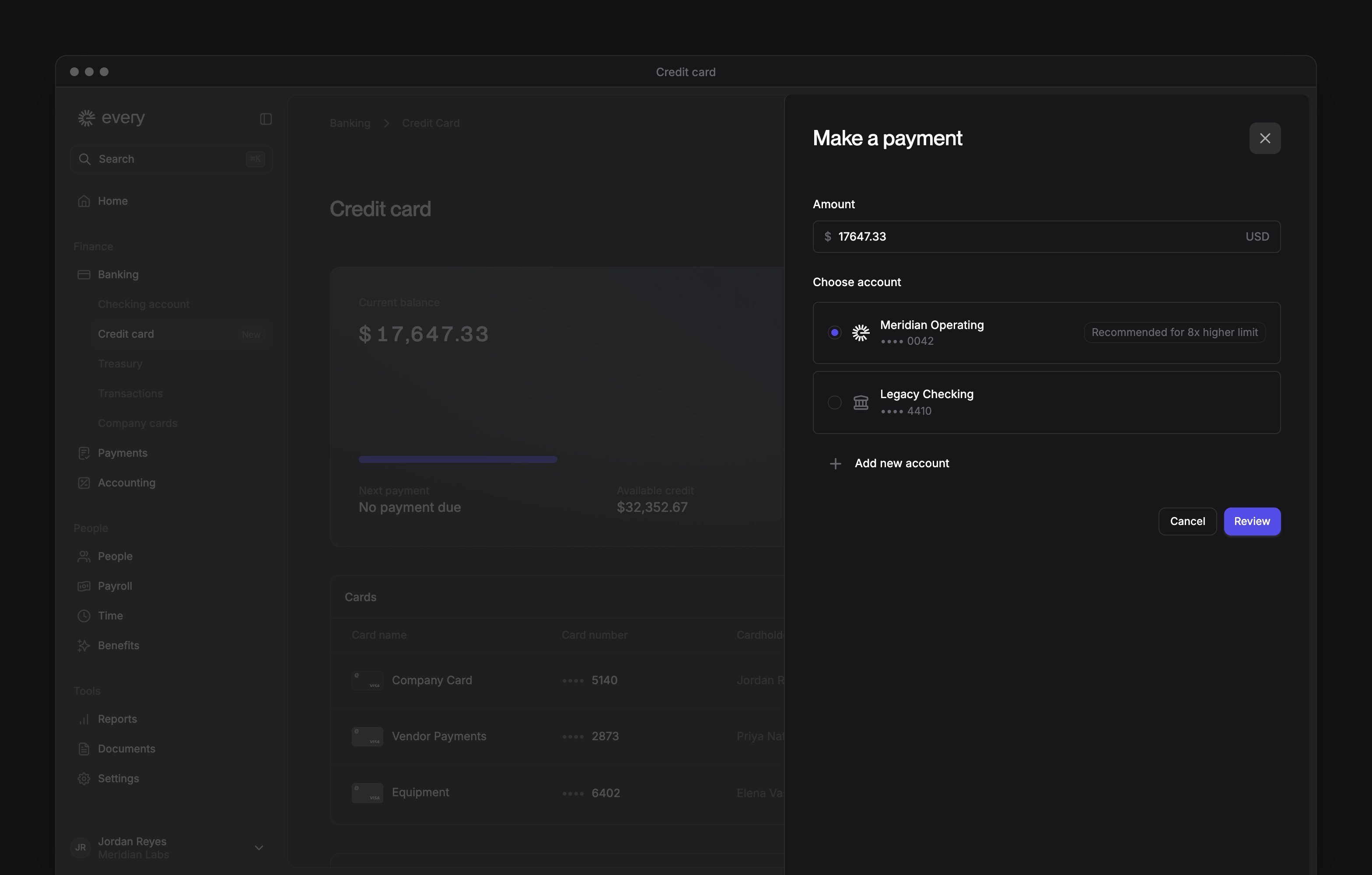
Choose the account
Under Choose account, select the account to pay from.
4
Review the payment
Select Review.
5
Pay
Select Confirm and pay. Every shows “Payment submitted.”
Download a statement
1
Open your statements
In the menu next to Make a payment, select Download statement. The item is unavailable until you have a statement.
2
Choose the year
If you have statements from more than one year, choose the year.
3
Choose the month
Select the month you need.
Change who repays your balance
- In Settings, select Autopay & linked accounts.
- In an account’s menu, select Set as Primary or Set as Backup.
If your account is frozen
A banner at the top says what to do. To pay your full balance and unfreeze the account, select Make a payment. If the combined balance of your primary and backup accounts is below the required minimum, select Link a bank account. If one of your accounts disconnects, a banner says so.- Select Open linked accounts.
- In that account’s menu, select Reconnect.