


 Banking > Company cards lists the cards issued on your company’s account: who holds each one, which account it draws on and its status. If your Banking menu has no Credit card item, the sidebar calls this page Cards.
Company Admins and Bookkeepers manage cards after your company finishes onboarding. Each employee sees their own on My cards (see My cards).
Banking > Company cards lists the cards issued on your company’s account: who holds each one, which account it draws on and its status. If your Banking menu has no Credit card item, the sidebar calls this page Cards.
Company Admins and Bookkeepers manage cards after your company finishes onboarding. Each employee sees their own on My cards (see My cards).
See your company’s cards
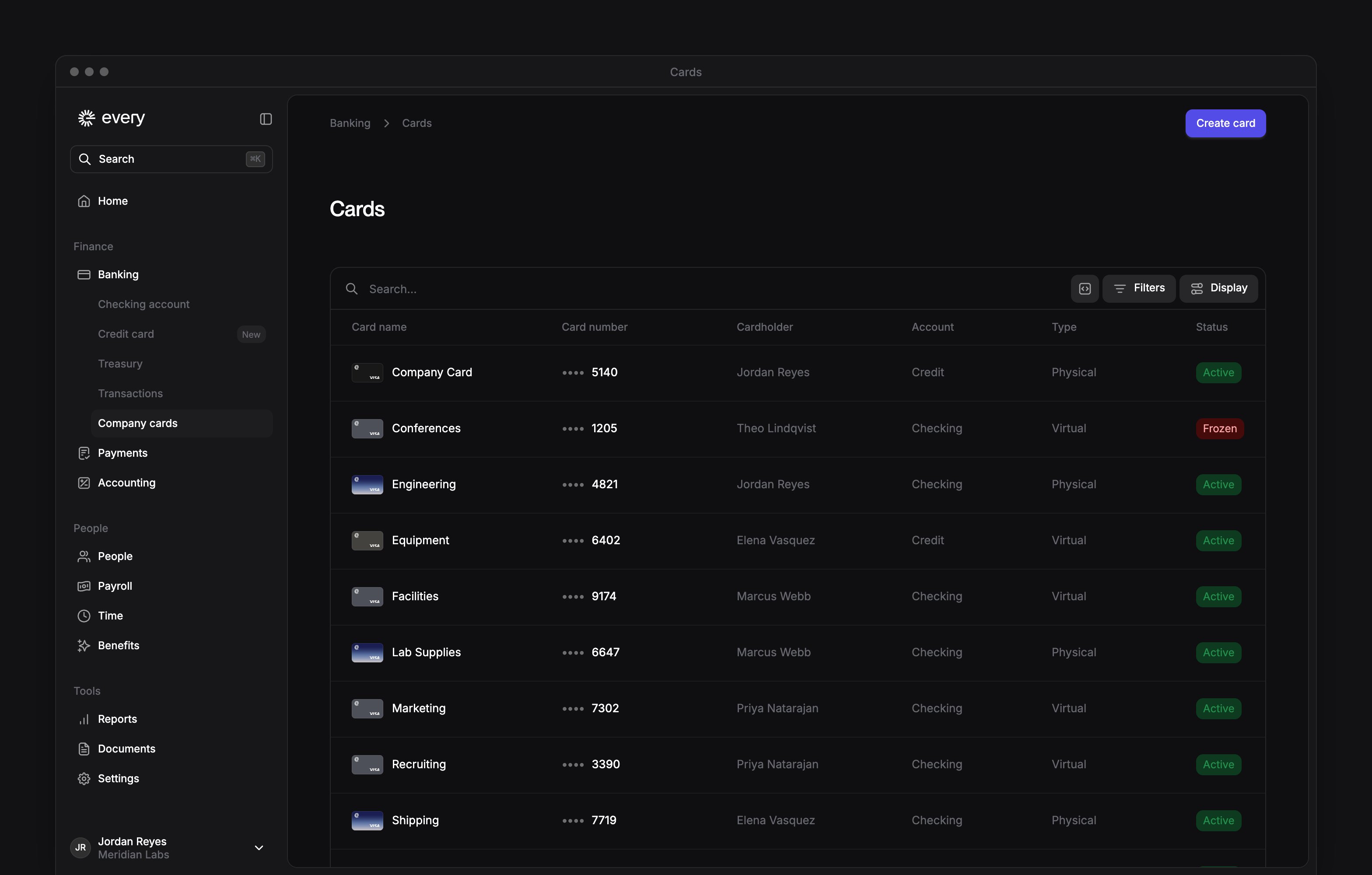
The list shows each card’s name, number, cardholder, account, type, sharing and status. Closed cards are hidden. To see them, select Display and turn on Show closed cards.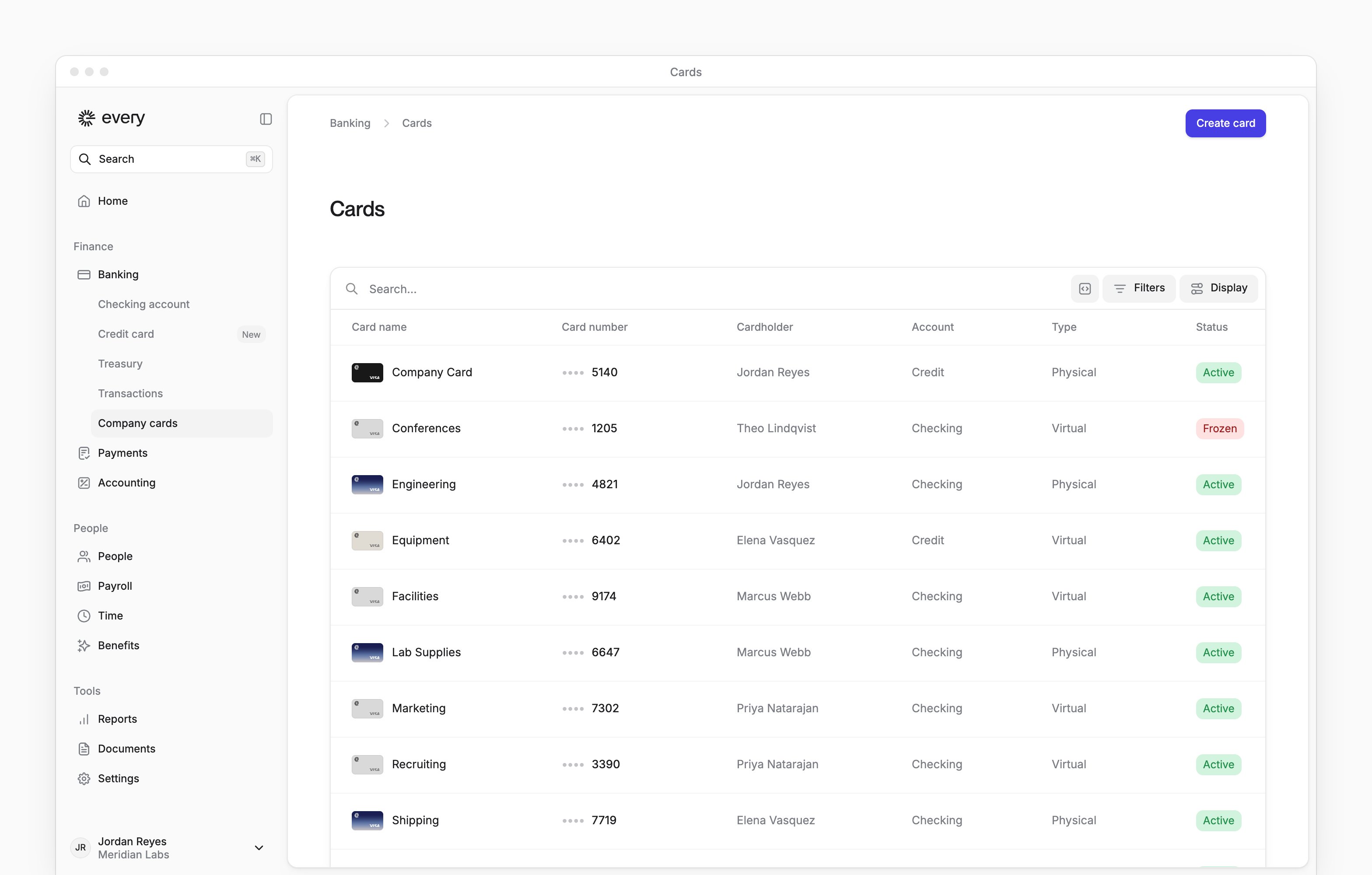
Create a card
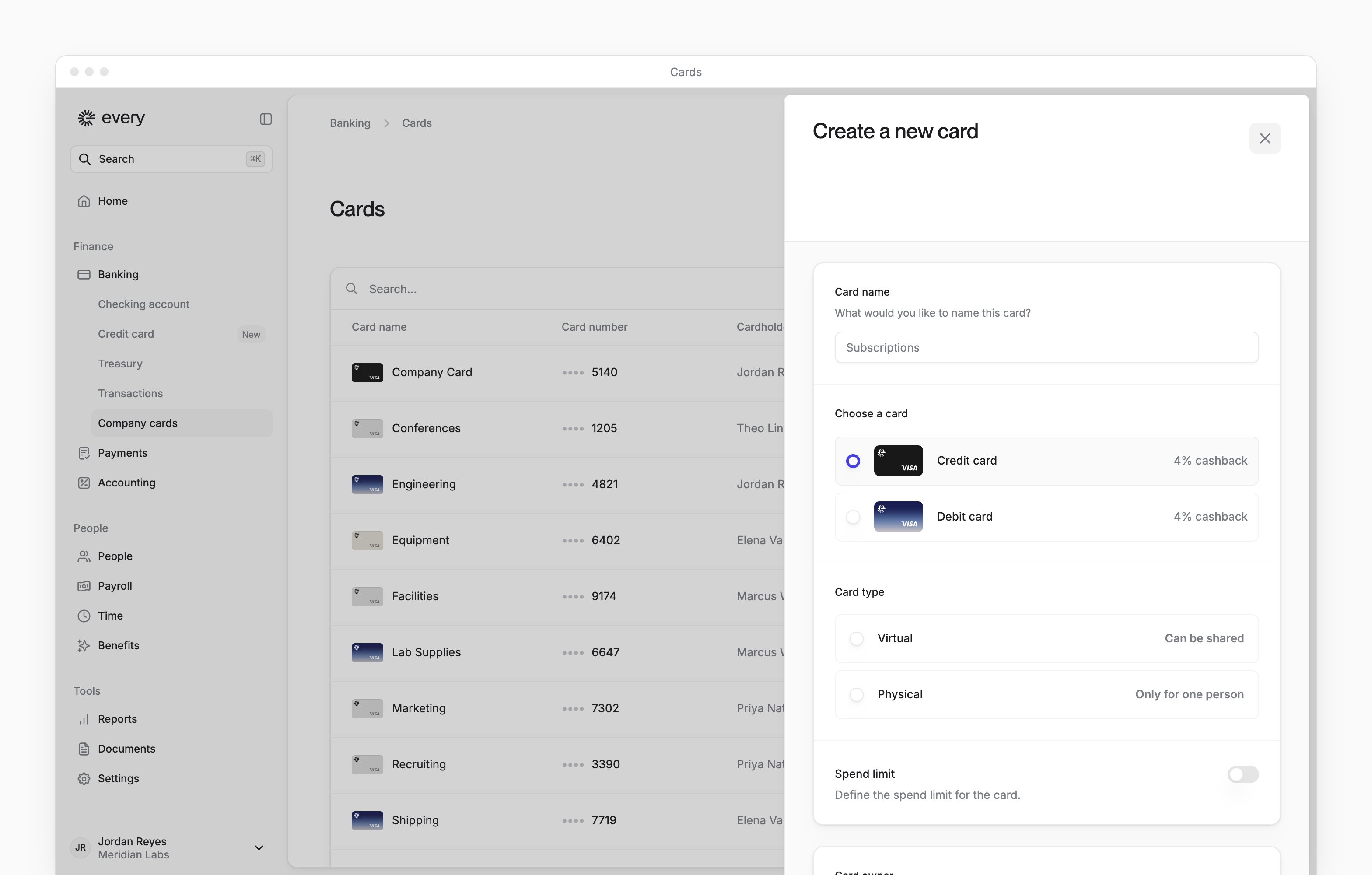
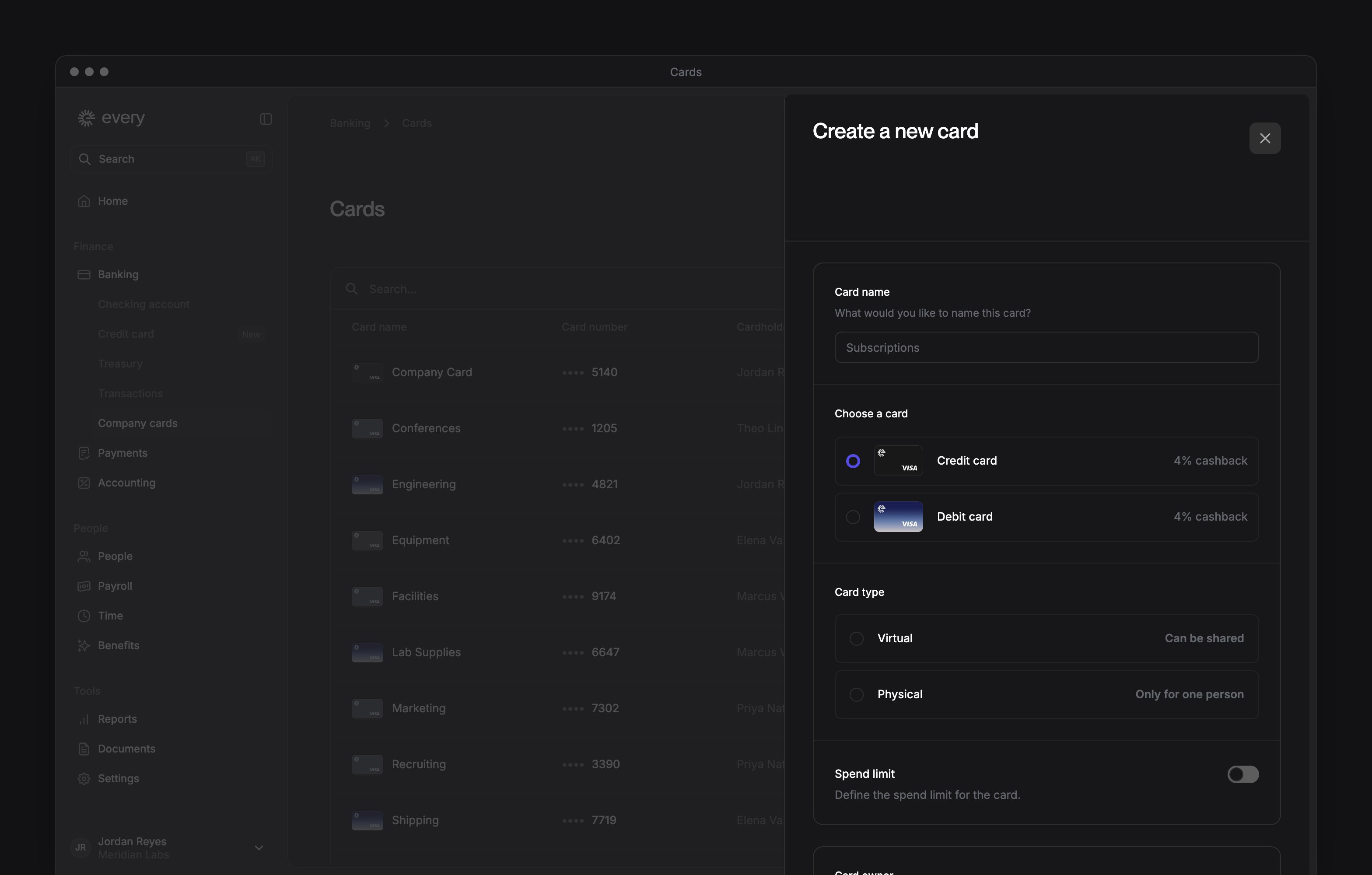
Only Company Admins see Create card. Select it, then fill in the Create a new card sheet:1
Name the card
Enter a Card name, such as the team or what the card is for.
2
Choose credit or debit
Under Choose a card, choose Credit card or Debit card. You see Choose a card only if the sidebar says Company cards. Credit card can be chosen once your company’s credit account is open. Before that, it shows how to apply or where your credit application stands.
3
Choose virtual or physical
Under Card type, choose Virtual or Physical.
4
Set a spend limit
Optional: turn on Spend limit, choose a Period and enter the amount.
5
Choose the card owner
Choose the Card owner: the person the card is issued to.
6
Choose who can use the card
Under Shared card, choose Card owner to keep the card to one person, or Shared with multiple people and select who else can use it. People you share with get access to the card details but can’t change its settings.
7
Add accounting defaults
Optional: if Accounting settings appears, choose a Default account and Default department for QuickBooks.
8
Enter the shipping address
For a physical card, enter the Shipping Address.
9
Create the card
Select Create card.
Manage a card
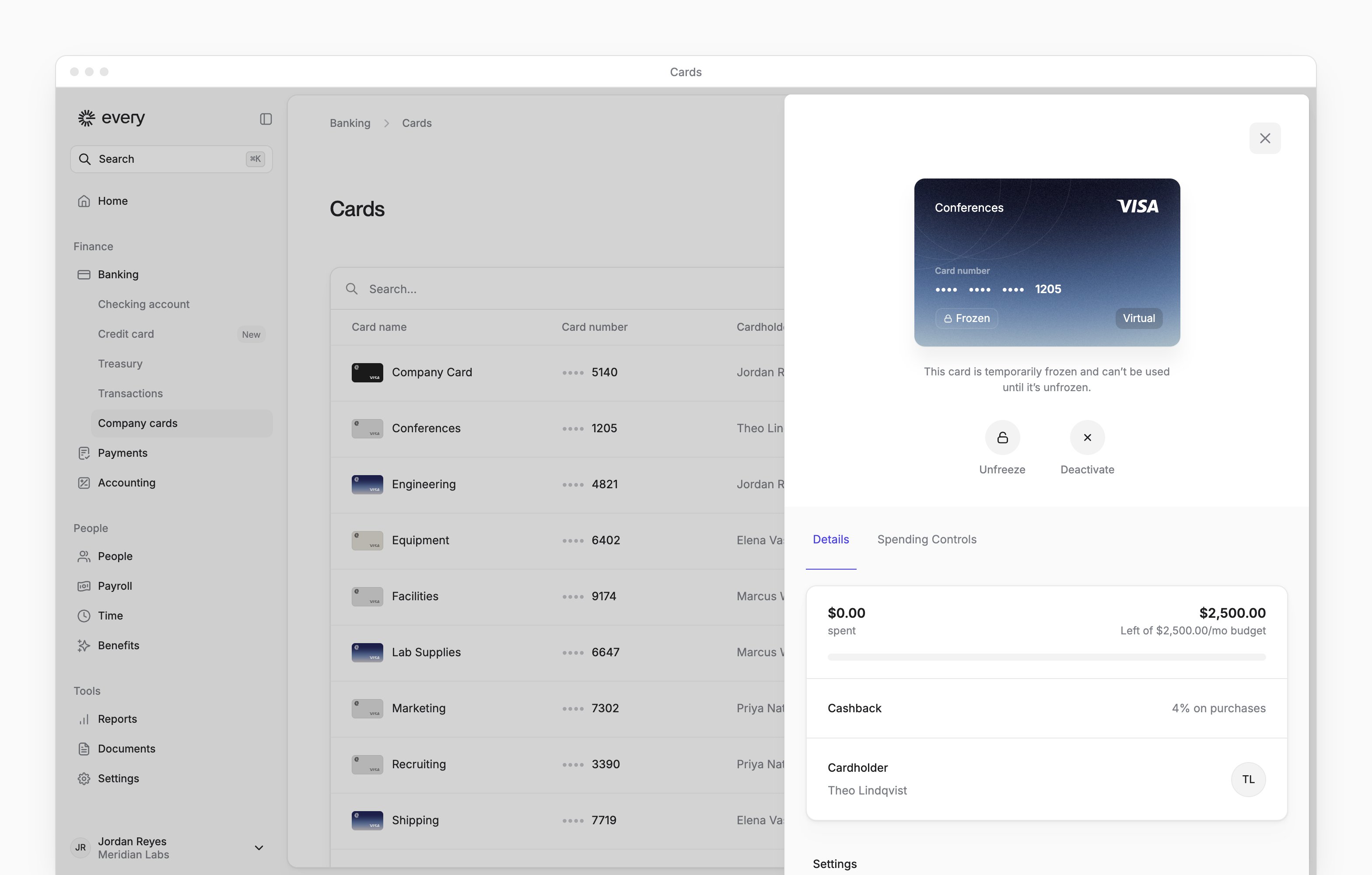
Select a card to open it. The buttons under the card depend on its status and your role:
Below the buttons, the Details tab shows what’s been spent against the card’s limit, its billing address and the cardholder. Credit cards also show your credit account’s available credit.
Under Settings you can change the Spend limit and Card name, then select Save. Under Share card you can choose who else can use the card. If Spending Budget appears, you can assign the card to a budget: under Spending budget for this card, choose the budget (see Budgets).
Set spending controls
Every turns on spending controls company by company. If you don’t see it, select Support in the sidebar to ask about it.
- On Spending Controls, for each of Merchant, Category and MCC (Visa merchant category code), choose Allow or Block and add the ones the rule covers, or leave it Off.
- Select Save.