


 Banking > Transactions shows what went in and out of your company’s Every accounts and cards, with each one’s category and receipt.
Company Admins and Bookkeepers review them after your company finishes onboarding. Each employee sees their own on My transactions (see My transactions).
Banking > Transactions shows what went in and out of your company’s Every accounts and cards, with each one’s category and receipt.
Company Admins and Bookkeepers review them after your company finishes onboarding. Each employee sees their own on My transactions (see My transactions).
Find a transaction
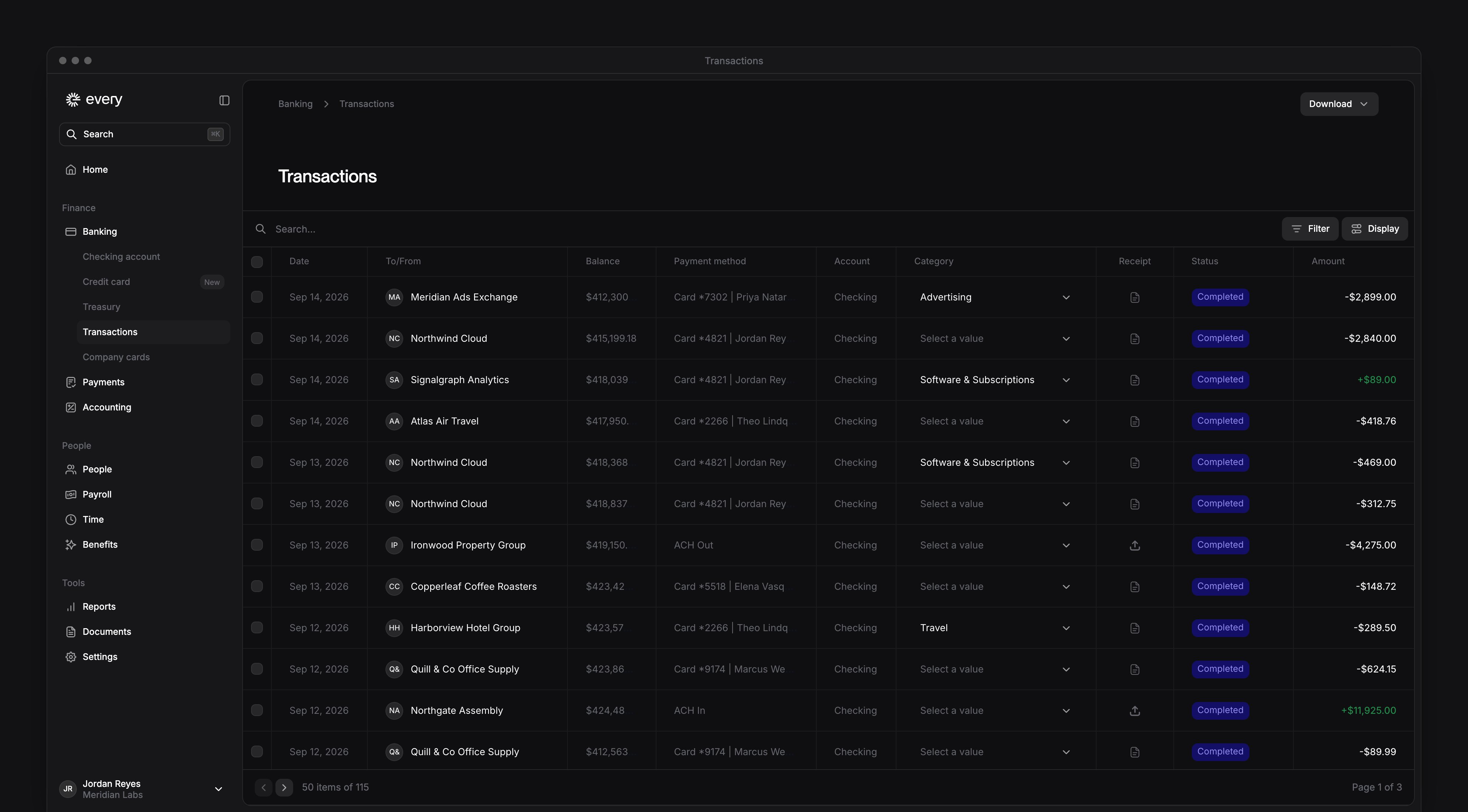
Each row shows a transaction’s date, who it was to or from, balance, payment method, account, category, receipt, status and amount. Select Filter to narrow the list by account, card, who it was to or from, payment method, date, amount, direction or status. Under Status, Missing information shows the transactions that still need a receipt. Each page lists 50 transactions. Status narrows only the page you’re on, so the count at the bottom of the list then says “matching items on this page”.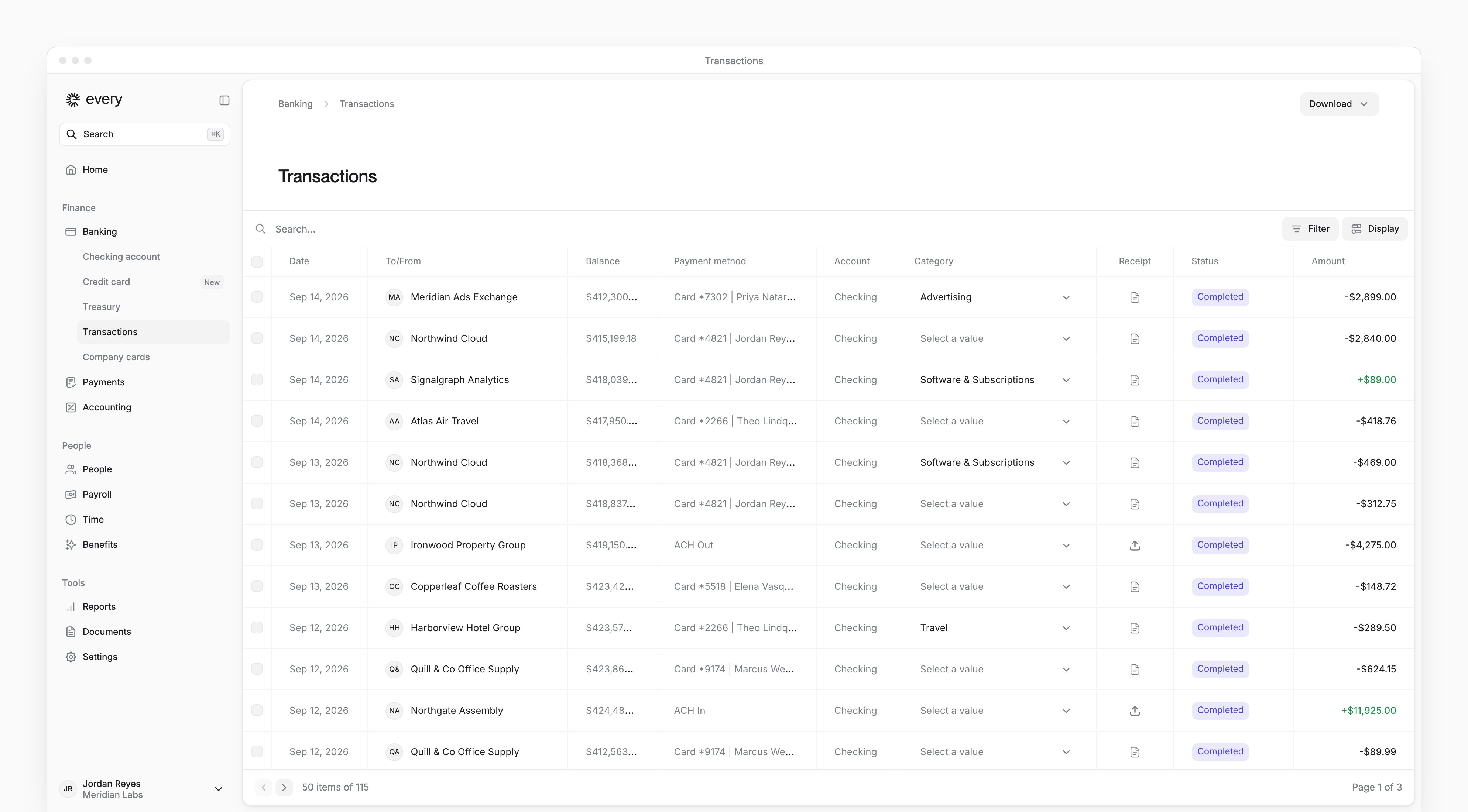
Change a category
In a transaction’s row, select a new Category, or right-click the row and select Change category. To change several at once, select their rows, then select Assign category and a category. Payroll transactions can’t be recategorized.Open a transaction
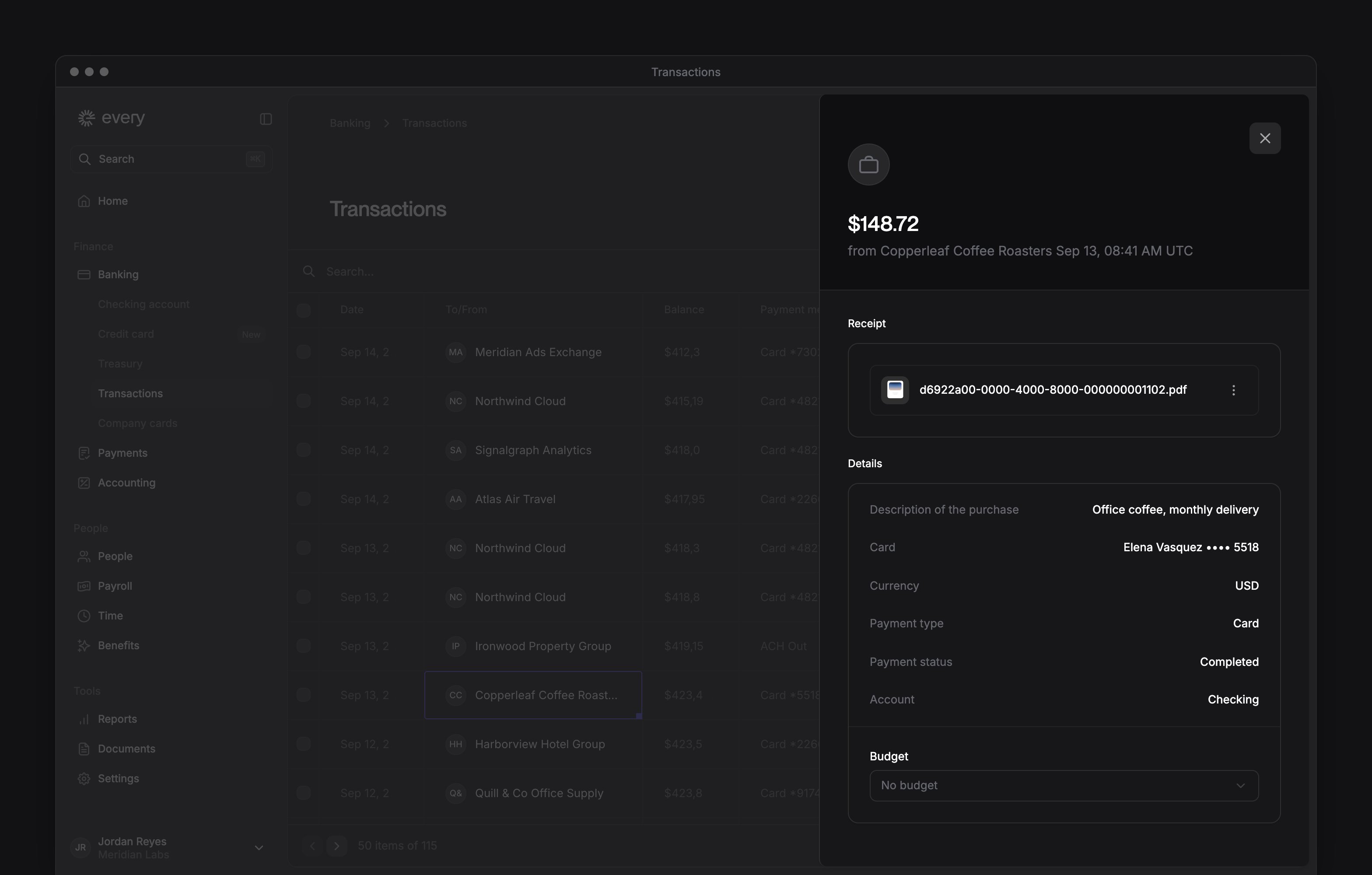
Select a transaction to open its details, such as its card, payment status and account.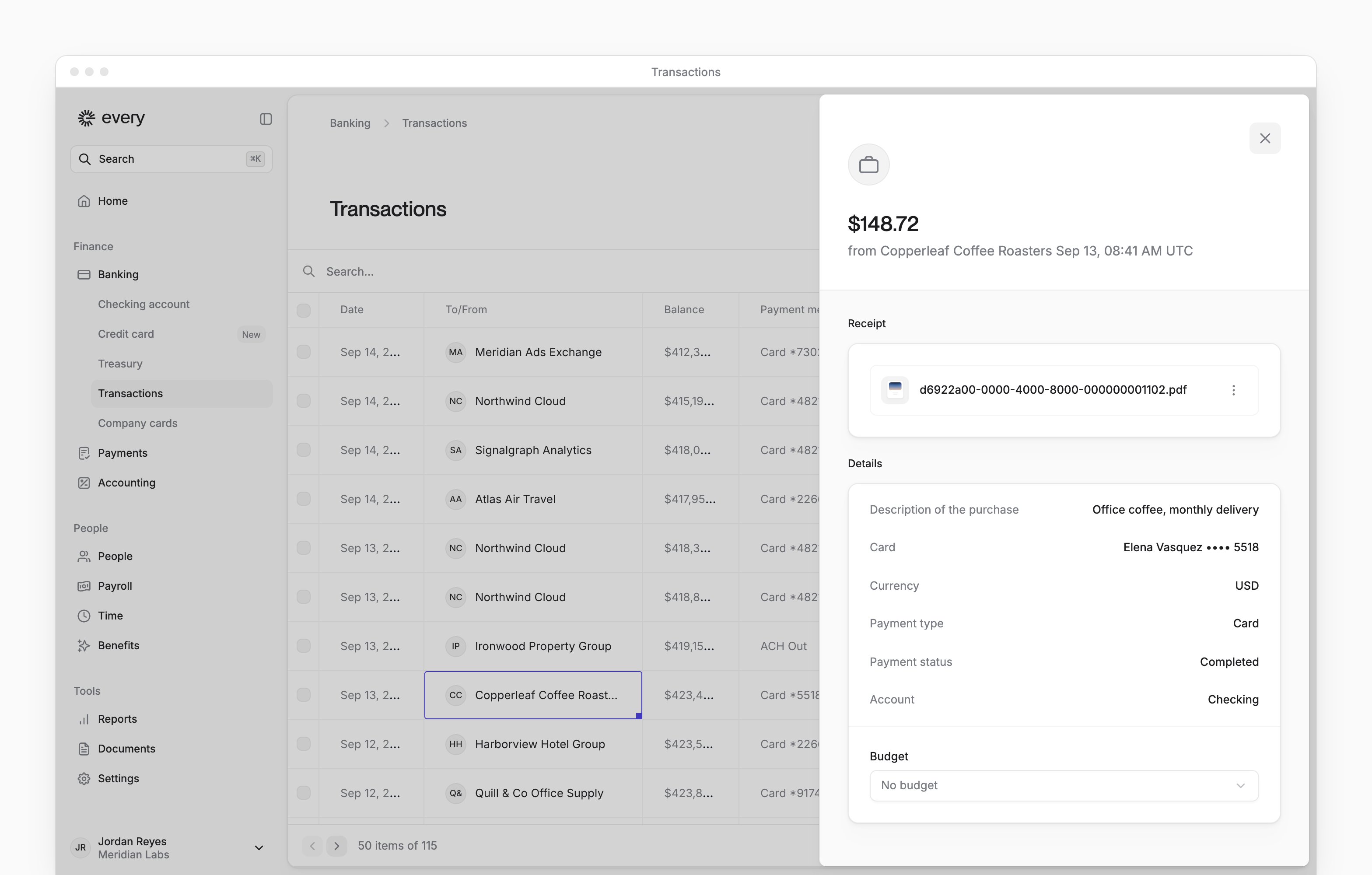
Add a receipt
A completed card purchase that needs a receipt shows Missing receipt in Status, and its details show Missing information.1
Open the transaction
In the Receipt column, select the upload icon, or select the row.
2
Add the receipt
Under Receipt, add a PDF or image.
3
Describe the purchase
In the description field, enter what the purchase was for.
4
Save
If the sheet has a Save button, select it. If not, Every saves the receipt when you add it, and the description when you close the sheet.
See accounting details
Every turns on accounting details company by company. If you don’t see them, select Support in the sidebar to ask about them.
Download transactions
- Select Download, then Download CSV.
- Select Generate report.