


 Go to Banking > Checking account, then select Move money to pay someone or move your company’s money. Company Admins and Bookkeepers can use it after your company finishes onboarding, and the menu shows some options only to Company Admins. If your Banking menu has no Credit card item, Checking account is called Overview in the sidebar.
Send money
Send money opens the payment flow at Who are you sending funds to? You choose the recipient, add their payment details, the amount and the accounting details, then review and send. A Bookkeeper must choose at least one approver, and the payment is sent for approval. Sending payments walks through each step.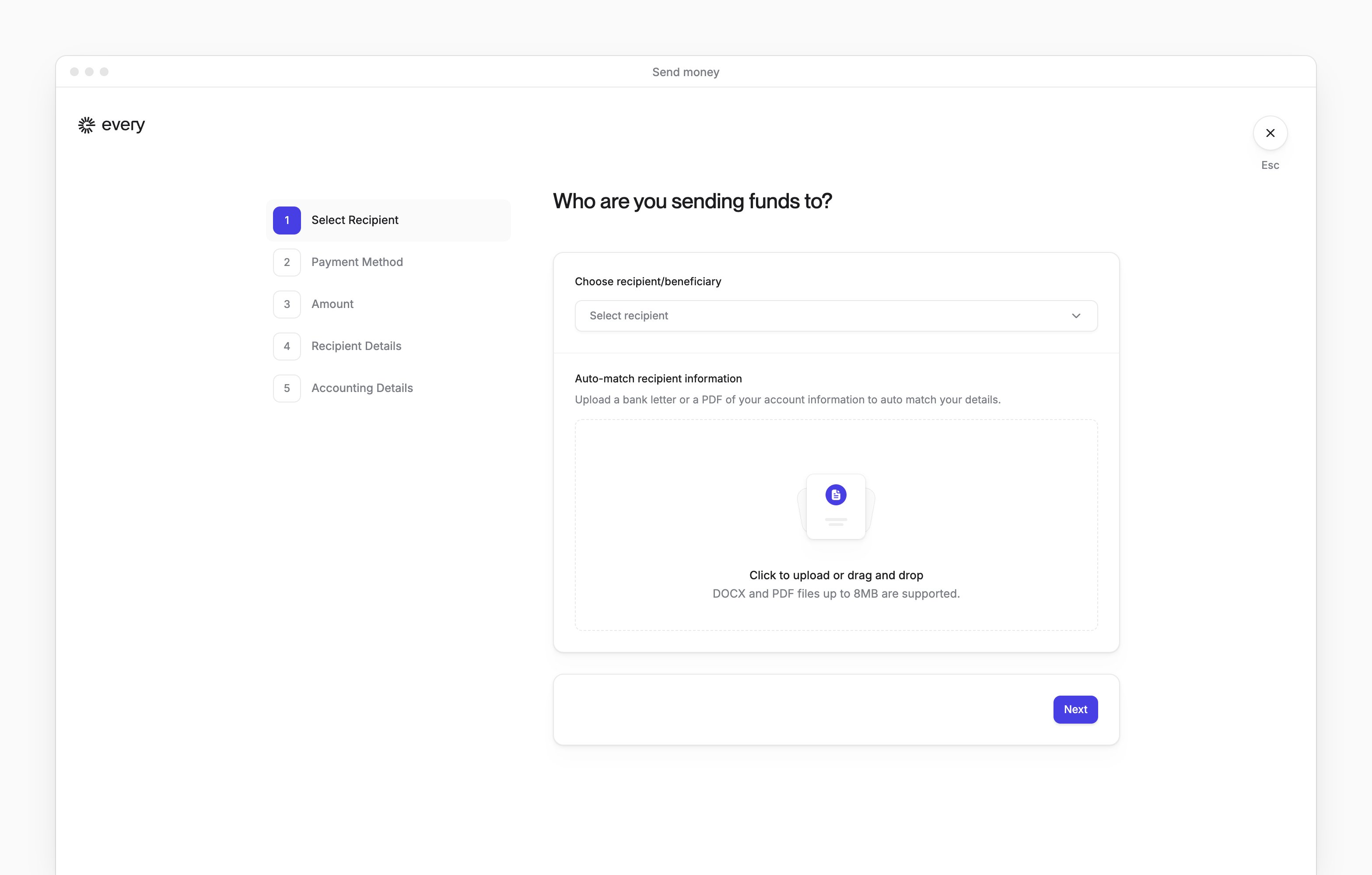

Transfer money
Select Move money > Transfer money.1
Choose the accounts
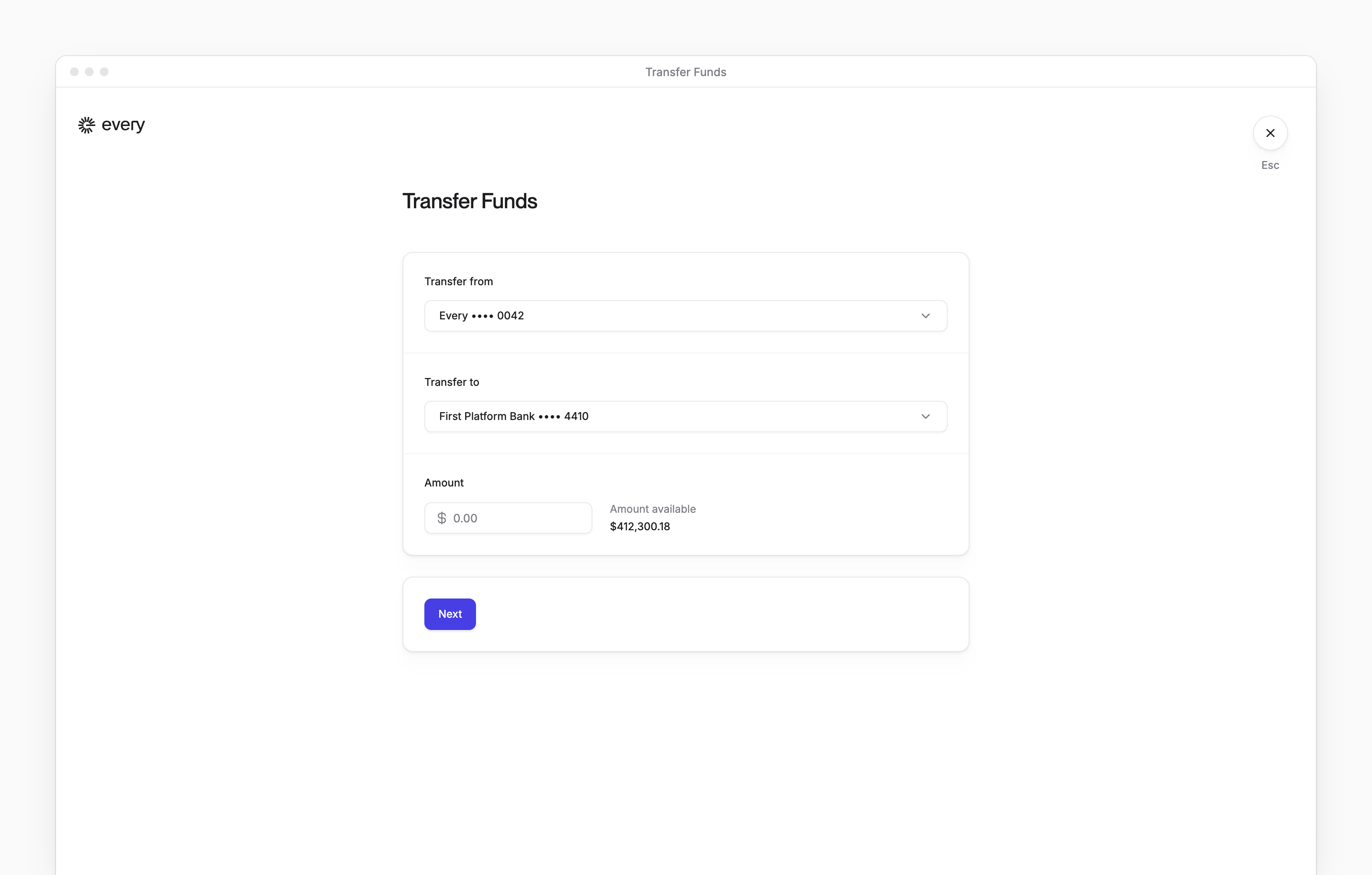
Choose the Transfer from and Transfer to accounts. In either list, select Link a bank account to connect a new external account through Plaid.
2
Enter the amount
Enter the Amount. Beside it, Every shows the available balance of the account you’re moving from.
3
Continue to the review
Select Next.
4
Start the transfer
Review Transfer shows the details and how long the transfer will take. Select Initiate Transfer.

Add funds
Add funds opens a sheet that asks how you’d like to add funds. Choose a method:Add funds by bank transfer
If you haven’t connected an external account yet, the sheet shows only Link account. Select it and connect the account through Plaid, and the form appears.1
Enter the amount
Enter the Amount.
2
Choose the accounts
Choose Transfer From and Transfer To.
3
Transfer
Select Transfer.