


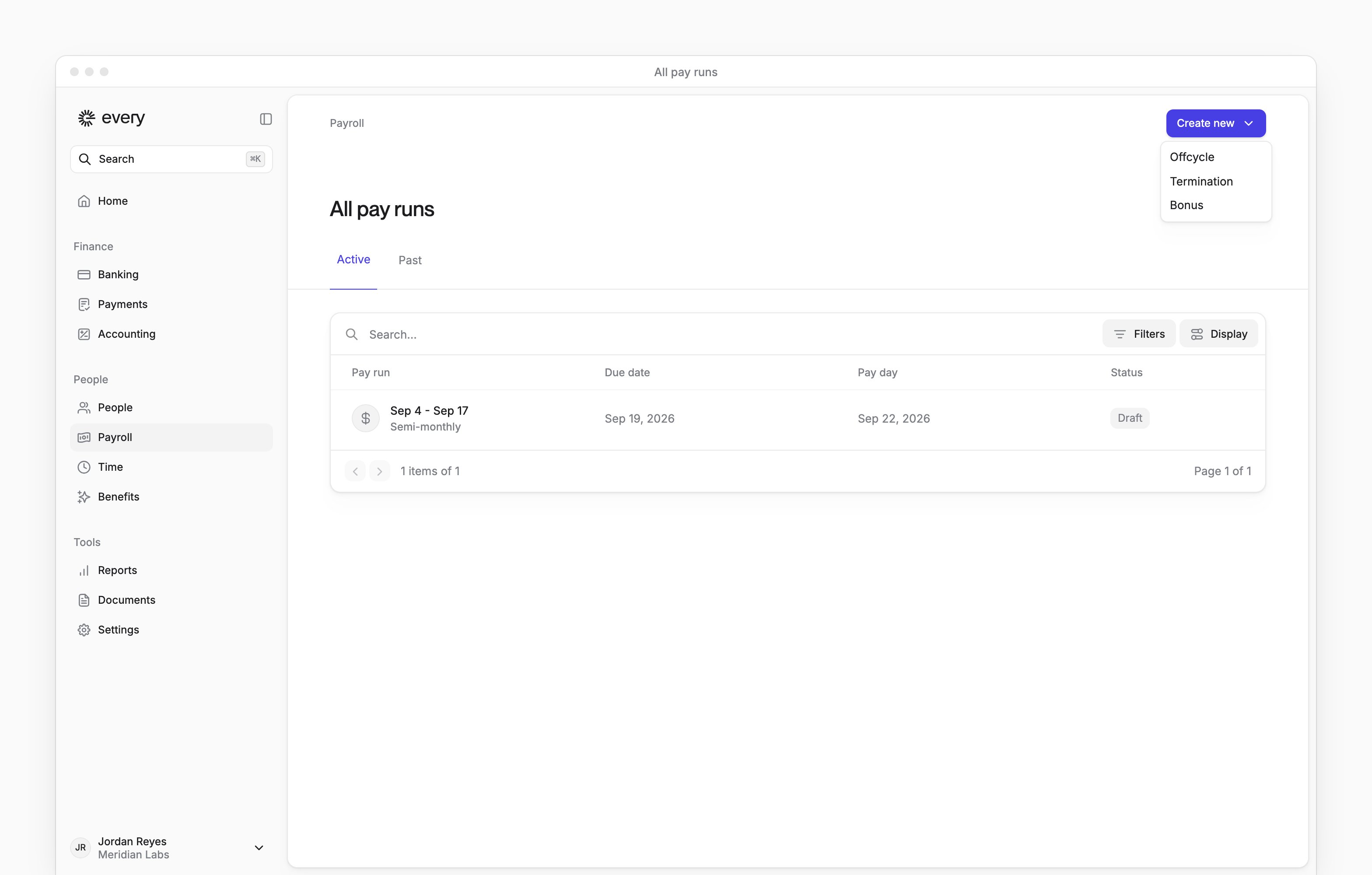
 On Payroll → All pay runs, select Create new → Termination to schedule one employee’s last day and choose how they get final pay. Company Admins and HR Admins can use it. If you create a separate final-pay run, review and submit it with Run payroll.
Every turns on the Personal email field and the Reassign direct reports step company by company. If you don’t see them, email support@every.io to ask about them.
Before you begin
Company Admins and HR Admins run terminations. Finish payroll setup so Create new appears on All pay runs. If the last day falls in the current regular :- On Payroll → All pay runs, select the current run and check its status and whether it includes the employee (see Run payroll).
- If that run includes the employee and has Pending, Processing or Submitted status, Return the current run to Draft before you start.
Schedule the termination
1
Open the termination flow
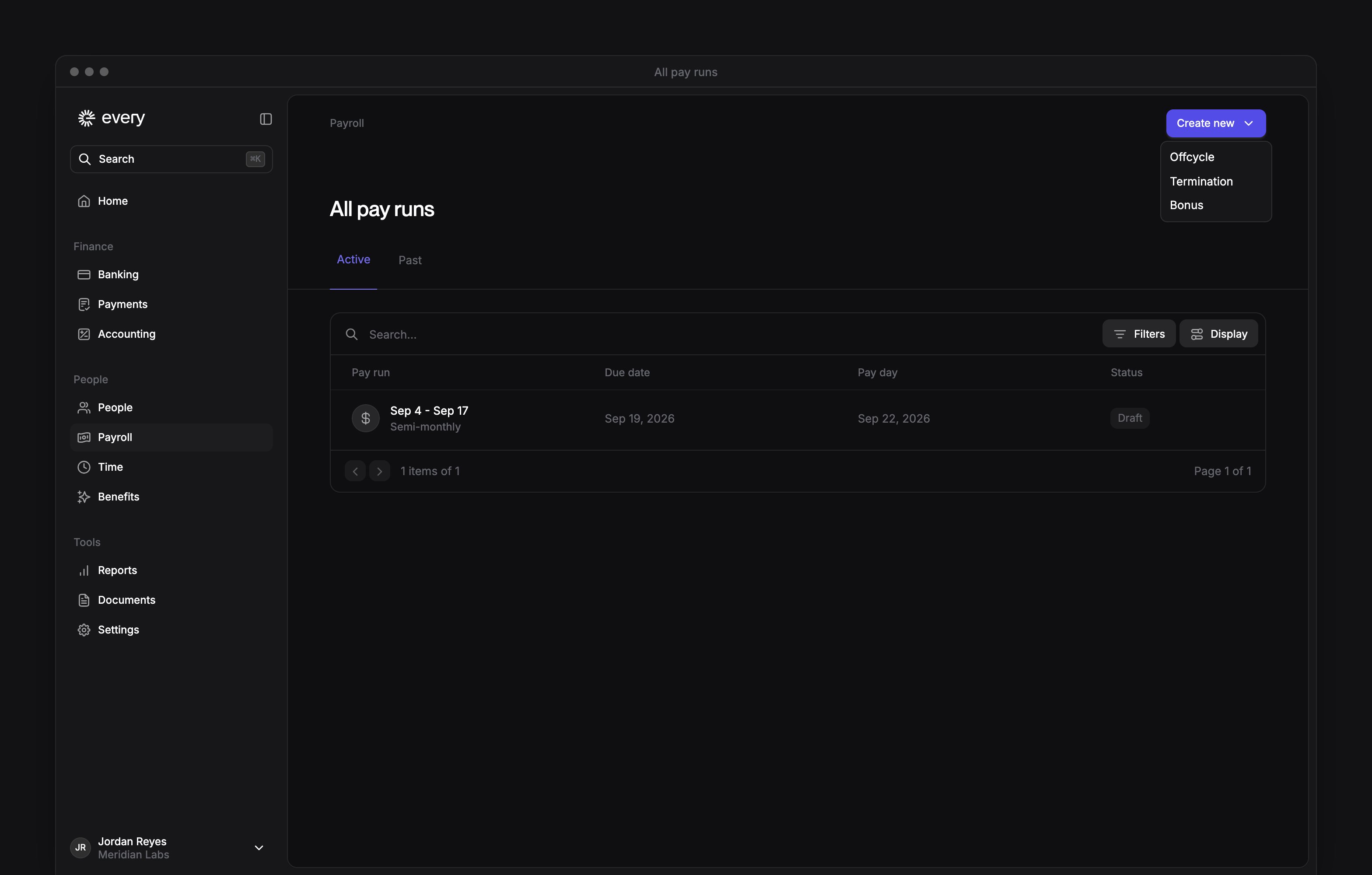
On All pay runs, select Create new → Termination.
2
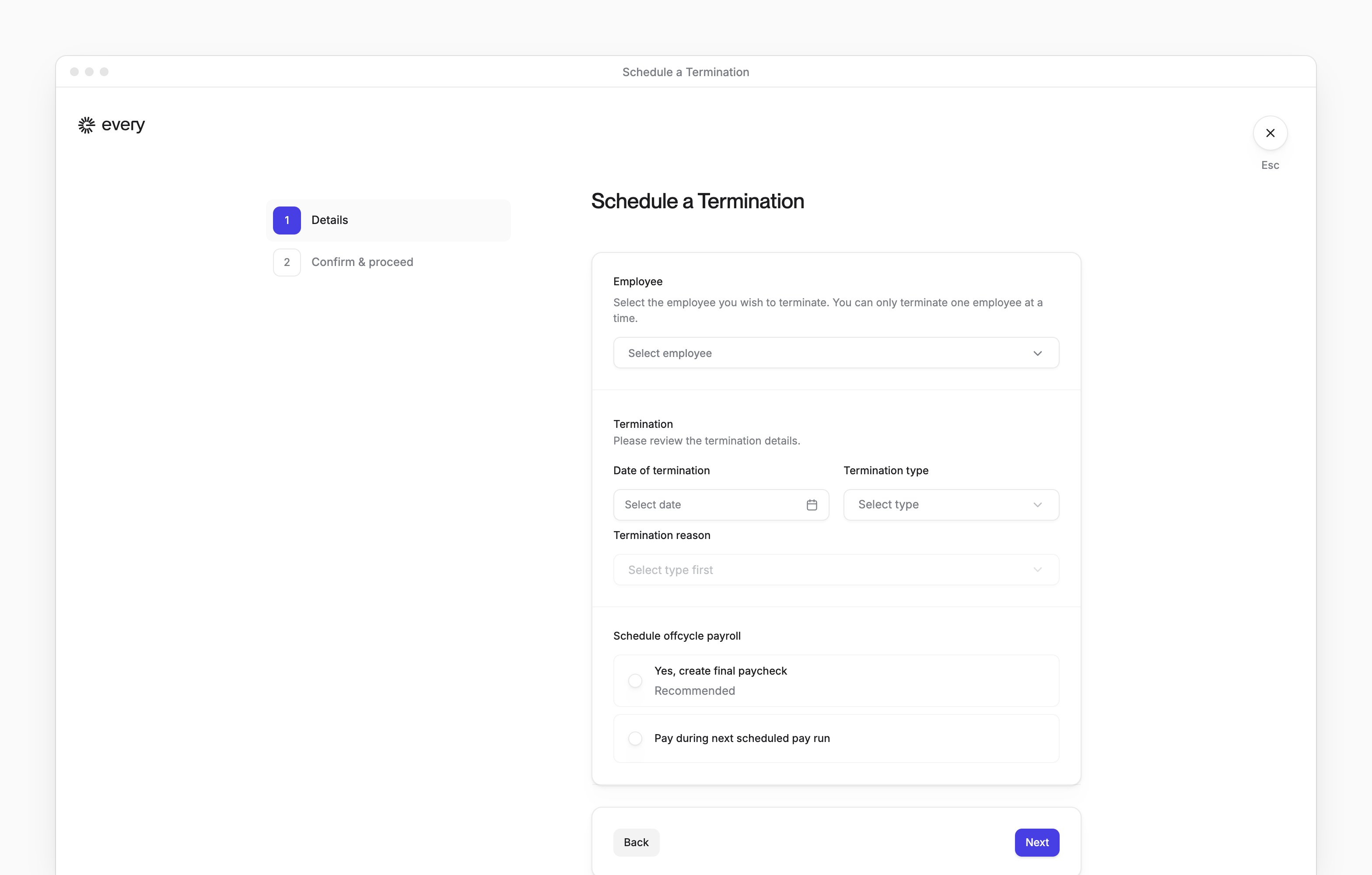
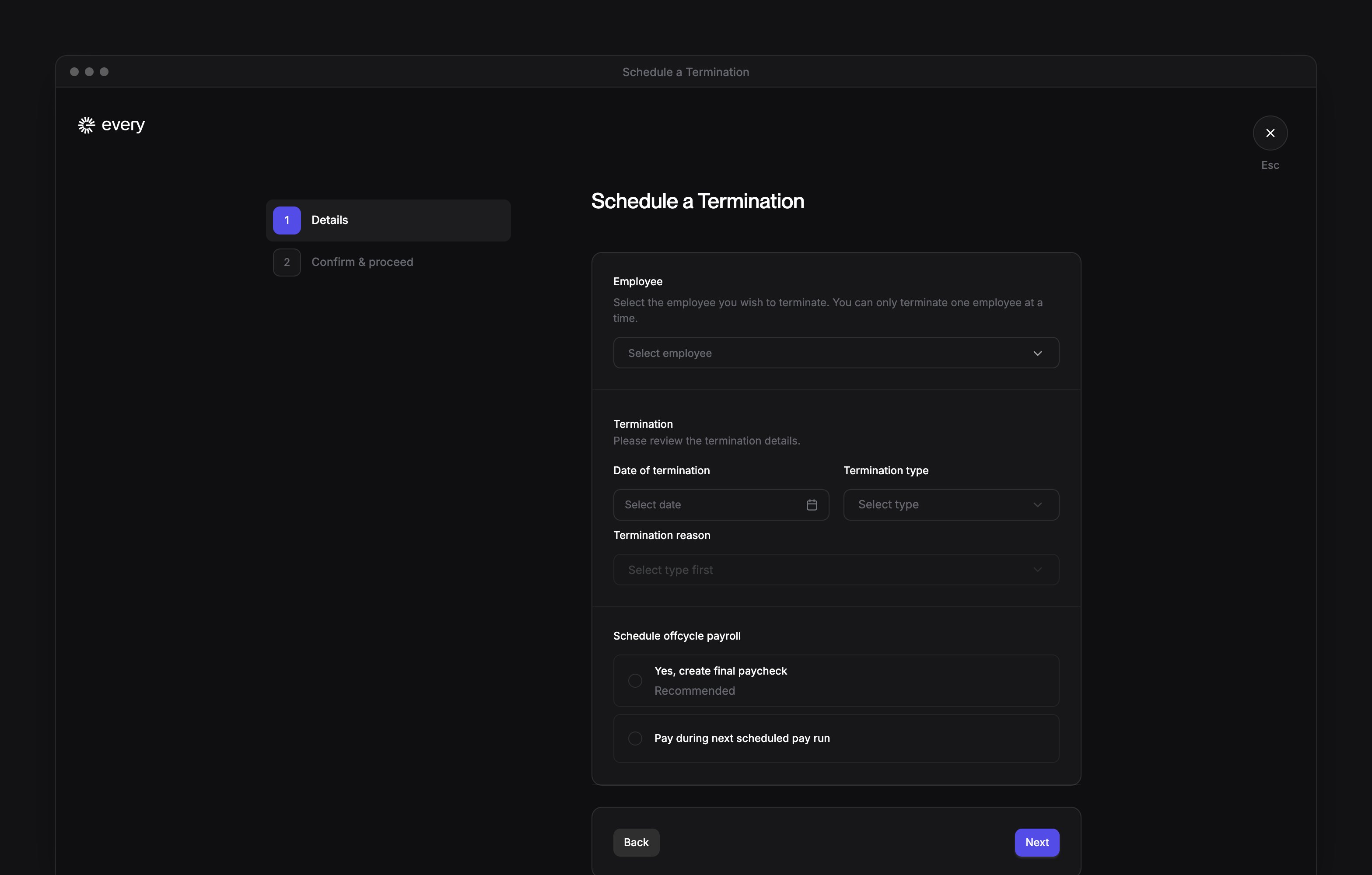
Choose the employee
In Employee, choose the person leaving. Your own name isn’t offered in the picker.
3
Enter a personal email
When Personal email or Personal email (optional) appears, enter the employee’s personal address. The field is required when your company has connected Okta. You can’t use an address someone else already uses to sign in to Every.
4
Enter the last day
In Date of termination, enter the employee’s last day.
5
Choose the type
In Termination type, choose the type.
6
Choose the reason
In Termination reason, choose the reason.
7
Enter notes for Other
If Termination reason is Other, in Notes enter an explanation.
8
Choose final pay
Choose one of the final-pay options offered for the employee’s pay run. The options depend on the last day, the run’s status and whether the employee is included. Before continuing, see Choose final pay.
9
Choose what happens to corporate cards
When the corporate-card choice appears, choose Yes, close the cards (recommended) or No, keep the cards active.
10
Continue
Select Next.
11
Choose primary managers when prompted
When Reassign direct reports appears, choose a new primary manager for each listed report.
12
Choose secondary managers
Optional: on Reassign direct reports, where a secondary-manager selector appears, choose a new secondary manager for that report.
13
Continue after reassigning reports
If Reassign direct reports appears, select Next to continue.
14
Choose a replacement signatory when prompted
When Choose a new signatory appears, in New signatory choose a person. The replacement takes effect when you confirm the termination, even if the last day is later.
15
Continue after choosing the signatory
If Choose a new signatory appears, select Next after choosing the replacement.
16
Review the termination
On Confirm & proceed, review Final day, Final payroll name and Access restricted in Every.
17
Confirm the termination
On Confirm & proceed, select Confirm & terminate.
Choose final pay
For a last day within the current regular pay period, the flow offers Yes, create final paycheck if the employee isn’t in that run. If that run includes the employee and has left Draft, Every doesn’t offer Yes, create final paycheck.
Return the current run to Draft
On Payroll → All pay runs, select the current run.
Make changes is unavailable on or after the Run by date. If the needed control isn’t available, email support@every.io.
After the run is in Draft, follow Schedule the termination from the first step. If you had already started this termination, choose the employee and enter their details again.
Submit the final-pay run
If you chose Yes, create final paycheck:1
Open the final-pay run
After you confirm the termination, on its completion screen select Go to Pay Run.
2
Check the dates
On the final-pay run, review Run by and Pay day.
3
Submit the run
Follow Run payroll to enter any remaining pay, preview the run and select Submit & schedule.