Manage your on My account → Integrations → MCP. These answers cover personal token connections.
What do I need before I connect?
What do I need before I connect?
You need AI chat access. Your Every roles determine which tools you can use.See Create a token for setup. For your own pay, benefits and time off, see MCP for employees.
How does my client connect?
How does my client connect?
Your MCP client sends a personal token with each request. On My account → Integrations → MCP, create the token and follow the instructions under Connect a client.
Can I limit a token to a data area?
Can I limit a token to a data area?
No. You cannot limit a personal token to selected tools. A token can use any MCP tool your company has that your Every roles allow.See Tools for the roles each tool requires. Revoke tokens you no longer use.
Can MCP change anything?
Can MCP change anything?
No. MCP is read only. A connected client cannot use MCP to move money, run payroll or edit records.
When does my token expire?
When does my token expire?
New tokens expire after the lifetime you choose: 90 days, 180 days or 1 year. The default is 90 days.The Expires column under Your tokens shows each token’s date. Create a replacement before the old token expires and update the MCP clients that use it.
How many tokens can I create?
How many tokens can I create?
You can have 10 active tokens per company. At the limit, revoke an existing token before creating another.
How do I revoke access?
How do I revoke access?
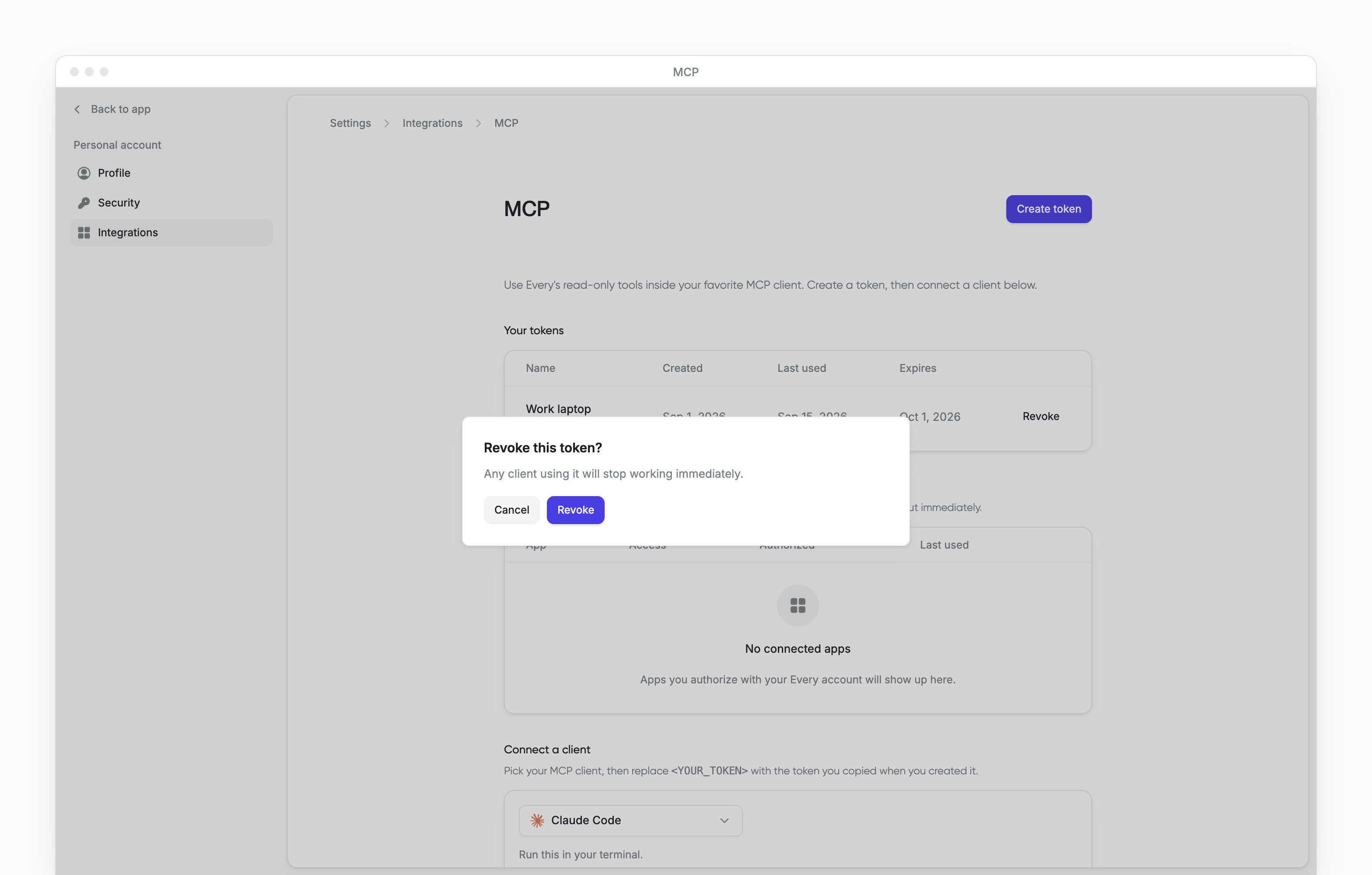
- On My account → Integrations → MCP, under Your tokens, select Revoke beside the token.
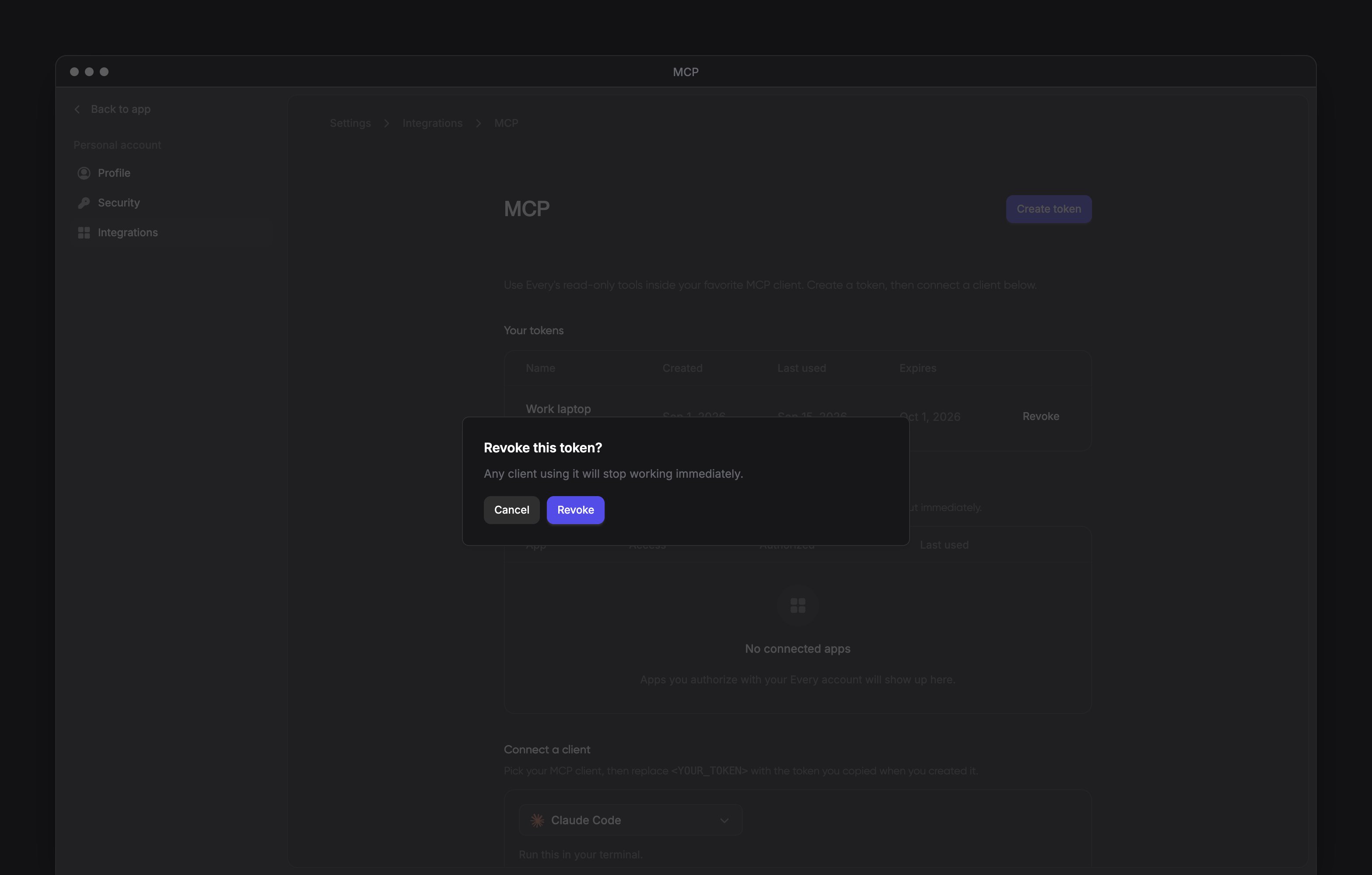
- In Revoke this token?, select Revoke.
I lost my token. Can I see it again?
I lost my token. Can I see it again?
No. Every shows the token only once, when you create it. Revoke the lost token and create a replacement.
Why do I see invalid_token?
Why do I see invalid_token?
HTTP
401 with invalid_token means the request did not pass MCP authentication. Check that your MCP client sends the token you created in Every.The response description reads “A valid access token is required to use the Every MCP server”.You also see it when the token expired or was revoked, or your access to Every, MCP or AI chat changed. If a new token still fails, email support@every.io.I connected, but I see no tools. What should I do?
I connected, but I see no tools. What should I do?
Check which tools your Every roles allow. Your client lists only the tools your company has that your roles allow.If an expected tool is missing, email support@every.io.
Why do I see "Invalid arguments"?
Why do I see "Invalid arguments"?
The tool rejected the inputs your MCP client sent. The message starts with “Invalid arguments for” and includes the tool name and error details. Ask your MCP client to correct the inputs, such as a missing date range, and try again.
Are there request limits?
Are there request limits?
Yes. Too many requests return HTTP
429. Wait for the Retry-After time before retrying.Why is Last used older than my last request?
Why is Last used older than my last request?
Last used can lag a few minutes behind your latest request. The timestamp is not a log of each request.