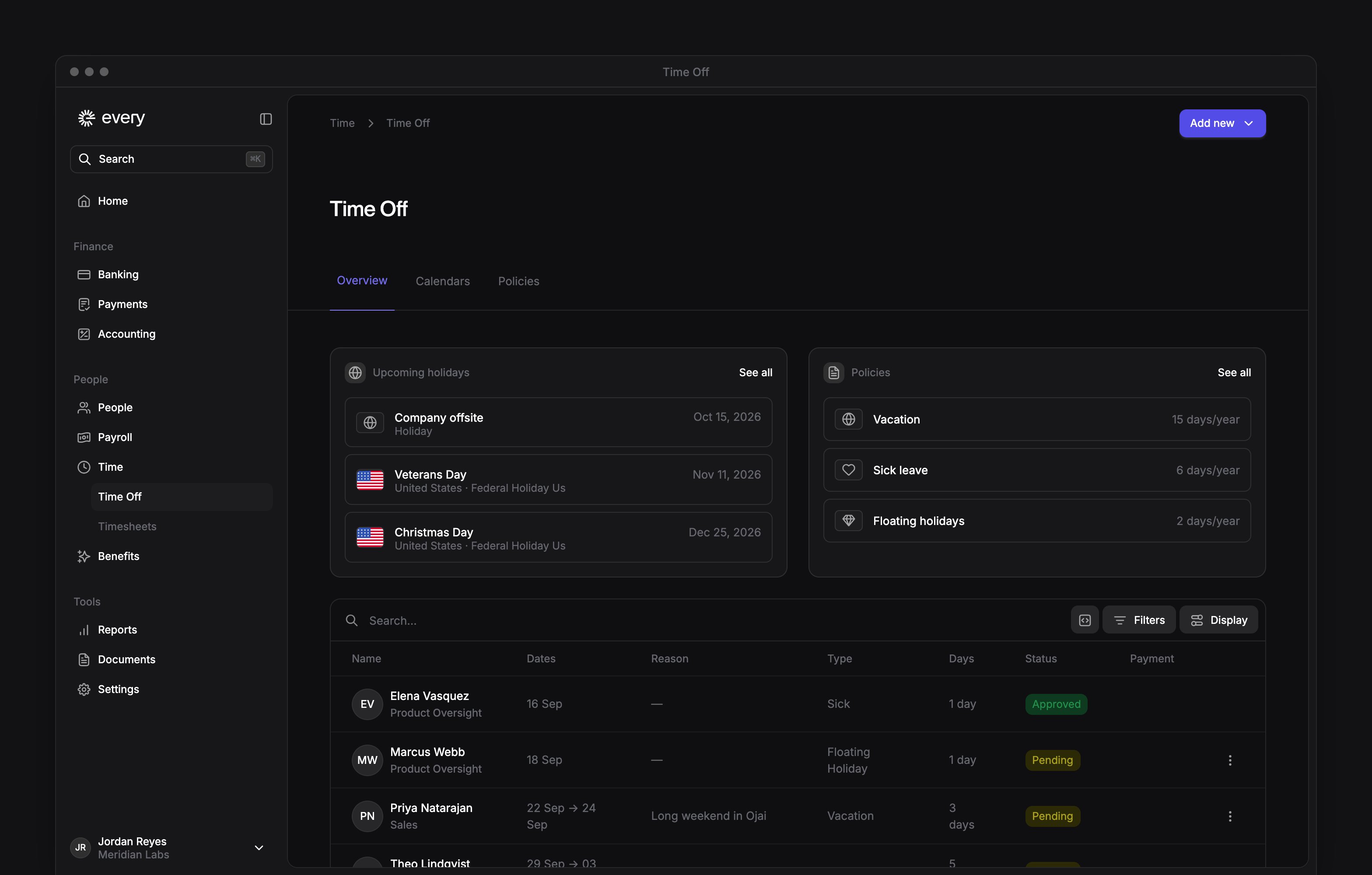
Time → Time Off shows upcoming requests, holiday calendars and time off policies.
Company Admins and HR Admins manage time off, and managers review their team’s requests. Time Off appears once payroll is set up and your company has finished onboarding. Each employee requests their own time off on My profile (see Request time off).
Time → Time Off shows upcoming requests, holiday calendars and time off policies.
Company Admins and HR Admins manage time off, and managers review their team’s requests. Time Off appears once payroll is set up and your company has finished onboarding. Each employee requests their own time off on My profile (see Request time off).
Every turns on time off company by company. If you don’t see it, email support@every.io to ask about it.
Review your team’s requests
Once your company has a policy, Overview lists requests that end today or later. The list shows each person’s dates, reason, policy type, days, approval status and payment status. Company Admins and HR Admins see requests across the company. Managers review requests from direct and indirect reports. For managers, Time Off appears in the sidebar once a direct or indirect report is covered by an active policy. The Policies card on Overview lists the policies covering those people. Before a policy is created, Company Admins and HR Admins see Get started on Overview. Select it to open the policy form. For eligibility, accrual and approval rules, see Set up time off policies.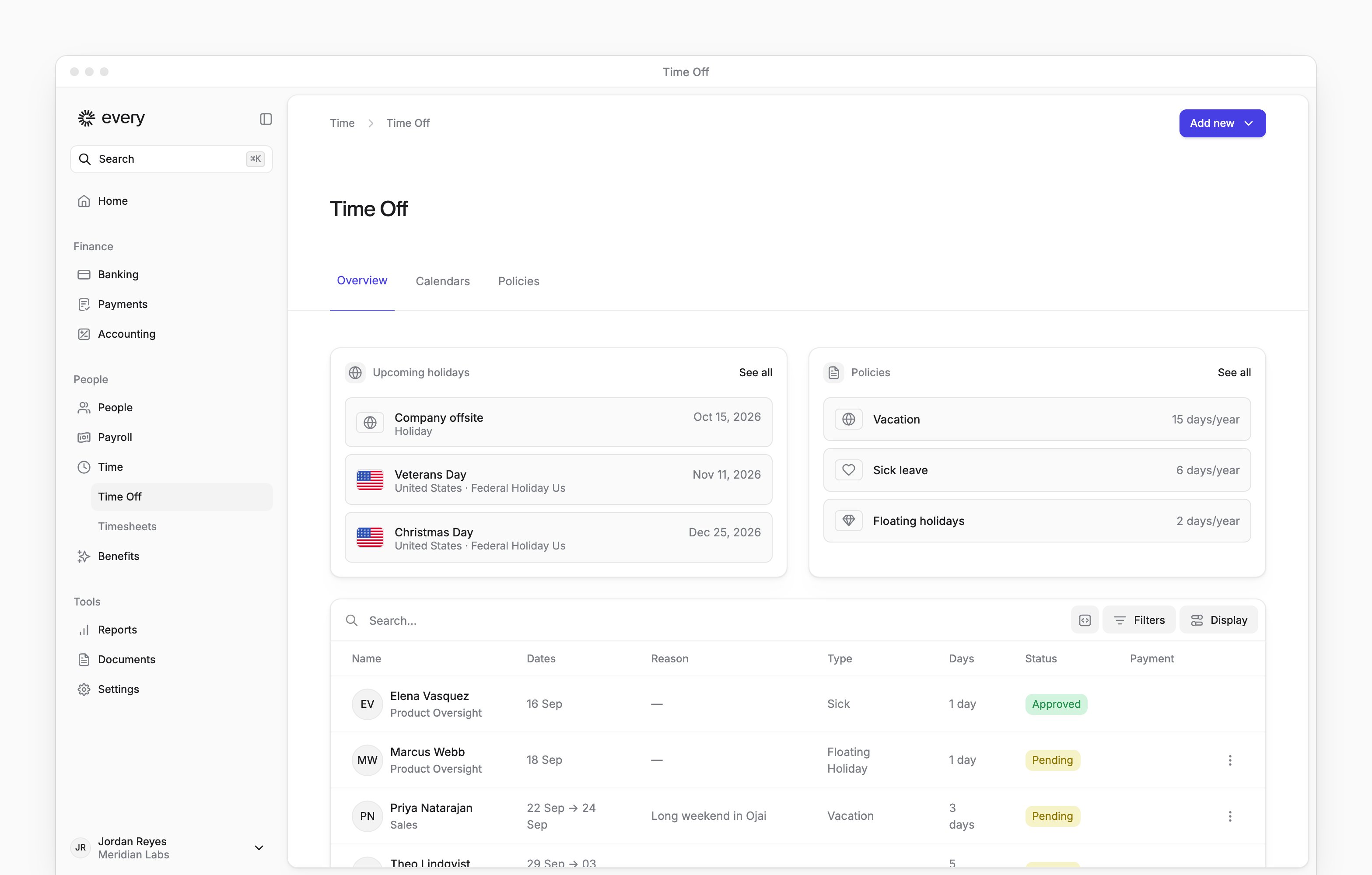
Approve or deny a request
1
Find the request
On Overview, find the pending request you want to review.
2
Choose your decision
Open the request’s menu and select Approve or Deny.
3
Give a reason to deny
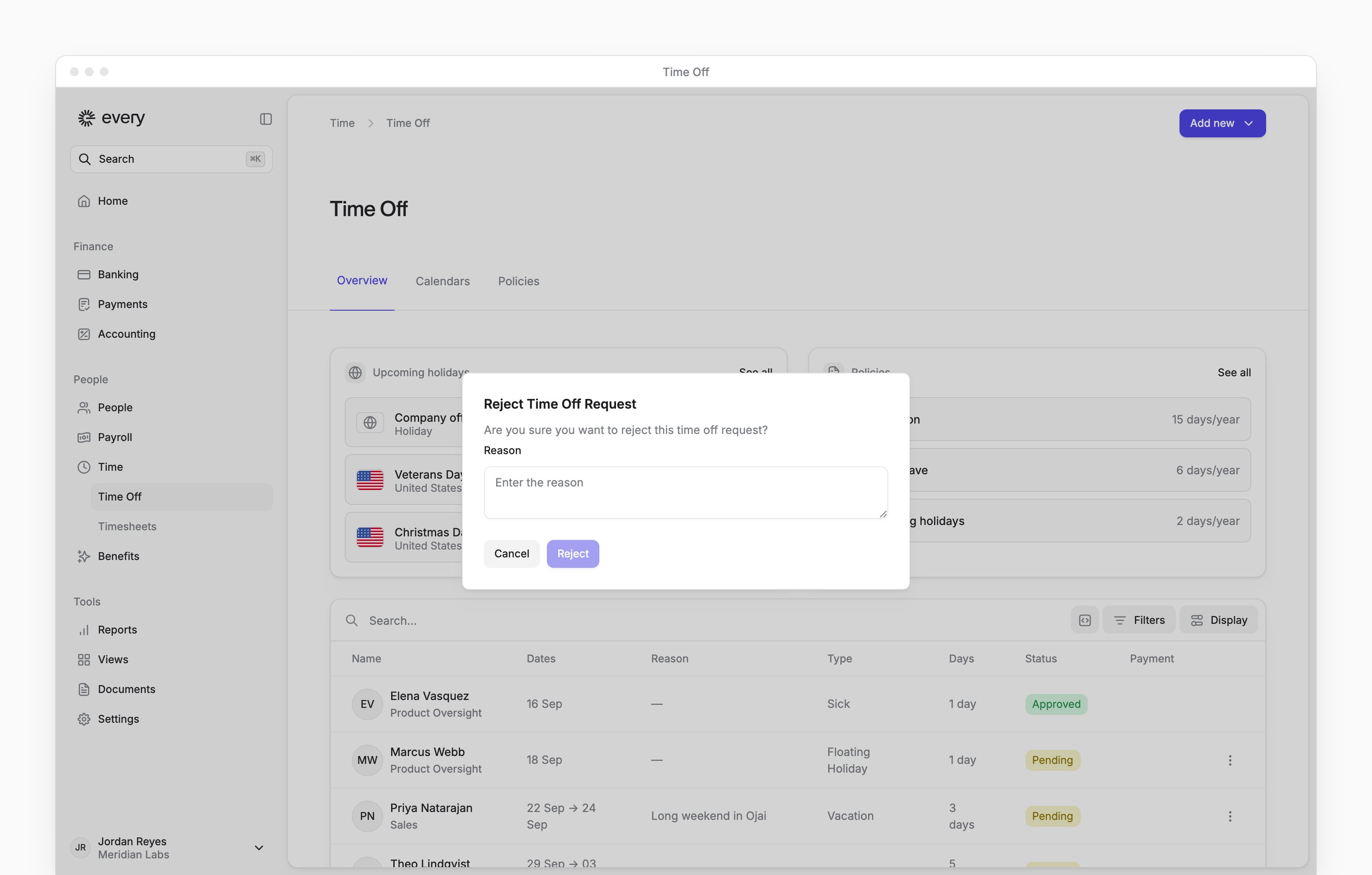
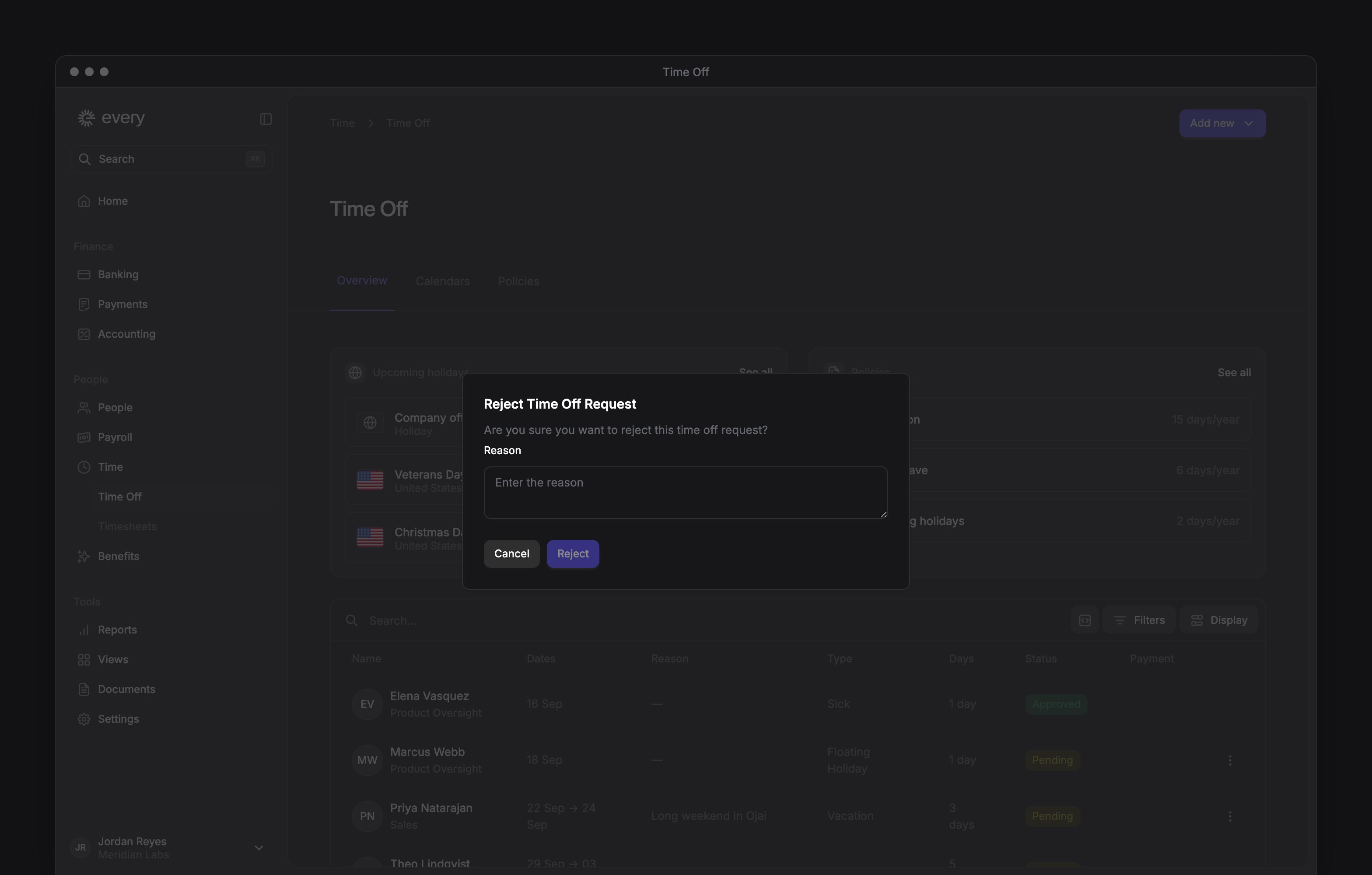
To deny, enter a Reason in Reject Time Off Request.
4
Confirm your decision
Select Approve or Reject.
1
Open the to-do
On Home, open the time off approval to-do.
2
Choose your decision
In Time off request, select Accept or Reject.
3
Give a reason to reject
To reject, enter a Reason in Reject Time Off Request.
4
Confirm your decision
Select Approve or Reject.
Edit or cancel a request
Open the request’s menu on Overview:- Edit request lets Company Admins and HR Admins change the request’s dates. Select Save to apply the changes.
- Cancel request lets Company Admins, HR Admins and the employee’s managers cancel the request. Confirm with Cancel request.
Manage holiday calendars
Company Admins and HR Admins create and edit calendars from Time Off.1
Open a new calendar
Select Add new → Calendar.
2
Choose the calendar type
Choose Country based and select a Country, or choose Custom.
3
Name the calendar
Enter the Calendar name.
4
Choose the year
For a custom calendar, choose the Year beside the name.
5
Choose whether to publish
Turn on Publish to make the calendar active, or leave Publish off to save a draft.
6
Review the holidays
Turn each holiday’s status switch on or off.
7
Open the holiday form
For a custom calendar, select Add new holiday.
8
Enter the holiday
In Add new holiday, enter the Title and choose the Date.
9
Add the holiday
Select Add.
10
Save the calendar
Select Save.
1
Open the calendar
On Calendars, select the calendar’s row.
2
Update the calendar
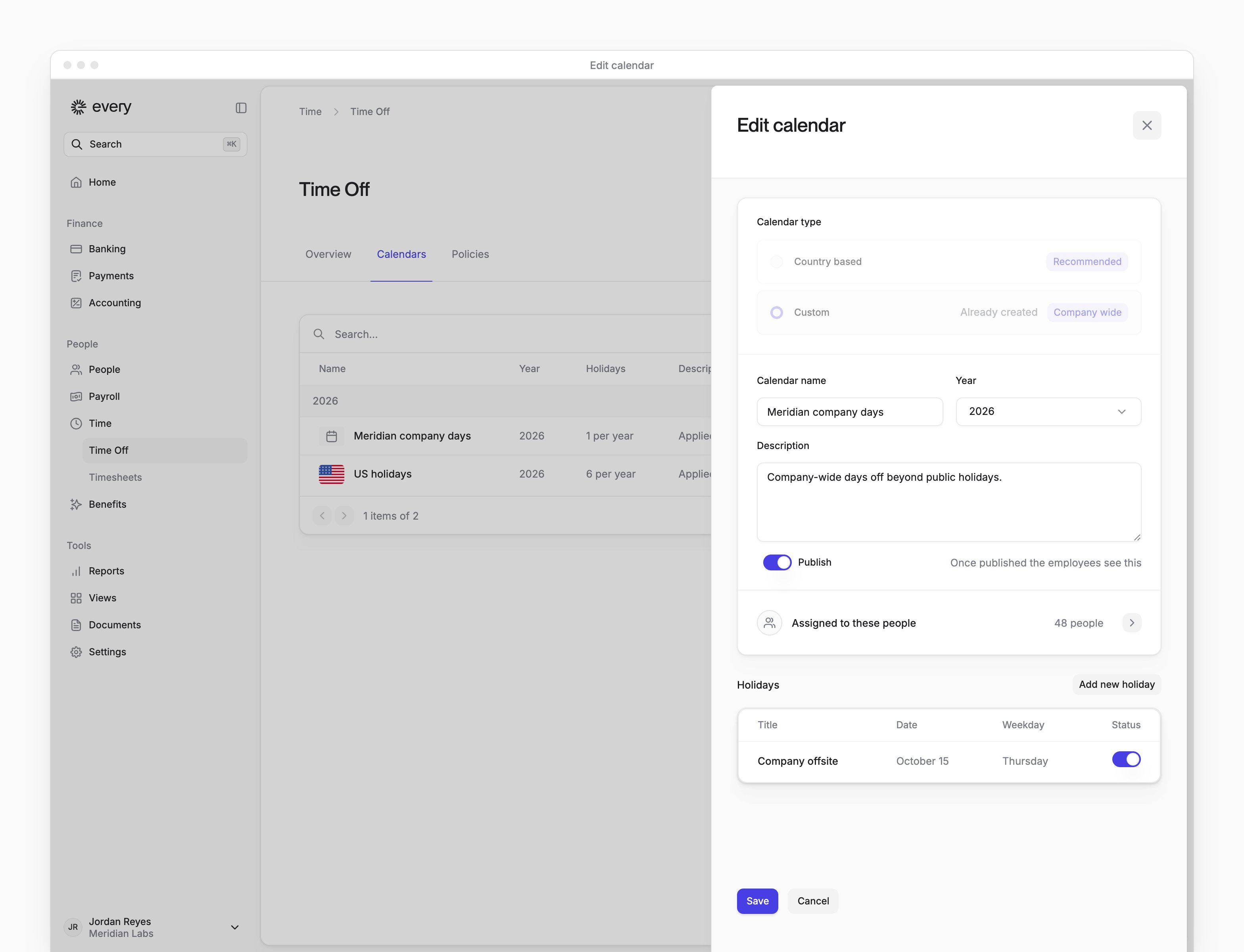
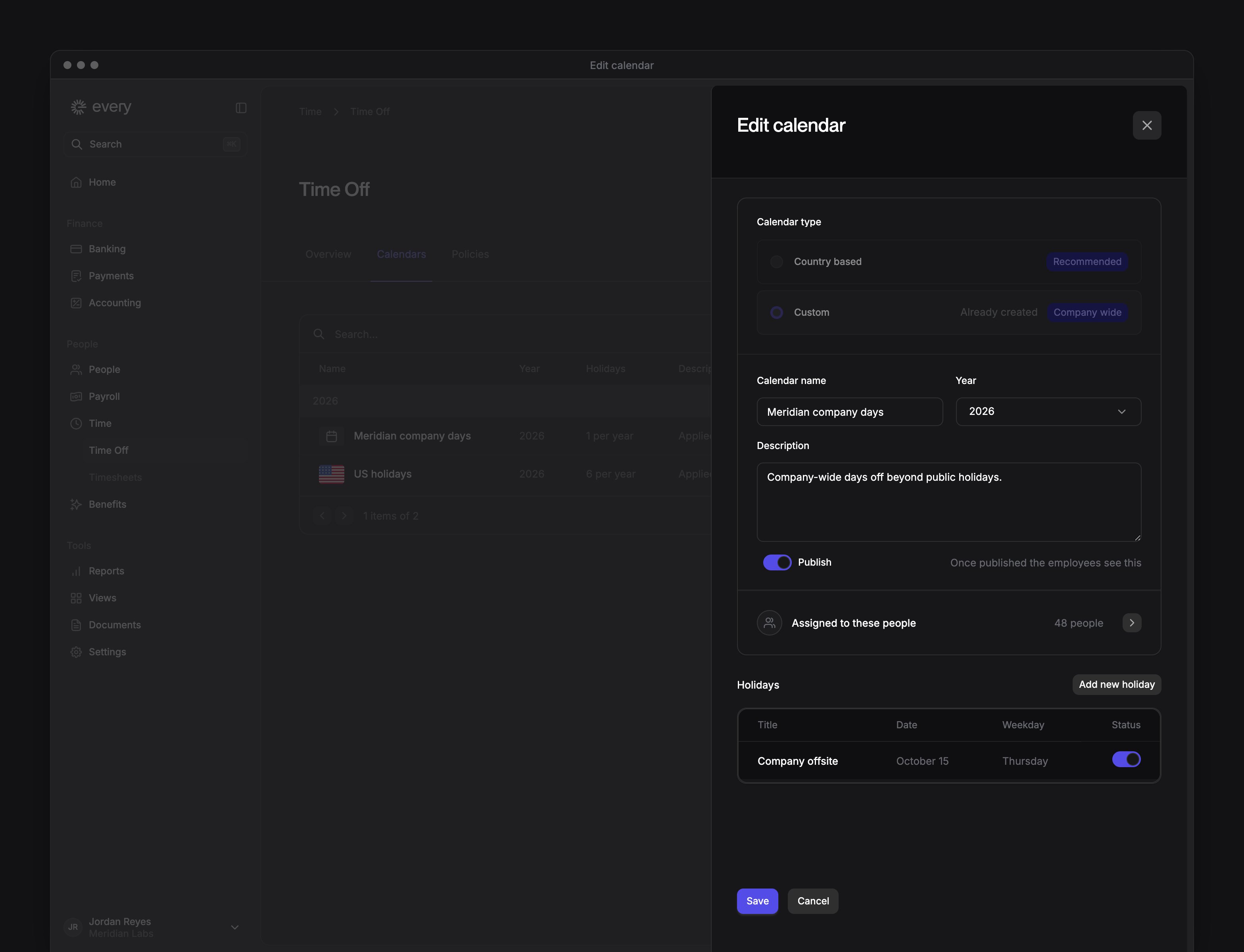
In Edit calendar, turn Publish or each holiday’s status switch on or off.
3
Save the calendar
Select Save.
Review and adjust a balance
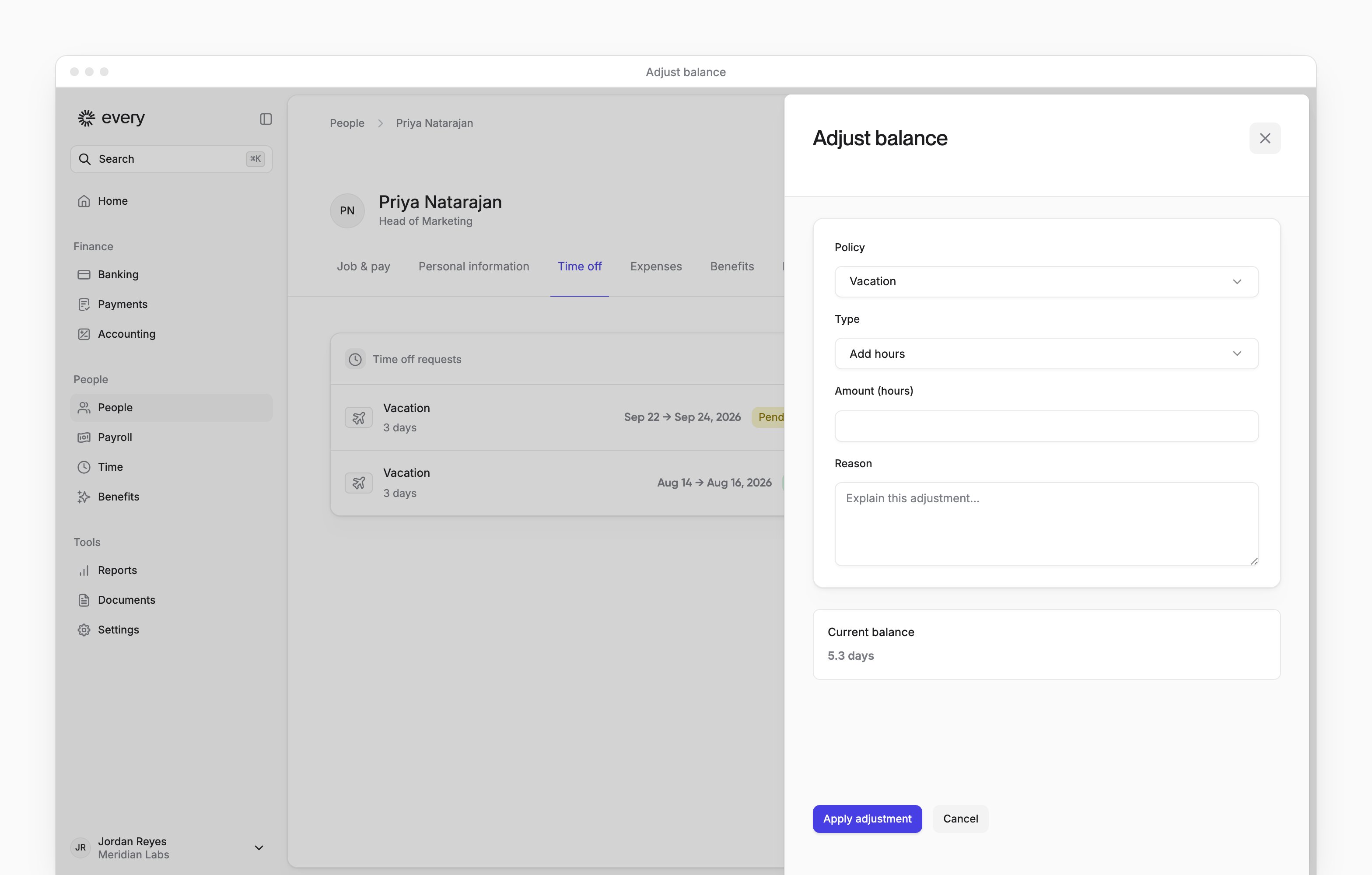
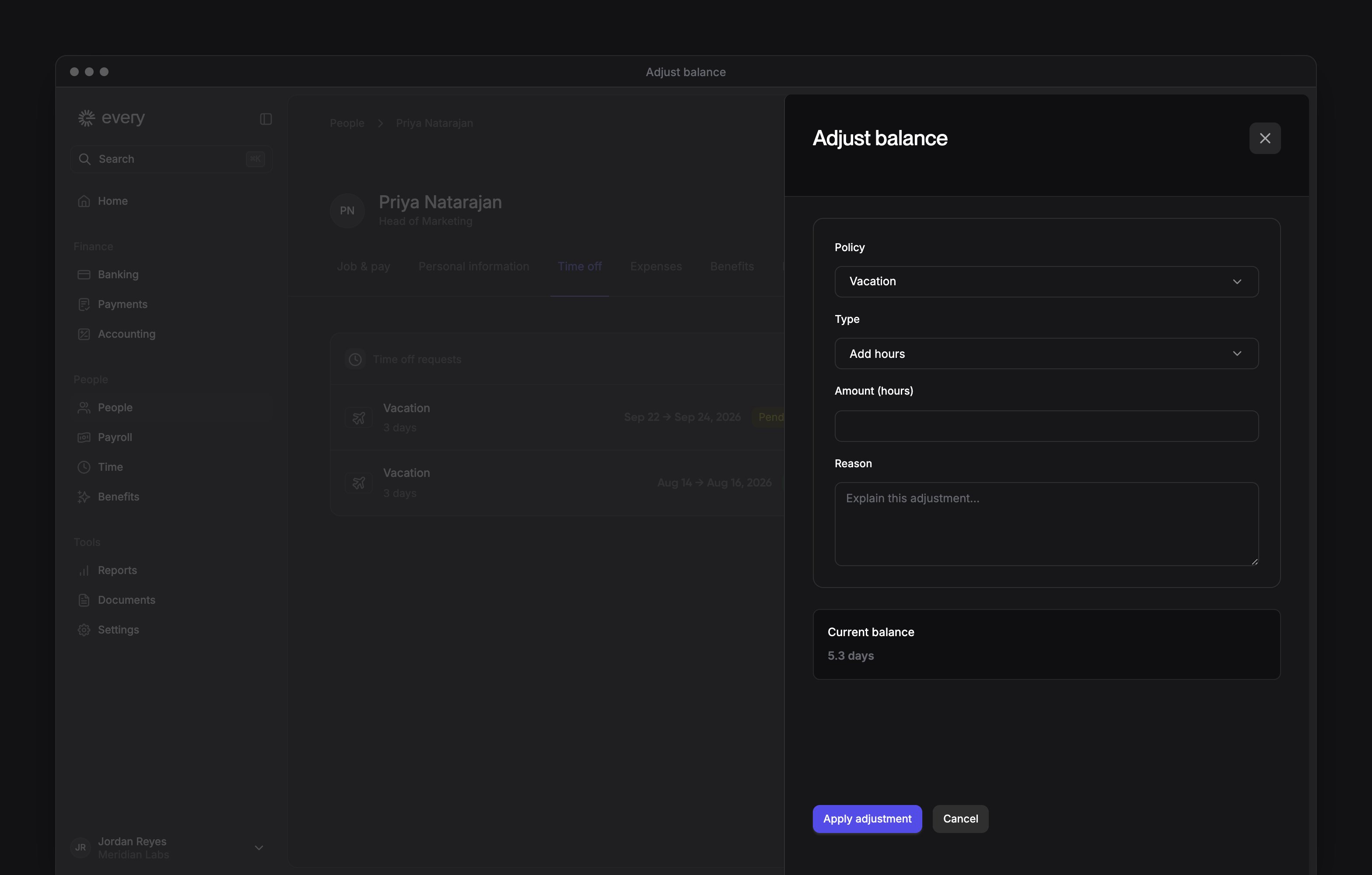
Time off balances on an employee’s profile shows the employee’s policies and balances. Company Admins and HR Admins can adjust another employee’s balance on a limited policy. You can’t adjust your own balance, and a terminated employee’s time off is read-only.1
Open the employee's profile
On People, open the employee’s profile (see All People).
2
Open their time off
Select the Time off tab.
3
Open the adjustment
Under Time off balances, select Adjust.
4
Choose the policy
Choose the Policy.
5
Choose the direction
Under Type, select Add hours or Subtract hours.
6
Enter the hours and reason
Enter a positive Amount (hours) and a Reason.
7
Apply the adjustment
Review the current balance and the new balance, then select Apply adjustment.