


 Ask a vendor to enter their own and bank details instead of typing them in yourself. Every emails the vendor a link to a form, and what they submit is saved on the vendor in Payments → Vendors. Company Admins and Bookkeepers can ask once your company has finished onboarding, and so can Accounts Payable users once Every has turned that role on for your company.
Before you begin
You need the vendor’s email address. To ask for bank details you also need a payment to send, because that request starts in Send money.Ways to ask
All four send the same invitation, and the vendor fills in the same form.
Ask from Vendors
1
Open the row menu
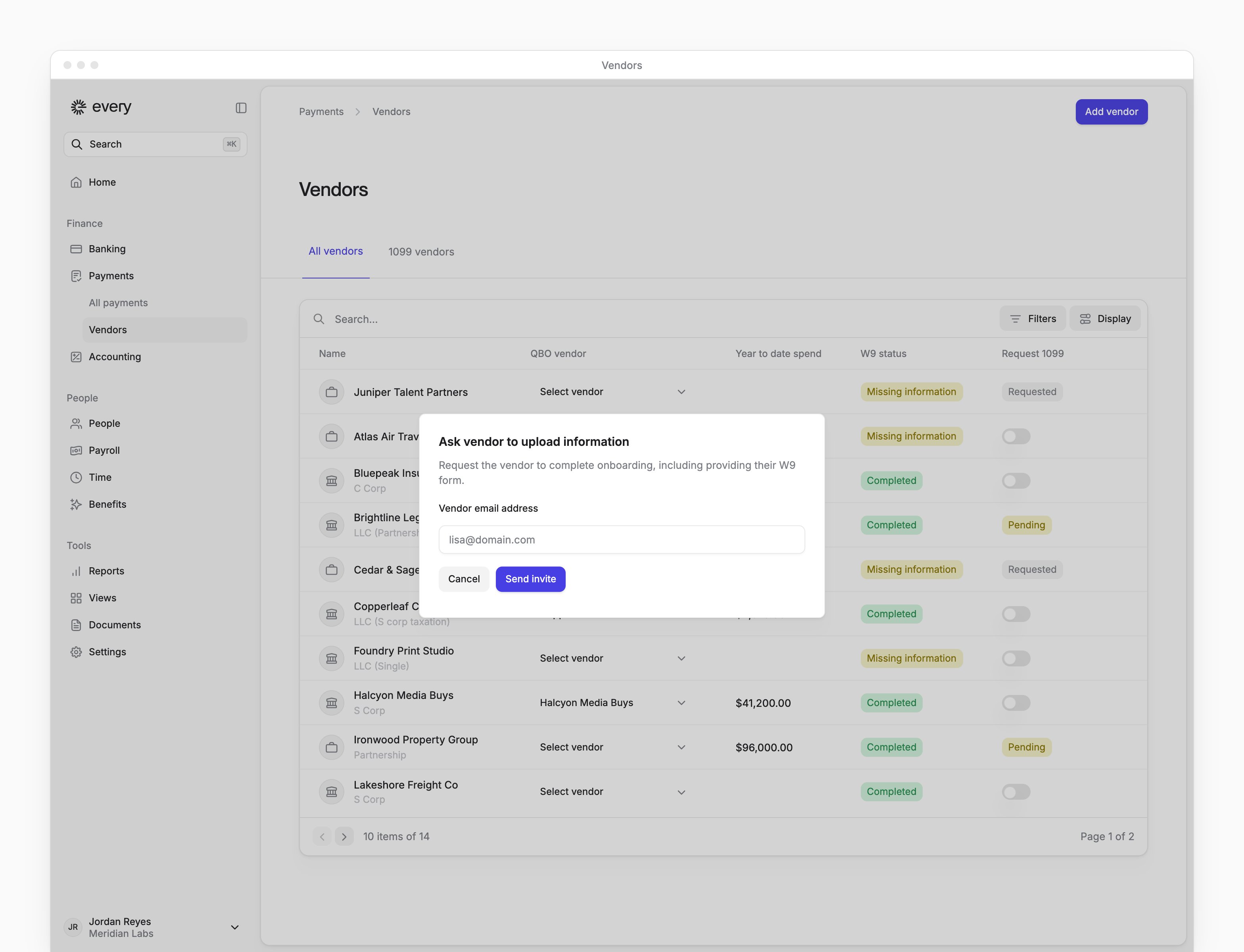
Go to Payments → Vendors, hover over the vendor’s row and open its menu. Select Request vendor information.
2
Enter the vendor's email
In Ask vendor to upload information, enter the Vendor email address.
3
Send the invitation
Select Send invite. Every saves the address on the vendor and emails them the link.

Ask from a vendor’s details
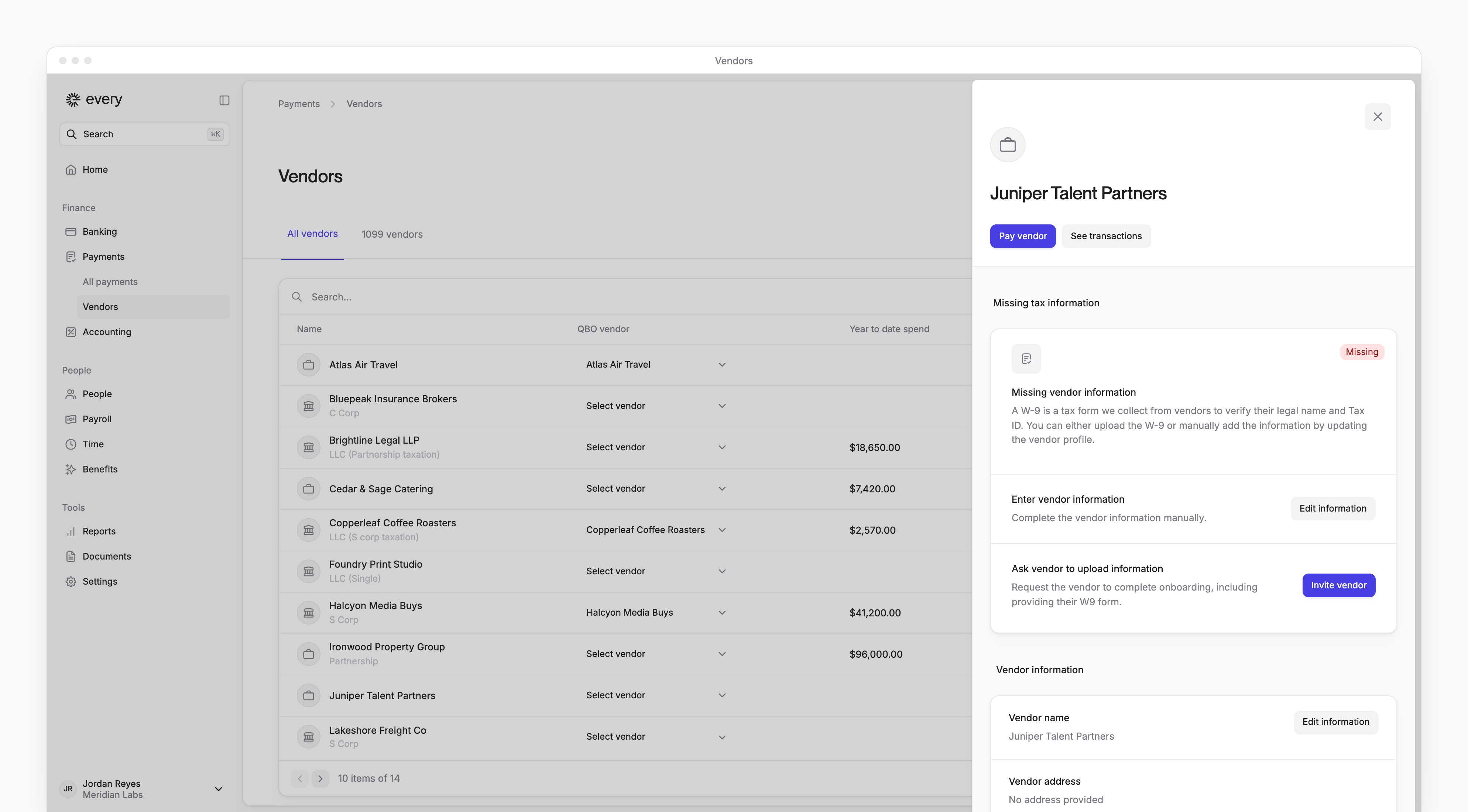
While a vendor’s tax details are incomplete, their details show a Missing tax information card.1
Open the vendor's details
Go to Payments → Vendors, open the vendor’s row menu and select Edit vendor.
2
Invite the vendor
On the Missing tax information card, select Invite vendor.
3
Enter the vendor's email
Enter the Vendor email address.
4
Send the invitation
Select Send invite. The card then reads Vendor invited, with Remind vendor beside it.

Ask while sending a payment
Send money can send the same invitation in two ways. For the rest of the flow, see Send money.- For a W-9: on Accounting Details, Yes, I want Every to collect a W-9 is selected by default. Keep it and enter the Vendor Email. If the payment has no approvers, Every sends the invitation when you confirm the payment. Send money stops asking the W-9 question for a vendor once you’ve answered it or invited them.
- For bank details: on the Recipient Account step, Request from vendor shows when Every has no saved bank accounts for the vendor. Select it and enter the Vendor Email. The payment goes by . If it has no approvers, Every sends it automatically once the vendor adds their bank details, unless it is scheduled for a later date.
What the vendor sees
The vendor opens the link without signing in. They see either a step-by-step form or a single-page form headed Welcome, let’s get you paid, which asks for the same details. The step-by-step form has up to five steps:
After Submit, the vendor sees Vendor onboarding complete.
If a vendor’s link doesn’t work, select Remind vendor to email them a fresh link. On the step-by-step form, a vendor who sees Invalid onboarding link can also select Resend email.
What happens when the vendor submits
- Every saves the vendor’s name, entity type, TIN, TIN type, address, legal services answer and W-9 on the vendor.
- W9 status on Vendors changes to Completed, and the Missing tax information card goes away.
- If a payment with no approvers is waiting on the vendor’s bank details, Every attaches the bank details to the payment and sends it, unless it is scheduled for a later date.