Company Admins and HR Admins change job titles and pay from a person’s profile in People. Select Actions → Edit compensation to start.
Every turns on pay schedule and cycle start date options for compensation changes company by company. If you don’t see them, email support@every.io to ask about them.
Before you begin
- You need the Company Admin or HR Admin role. People appears once payroll is set up and your company has finished onboarding.
- Choose a person whose onboarding is complete. Selecting someone still onboarding opens their hire flow instead of their profile.
- Choose someone who hasn’t been terminated. A terminated person’s profile doesn’t show Actions.
- While a termination or contractor-to-employee conversion is scheduled, you can’t open the Jobs & Pay editor through Edit compensation. The action opens the Job & pay tab.
Update the job and pay
1
Open the profile
On People, select the person.
2
Open the positions
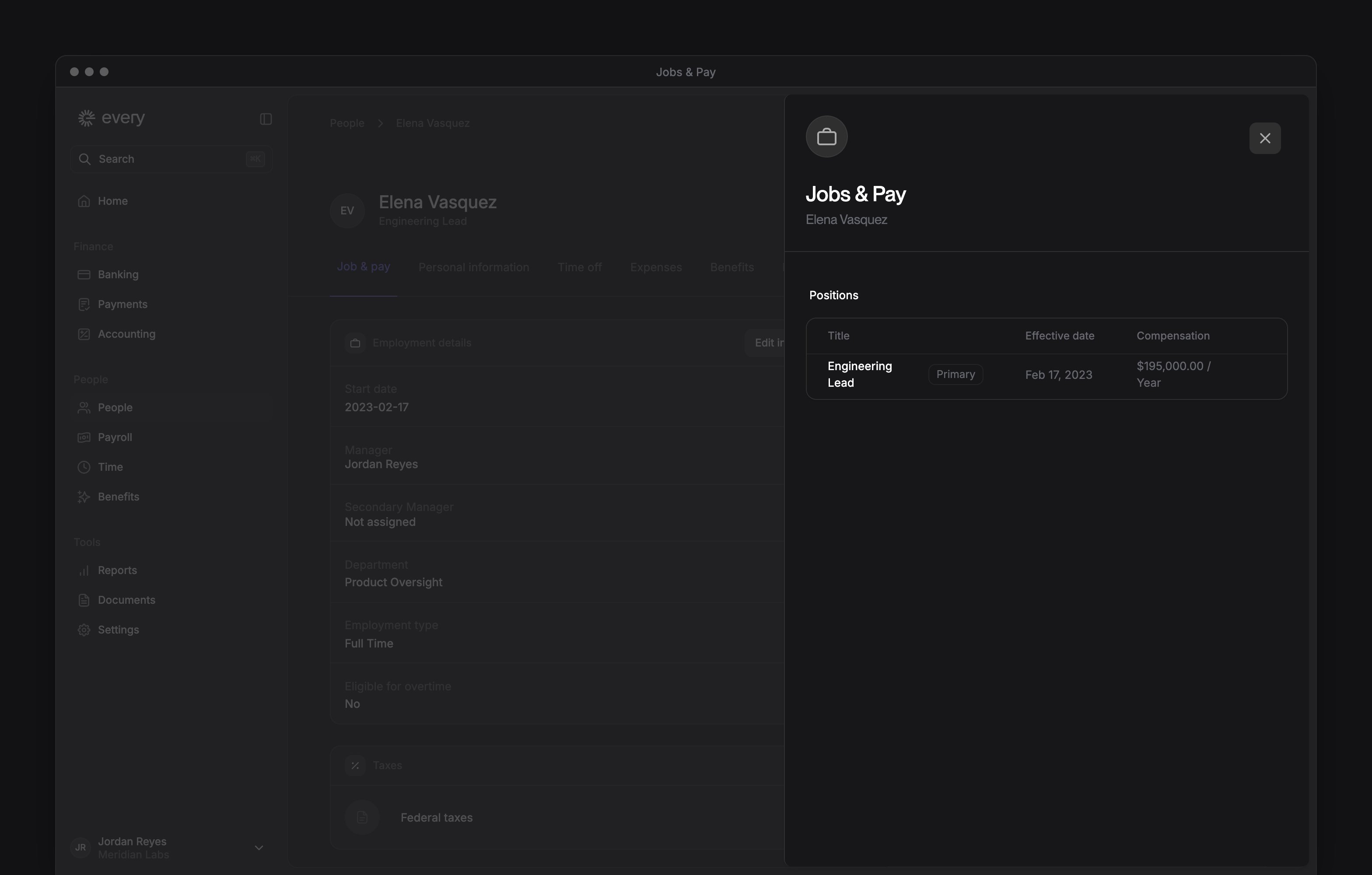
On the profile, select Actions → Edit compensation. Jobs & Pay opens on the Job & pay tab.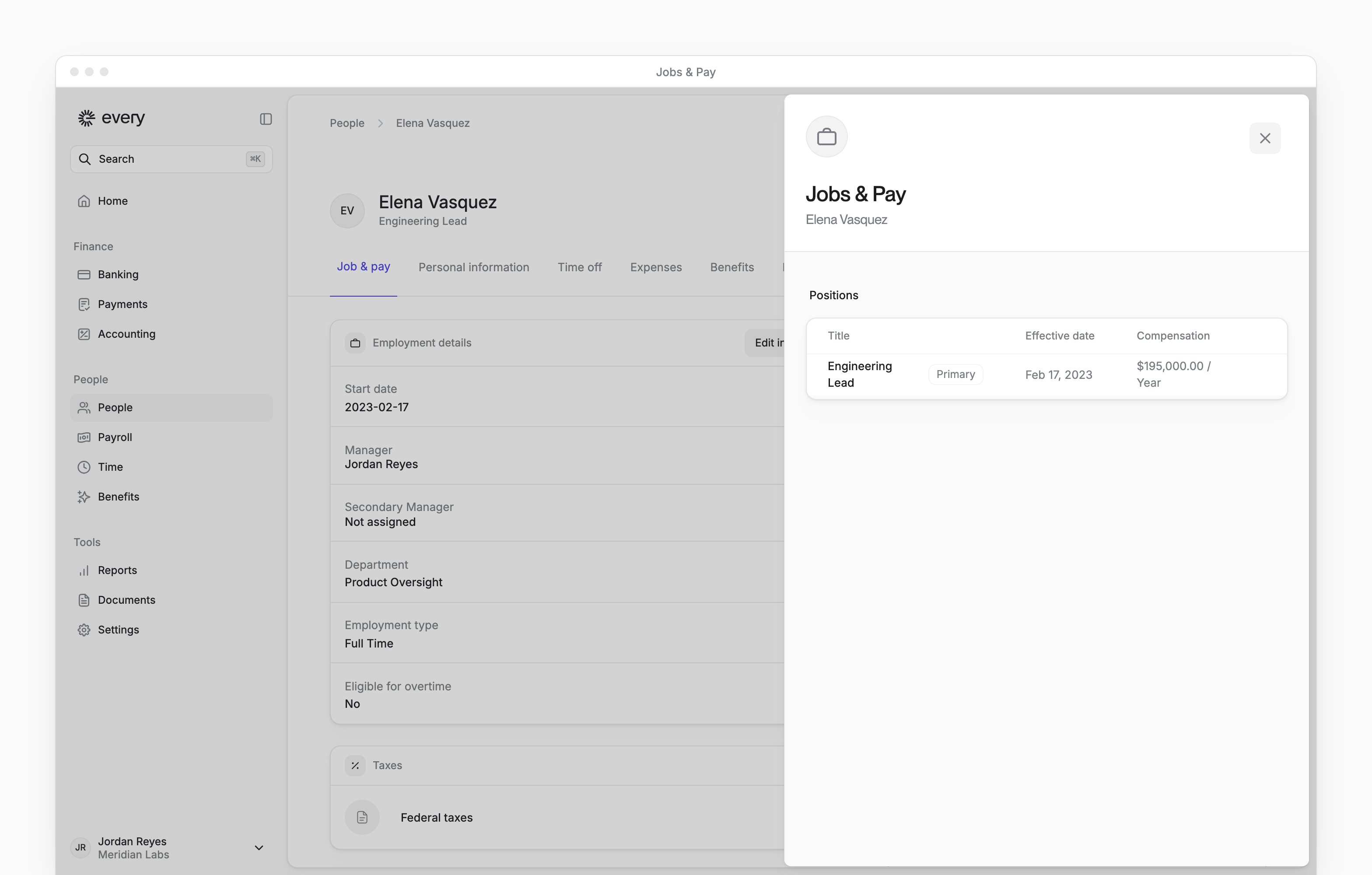
3
Choose the position
Under Positions, open the position’s row menu and select Edit job.
4
Update the job
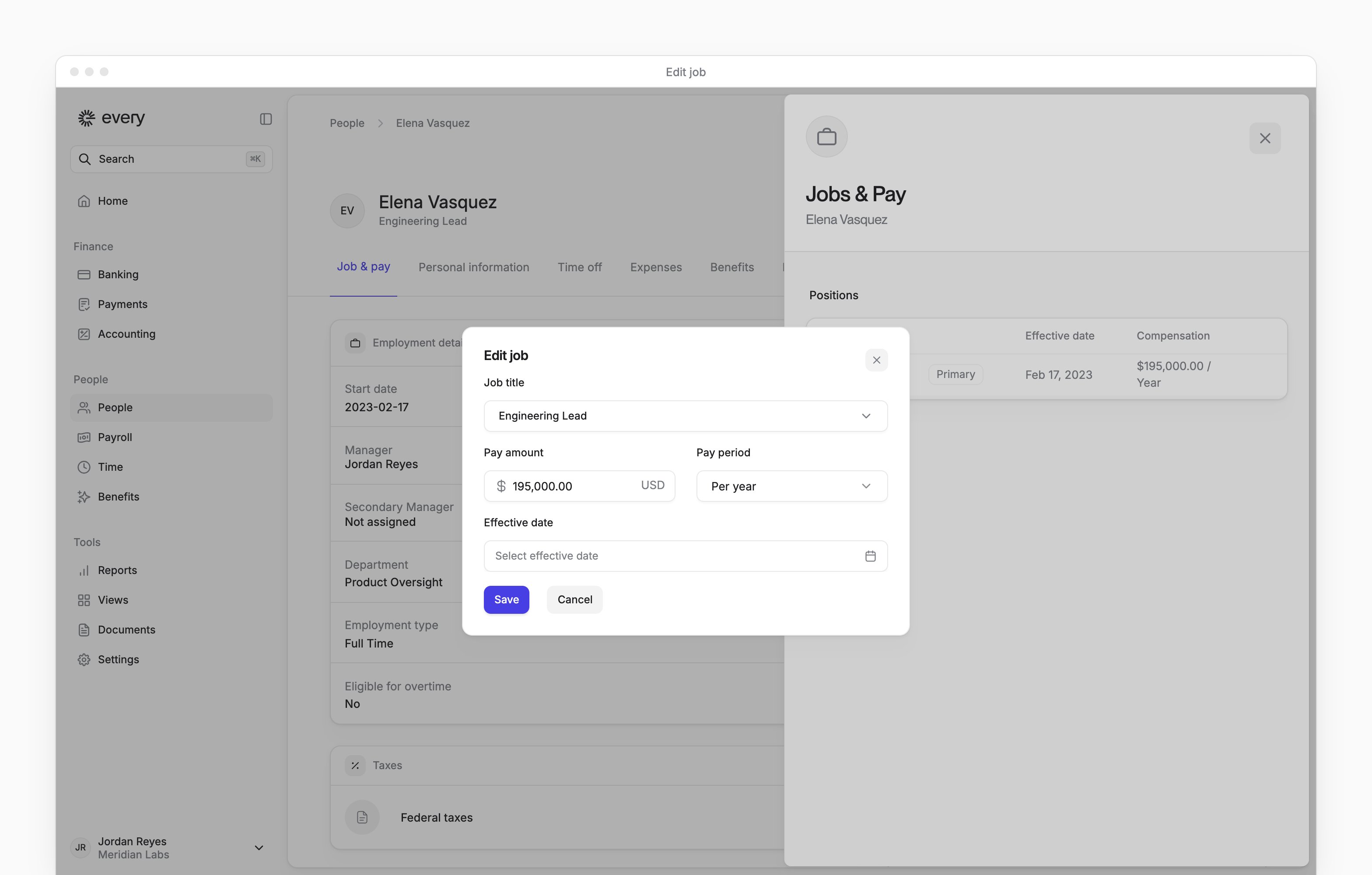
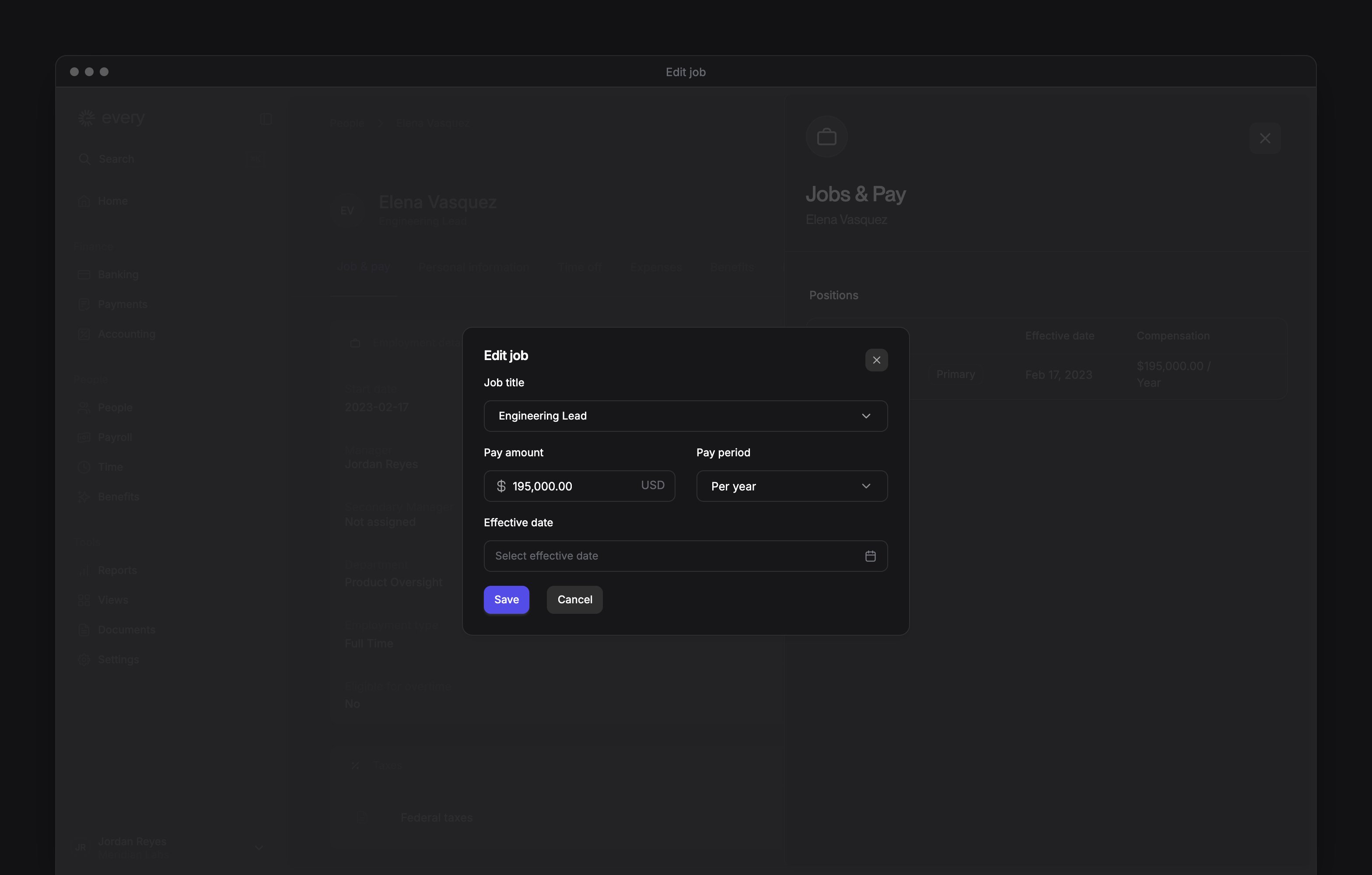
In Edit job, update Job title, Pay amount, Pay period or, when it appears, Currency.
5
Choose a schedule when prompted
When New pay schedule appears, choose one of the offered schedules.
6
Set the effective date
In Effective date, choose the date the change takes effect, or one of the cycle start dates it offers. When the field is disabled, the date is set for you: check it before you save.
7
Save the change
In Edit job, read any payroll guidance the dialog shows, then select Save.
8
Confirm the change
If Confirm changes opens, select Continue.