


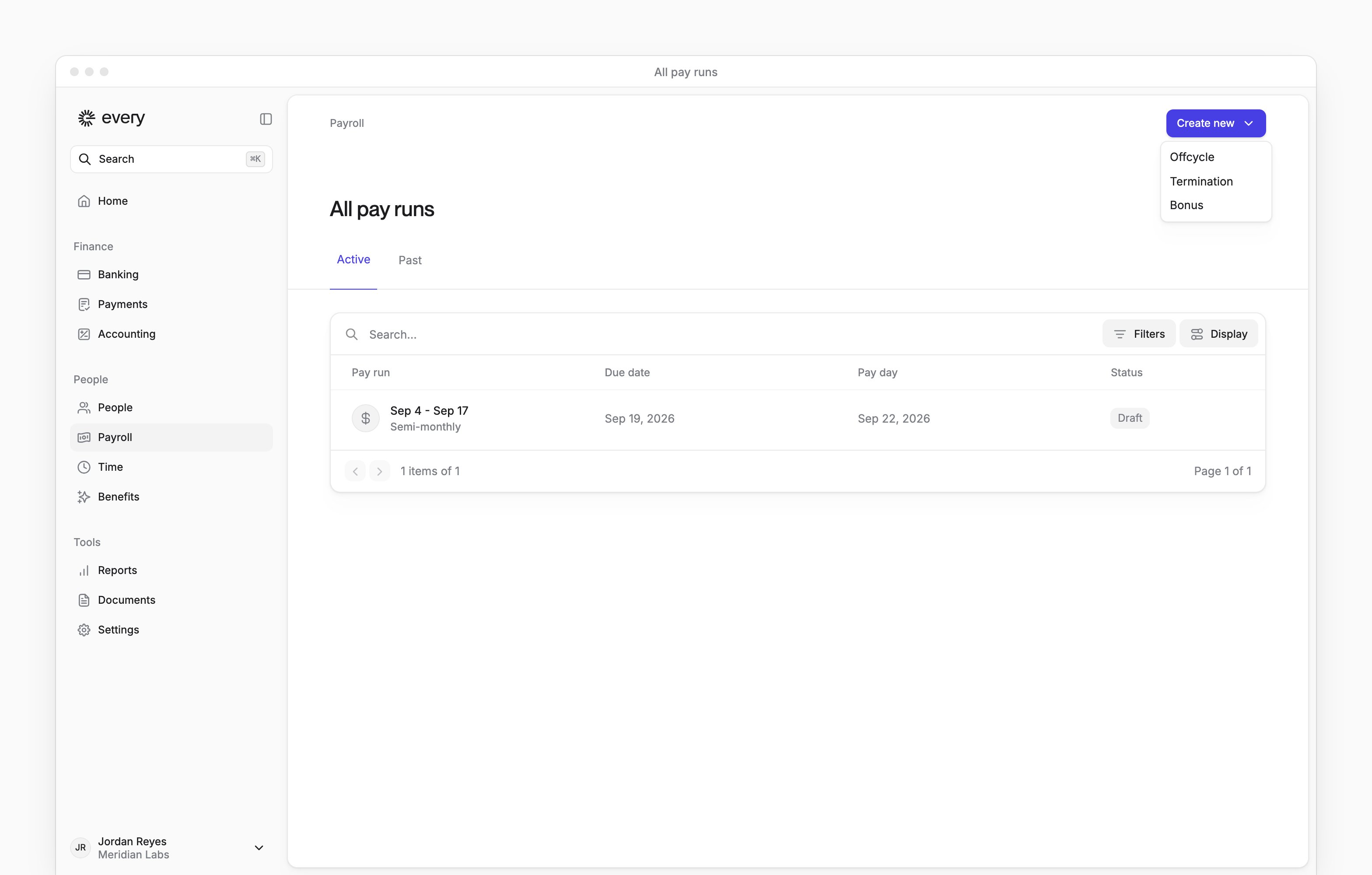
 Use Payroll → Create new to make an extra pay run or replace someone’s regular pay. Company Admins and HR Admins can choose Offcycle or Bonus. A bonus run also asks how to handle .
Before you begin
Finish payroll onboarding so Create new appears on All pay runs. Choose who you need to pay and whether the run adds to or replaces their regular pay. For an employee’s final paycheck, use Run a termination payroll.Create the pay run
1
Choose the type of run
On All pay runs, select Create new → Offcycle or Create new → Bonus.
2
Name the run
In Pay run name, enter a name you can recognize later.
3
Choose the payday
In Payday (mm/dd/yyyy), choose an available date at least 3 business days after today.
4
Choose how to handle benefits
Choose whether the run includes standard benefits and :
- Yes, omit standard benefits: use this when the pay is additional to regular pay. Benefit costs stay in the regular pay run.
- No, include standard benefits and garnishments: use this when you removed someone from a regular run and are paying them in this run instead.
5
For a bonus, choose withholding
In Bonus withholding, choose 22% Supplemental Tax Rate or Regular W-4 Tax Rate. You can edit each person’s pay types after creating the run.
6
Create the run
Select Submit.
7
Open the run
When Pay run created appears, select Done to open the run and enter pay information.
Add people
An off-cycle or bonus run starts with Draft status. On a Draft or Failed run:1
Open Add employees
On the pay run, select Add people.
2
Choose the people
In Add employees, search for and select each person to pay.
3
Add them
Select the button that shows how many employees you’re adding.